SharePoint Copilot Readiness Checklist for 2026
The governance and data-quality steps every organisation must complete before enabling Copilot — so the AI finds the right content and never surfaces what it shouldn't.
The governance and data-quality steps every organisation must complete before enabling Copilot — so the AI finds the right content and never surfaces what it shouldn't.
This SharePoint Copilot readiness checklist is designed for teams preparing Microsoft 365 Copilot rollout in production. Copilot relies on Microsoft 365 Graph permissions, so weak access control or stale content leads to oversharing risk and low-quality answers. Use this guide to execute remediation in order: permissions cleanup, sharing control, Restricted SharePoint Search, and sensitivity labeling before broad enablement.
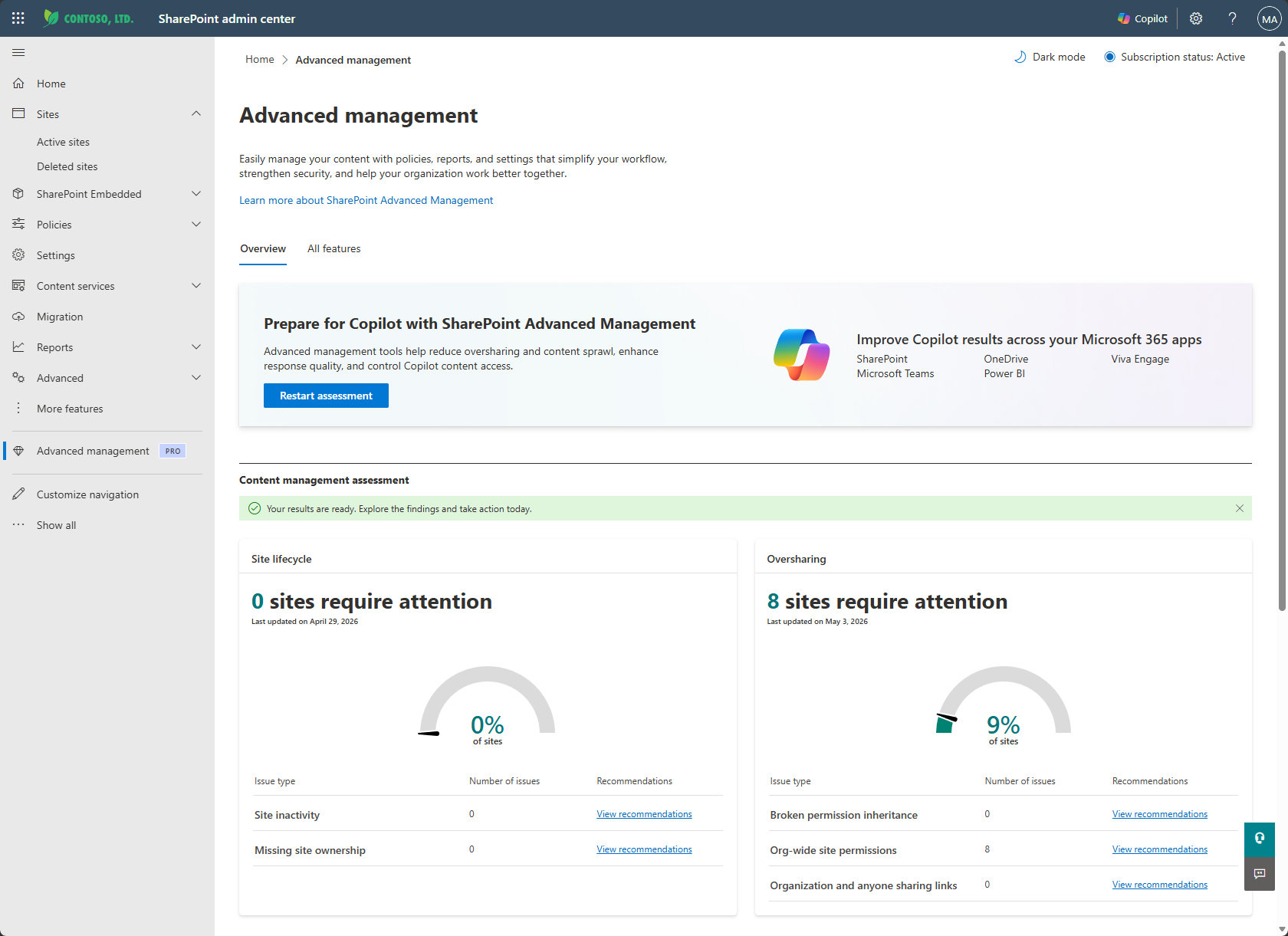
Why this matters: Copilot respects M365 permissions exactly. If a user has access to a file through an overly broad sharing link or an overpermissioned SharePoint group, Copilot will include that file's content in responses to that user's queries — even if the access was never intentional. Fixing permissions before Copilot launch is not optional.
SharePoint Advanced Management (SAM) provides governance tools that help administrators understand and remediate oversharing at scale. It is available as a standalone SharePoint Advanced Management add-on, and many SAM capabilities are also included for Microsoft 365 Copilot licensed environments. Before enabling Copilot for any user, run a full oversharing assessment using SAM's built-in reports where your licensing allows it.
Not all oversharing is equally risky for Copilot. Prioritise in this order:
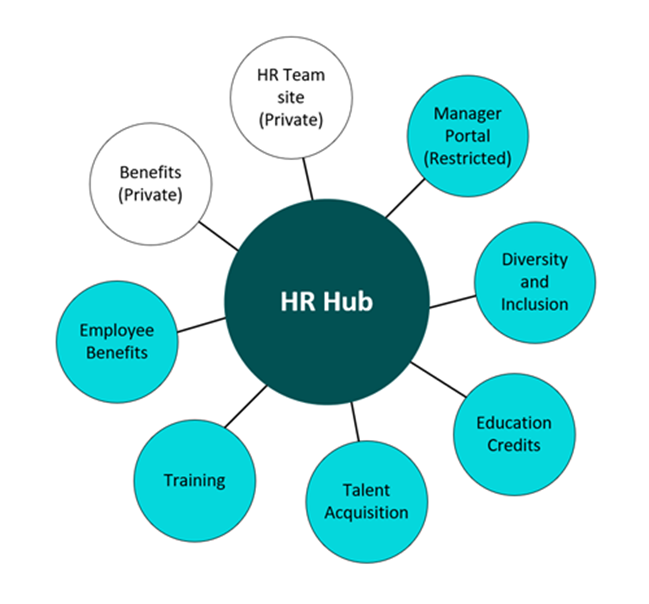
Restricted SharePoint Search (RSS) is a tenant-level setting that limits which SharePoint sites appear in organisation-wide search, Copilot chat, and agentic experiences while you clean up permissions. It is useful as a temporary rollout control, not a long-term security boundary.
When RSS is enabled, Copilot and Microsoft 365 Chat prioritise a curated allowed list of up to 100 SharePoint sites while still respecting existing permissions. Users can also continue to see content they own, recently accessed, frequently visit, or that was shared directly with them. RSS reduces the blast radius while you complete broader governance remediation, but it does not replace permission cleanup.
Recommended approach: Start with RSS enabled and a list of your 20–30 highest-quality, well-governed sites. Expand the allowed list monthly as you validate each site's content quality and permissions. This gives users a great Copilot experience from day one while giving IT time to audit the rest of the tenant.
RSS is configured via PowerShell using the SharePoint Online Management Shell:
Set-SPOTenantRestrictedSearchMode -Mode Enabled to enable RSSAdd-SPOTenantRestrictedSearchAllowedList -SiteUrl "https://contoso.sharepoint.com/sites/sitename"Get-SPOTenantRestrictedSearchAllowedList# Tenant prefix used in contoso-admin.sharepoint.com.
$tenant = "contoso"
Connect-SPOService -Url "https://$tenant-admin.sharepoint.com"
# Enable Restricted SharePoint Search during the cleanup phase
Set-SPOTenantRestrictedSearchMode -Mode Enabled
# Site URLs approved for Copilot search access.
$allowedSites = @(
"https://contoso.sharepoint.com/sites/hr",
"https://contoso.sharepoint.com/sites/finance",
"https://contoso.sharepoint.com/sites/operations"
)
foreach ($siteUrl in $allowedSites) {
Add-SPOTenantRestrictedSearchAllowedList -SiteUrl $siteUrl
}
# Confirm current configuration
Get-SPOTenantRestrictedSearchMode
Get-SPOTenantRestrictedSearchAllowedListUse RSS as a temporary control: Keep a dated list of why each site was allowed. Review the list monthly, fix the remaining permission issues, and plan when Restricted SharePoint Search can be disabled.
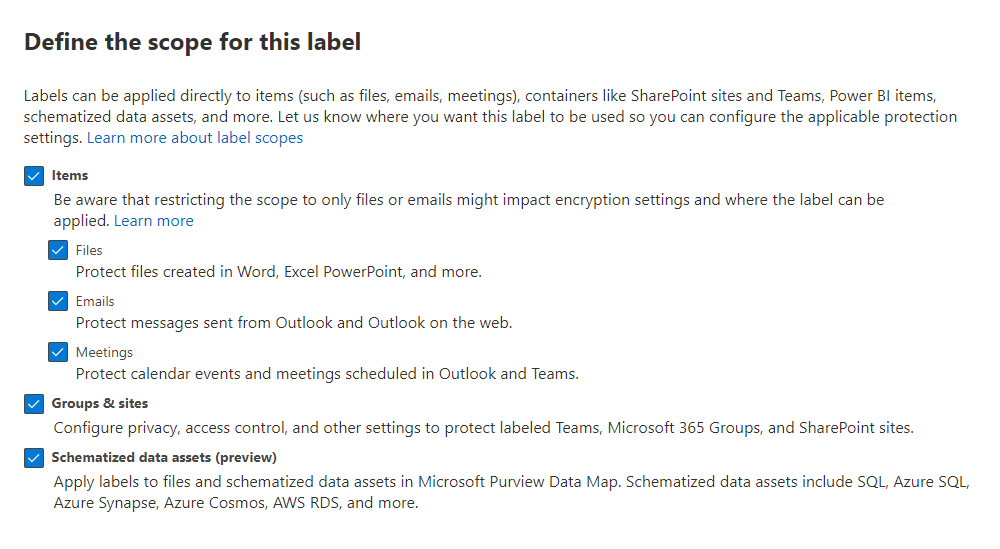
Sensitivity labels are metadata tags applied to content that carry protection policies — encryption, access restrictions, visual markings, and DLP (Data Loss Prevention) rules. For Copilot, sensitivity labels serve two critical functions: they tell Copilot which content is confidential (and how to handle it), and they prevent Copilot from including encrypted content in responses for users without decryption rights.
Microsoft recommends starting with a simple, widely understood taxonomy rather than a complex hierarchy. A common starting point:
| Label | Typical use | Copilot behaviour |
|---|---|---|
| Public | Marketing materials, public docs | Fully searchable, includable in responses |
| General | Day-to-day business content | Searchable for all org users |
| Confidential | Internal projects, strategic plans | Only surfaced to users with access; label visible in responses |
| Highly Confidential | HR, legal, executive, financial | Encrypted; Copilot cannot include in responses without decryption rights |
Manual labelling by end users is unreliable at scale. Supplement it with:
Copilot searches across your SharePoint environment and synthesises answers from what it finds. If your SharePoint is full of outdated policy documents from 2018, duplicated project folders, and half-finished draft files that were never deleted, Copilot will confidently cite them in its responses — and those responses will be wrong.
Use SharePoint's built-in site storage reports and the Microsoft 365 Usage Analytics workbook to identify high-volume, low-activity areas:
After initial cleanup, put forward-looking governance in place to prevent re-accumulation:
Copilot uses the same Microsoft Search index that powers SharePoint's search experience. The richer your metadata, the more accurately Copilot can retrieve and contextualise your content. This step is often skipped but significantly improves Copilot response quality.
Copilot answers are only as good as what Microsoft Search surfaces. Before enabling Copilot, run search quality validation tests using queries representative of what your employees will ask.
Copilot readiness benchmark: As an internal readiness target, aim for at least 70% of your test queries to return accurate, current results in the top three before Copilot is enabled for that user segment. If you're below that bar, search quality remediation — not AI enablement — should be the priority.
SAM Data Access Governance reports run; Anyone links reviewed; ex-employee guests removed; high-risk sites identified and remediated.
RSS enabled at tenant level; initial allowed-site list of 20–30 curated, high-quality sites defined and added.
Label taxonomy agreed with Information Security; auto-labelling policies active; at least Highly Confidential sites have encryption enforced.
Sites inactive for 6+ months archived; documents older than 3 years reviewed; duplicate content eliminated from key libraries.
Key document libraries have content types; Term Store managed metadata active; important pages have search descriptions.
Representative query set tested; promoted results configured for top use cases; synonyms added for internal terminology.
OceanCloud's Copilot Readiness Assessment covers oversharing audits, Restricted SharePoint Search configuration, sensitivity label deployment, and search quality validation — delivered in 4 weeks with clear remediation priorities.
Start Your Readiness AssessmentCopilot can surface any content a user already has permission to open. If sites and files are overshared — for example shared with "Everyone" or broad groups — Copilot may expose sensitive information in its answers that the user could technically access but was never meant to see.
Fixing oversharing before rollout is the single most important readiness step.
Restricted SharePoint Search lets you limit Copilot and organisation-wide search to an approved list of up to 100 SharePoint sites while you clean up permissions elsewhere.
It is a temporary safety control for the early phase of a Copilot rollout, not a permanent fix — the goal is to remediate oversharing and then widen access.
Yes. Microsoft Purview sensitivity labels can encrypt content and define usage rights. Copilot honours those rights: if a label prevents a user from extracting or viewing content, Copilot won't surface it for that user either.
Applying labels to sensitive content adds a durable layer of protection on top of permissions.
Microsoft 365 Copilot is a per-user add-on that requires an eligible Microsoft 365 or Office 365 base licence.
Confirm the current prerequisites and per-user pricing on Microsoft's licensing page before planning a rollout, as eligibility and entitlements are updated periodically.
For a mid-size tenant, a structured readiness pass — oversharing audit, Restricted SharePoint Search configuration, sensitivity label deployment, and search quality checks — typically takes around four weeks.
The timeline depends mostly on how much existing oversharing and stale content needs remediation.
Implementation path: Turn the checklist into an evidence-backed remediation backlog with owners and rollout gates. Microsoft 365 Copilot readiness →
OceanCloud specialises in SharePoint consulting, M365 migration, Power Platform solutions, and enterprise governance. Let's discuss how we can help.
Book a Free 60-Minute Consultation ➜