The Complete Guide to SharePoint Permissions
Master permission levels, groups, sharing links, and governance — so access is always right, never too broad and never too narrow.
Master permission levels, groups, sharing links, and governance — so access is always right, never too broad and never too narrow.
SharePoint permissions can feel like a maze — especially when you're managing dozens of sites, libraries, and users across an organisation. Get them wrong and you either lock people out of content they need, or expose sensitive documents to the wrong audience. This guide explains how SharePoint permissions actually work, from the basic building blocks to enterprise-level governance.
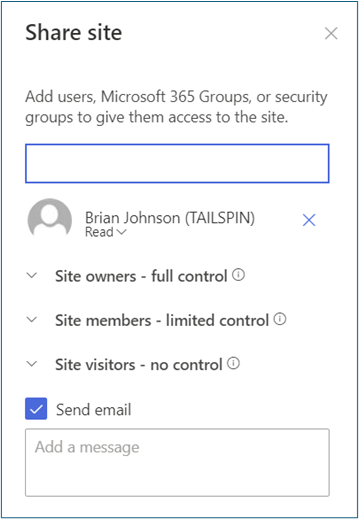
SharePoint uses predefined permission levels — each a bundle of individual rights — assigned to users or groups. Rather than toggling 33 separate rights per user, you assign a permission level that maps to a role.
| Permission Level | What it allows | Typical use |
|---|---|---|
| Full Control | Manage site settings, users, and all content | Site owners, IT admins |
| Design | Edit pages, apply themes, manage minor versions | Intranet designers |
| Edit | Add, edit, and delete lists, libraries, and content | Team power users |
| Contribute | Add and edit content but not create new lists | Standard team members |
| Read | View and download content | General staff, stakeholders |
| View Only | View content in browser, no download | External reviewers, audit trails |
| Limited Access | Access to a specific item when parent has unique permissions | System-assigned automatically |
You can create custom permission levels in Site Settings → Site Permissions → Permission Levels if none of the defaults fit your needs — for example, a level that allows reading and downloading but not editing.
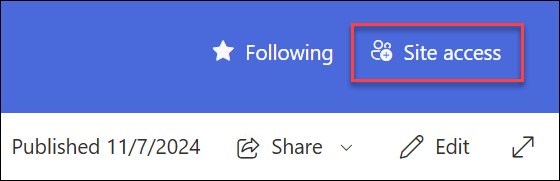
Every new SharePoint site creates three permission groups automatically:
Best practice: Always add users to SharePoint groups rather than granting permissions directly to individuals. Group-based permissions are far easier to audit, update, and offboard from.
You can also connect SharePoint groups to Microsoft 365 Groups or Microsoft Entra security groups, which means membership is managed in one place and automatically reflected across all connected SharePoint sites.
SharePoint permissions flow downward by default. A site's permission settings are inherited by its libraries, which are inherited by folders, which are inherited by individual files. This is called permission inheritance.
Sometimes you need a specific library, folder, or item to have different permissions from its parent — for example, a restricted HR library on an otherwise general intranet site. To do this, you "break inheritance" and set unique permissions on that item.
Important: Every broken inheritance point becomes a separate governance responsibility. Unique permissions at the item or folder level create complexity that grows exponentially with site size. Our rule: break inheritance only at the library level, never at the folder or file level.
In modern SharePoint, many users share content by generating sharing links rather than editing permissions directly. There are three link types:
Each link type can be configured with View or Edit access, an optional expiry date, and a password. Administrators control which link types are available at the tenant level in SharePoint Admin Center → Policies → Sharing, and can restrict this further per site.
SharePoint lets external users (guests) access content without a Microsoft 365 licence. The guest accepts an email invitation and signs in with any Microsoft or personal account. External sharing is controlled at two levels:
For most organisations we recommend setting the tenant to "New and existing guests" (requiring sign-in rather than anonymous access), and restricting sensitive sites to "Only people in your organisation". Guest access expiry of 60–90 days with auto-renewal on activity is a sensible default.
Permissions drift over time. People move roles, projects end, and guest accounts go stale. A permissions governance plan must include:
The Microsoft Purview compliance portal provides a Permissions activity report that shows who accessed what content and when — invaluable during access reviews and security incidents.
We run SharePoint permissions health checks as standalone engagements — typically completed within two weeks. We'll identify over-privileged accounts, ungoverned guest access, and broken inheritance chains, then provide a remediation plan.
Book a Free Consultation →SharePoint ships with several built-in permission levels: Full Control, Design, Edit, Contribute, Read, and View Only. Most users only need Edit or Contribute; Read is for viewers; and Full Control should be reserved for site owners.
You can also create custom permission levels when the defaults don't fit your governance model.
SharePoint groups (Owners, Members, Visitors) control access within a single site collection and map to permission levels.
Microsoft 365 groups span multiple services — they grant access to a Teams team, a shared mailbox, a planner, and the connected SharePoint site at once. Use Microsoft 365 group membership for team sites and SharePoint groups for fine-grained, site-specific control.
Avoid it where possible. Breaking inheritance on libraries, folders, or individual items creates unique permissions that are hard to audit and easy to forget.
A better pattern is to keep inheritance intact and separate sensitive content into its own site or library with its own membership. Reserve broken inheritance for genuine exceptions and document them.
External sharing is governed at two levels: the tenant-wide setting in the SharePoint admin center and the per-site setting, which can be more restrictive than the tenant.
Review your default sharing link type — if it is set to "Anyone", every document shared via the share button can become publicly accessible. Set the default to "Specific people" and audit anonymous links regularly.
For a small team with a few sites, no. But once you are managing governance at scale, onboarding external guests, or untangling broken inheritance and over-privileged accounts, a structured permissions health check usually saves more in remediation than it costs.
OceanCloud runs these as standalone two-week engagements. Book a free consultation →
OceanCloud specialises in SharePoint consulting, M365 migration, Power Platform solutions, and enterprise governance. Let's discuss how we can help.
Book a Free 60-Minute Consultation ➜Printable one-page guide to all permission levels.