Microsoft 365 Copilot: The Complete Business Guide
What Copilot does in every M365 app, how to licence it, what to fix in SharePoint first, and how to roll it out so employees actually use it.
What Copilot does in every M365 app, how to licence it, what to fix in SharePoint first, and how to roll it out so employees actually use it.
Microsoft 365 Copilot is the most significant change to Office productivity since the ribbon. Powered by GPT-4 class large language models and grounded in your organisation's own Microsoft 365 data, it can summarise a month of email in 30 seconds, draft a presentation from a Word document, and tell you what was decided in last week's meeting you missed. But deploying it without preparation creates real risk — and leaves most of its value unrealised. This guide covers everything your organisation needs to know before, during, and after a Copilot rollout.
Microsoft 365 Copilot is an AI assistant embedded throughout the M365 suite, announced at general availability in November 2023 and continuously expanded since. Unlike a standalone AI chatbot, Copilot is grounded in your specific organisational context: it can read your emails, reference your SharePoint documents, summarise your Teams meetings, and analyse data from your OneDrive files — while respecting the exact same permissions that govern access to that content.
The intelligence layer combines three components: the Microsoft 365 Graph (your organisation's data), large language models from OpenAI (hosted in Microsoft Azure, not shared with OpenAI), and natural language interfaces built into each M365 app. Microsoft tracks ongoing Copilot feature releases on the M365 Roadmap.
| App | Key Copilot capabilities |
|---|---|
| Word | Draft documents from prompts or existing files; rewrite, summarise, and improve selected sections; generate from outline |
| Excel | Analyse data in natural language; generate formulas and explain them; highlight trends; suggest pivot tables and charts; generate Python analysis |
| PowerPoint | Create full presentations from Word documents or prompts; add and reformat slides; generate speaker notes; apply branded templates automatically |
| Outlook | Summarise long email threads; draft contextual replies; prepare for meetings; schedule meetings with agenda suggestions; identify action items in inbox |
| Teams | Live meeting summaries; post-meeting recap showing who said what and key decisions; generate action items; answer questions about past meetings; draft messages |
| SharePoint | Summarise site and page content; answer questions about documents stored in a site; surface related content via AI-enhanced search |
| Loop | Collaborative AI writing and brainstorming in shared workspaces; generate structured tables and timelines from prompts |
| Microsoft 365 Chat | Cross-app assistant — reason over emails, files, Teams chats, meetings, and calendar simultaneously to answer complex questions about your work |
Microsoft 365 Copilot is a paid add-on for eligible Microsoft 365 subscriptions. Microsoft has broadened the eligible base plans over time, so treat licensing as something to verify before purchase rather than a static checklist. As of May 2026:
Most organisations start with a pilot licence pool (50–200 seats) to validate use cases and measure ROI before broader deployment. This allows you to identify which roles get the most value before committing to full deployment.
Most important thing in this guide: Copilot surfaces content that each user already has permission to see. If your SharePoint permissions are too broad — if everyone has access to everything — Copilot will surface HR data, financial forecasts, and legal documents to employees who shouldn't be reading them. Fix permissions before deploying Copilot.
This isn't a theoretical risk. In environments where SharePoint has grown without governance, broad groups such as "Everyone except external users" are often found on sites that later turn out to contain confidential information. Copilot makes that invisible permission problem much easier for users to discover, so the cleanup needs to happen before licences are assigned.
See our dedicated guide: How to Prepare Your SharePoint for Microsoft Copilot
Use SharePoint Advanced Management's Data Access Governance reports to identify sites shared with "Everyone," sites with anonymous links, and sites with excessive external access. Remediate the highest-risk sites before any Copilot licences are assigned. Prioritise sites containing HR, Finance, Legal, and Executive content.
Configure Microsoft Purview sensitivity labels (Public, Internal, Confidential, Highly Confidential) and apply them to key document libraries. Labels help Copilot understand the context of content and can enforce encryption on the most sensitive items. This is also an excellent compliance practice independent of Copilot.
If full permission remediation will take months, Microsoft's Restricted SharePoint Search feature limits Copilot to a curated set of approved SharePoint sites. Enable it in the SharePoint Admin Center while broader remediation continues. Add sites to the allowed list only after confirming their permissions are correct.
Start with 50–200 users across different roles and departments (not just IT and executives). Include people who will actually use the features — writers, analysts, project managers, HR. Confirm each pilot user has the required Copilot or Teams licensing, and that Teams meeting transcription, recap, and Copilot policies are enabled where needed. Meeting recap is often one of the first features users understand and value.
Identify 5–10 enthusiastic early adopters in the pilot cohort to become internal Copilot champions. Give them access to Microsoft's free adoption resources at adoption.microsoft.com/en-us/copilot/ — scenario cards, training videos, and prompt libraries. Share their wins in a dedicated Teams channel to build momentum. Specific prompts that consistently delight pilot users: "Summarise this email thread and list action items," "Draft a reply to this email," "What did we decide in last week's meeting about [topic]?"
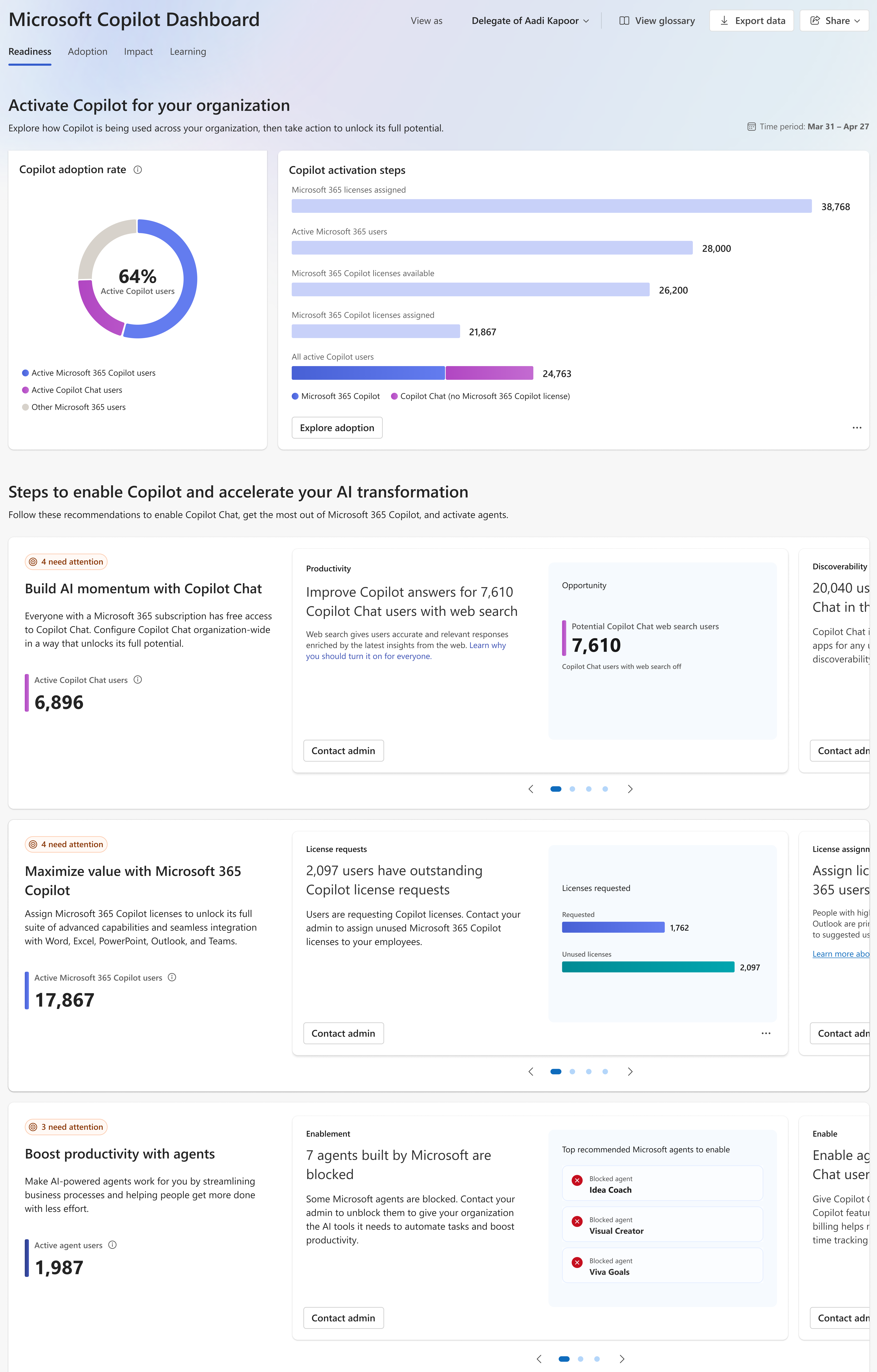
Use Microsoft Viva Insights' Copilot Dashboard to track active users, feature usage distribution, and self-reported satisfaction from the Copilot survey. Run a qualitative survey after 30 days asking pilot users where Copilot saved them time and where it fell short. Use findings to sharpen training content, close permission gaps, and prioritise which additional roles to licence in the next wave.
The Microsoft Viva Insights Copilot Dashboard (accessible from the Viva Insights Teams app or at Microsoft Learn) provides:
Organisations with Viva Insights Premium access also get time-saved estimates and role-level breakdowns. Most organisations use the standard (no extra cost) Copilot Dashboard and supplement it with a periodic pulse survey distributed via Microsoft Forms.
Microsoft tracks all planned Copilot improvements on the M365 Roadmap. Filter by "Copilot" to see upcoming features by rollout status. Subscribe to the roadmap RSS feed to get notified of changes relevant to your deployment.
We help organisations prepare their SharePoint environment, plan the Copilot rollout, train champions, and measure adoption. Start with a free 60-minute readiness assessment — we'll assess your current environment and tell you exactly what to fix before your first licence is assigned.
Book a Free Readiness Assessment →Microsoft 365 Copilot is an AI assistant embedded across Word, Excel, PowerPoint, Outlook, Teams, and other M365 apps.
It uses large language models grounded in your Microsoft Graph data — emails, documents, meetings, and chats — to draft content, summarise information, and automate tasks inside the apps you already use.
Microsoft 365 Copilot is an add-on licence priced at $30 per user per month (as of 2026).
It requires an eligible base plan such as Microsoft 365 Business Standard, Business Premium, E3, or E5.
Copilot surfaces content that users can access, so overly permissive SharePoint sites will expose sensitive data through Copilot responses.
Before rollout you should audit site permissions, remove excessive Everyone/Everyone Except External Users sharing, label sensitive files with Microsoft Purview sensitivity labels, and clean up stale content.
Use the Microsoft Viva Insights Copilot Dashboard in the Microsoft 365 admin center.
It shows active users per app, Copilot-assisted actions (summaries, drafts, chat), and week-over-week trends. You can also track adoption through the Microsoft 365 usage reports under Reports > Usage.
The most common mistakes are: deploying before fixing SharePoint permissions (Copilot will surface over-shared content), skipping end-user training (adoption stays low), expecting Copilot to work on unlicensed users, and not setting a success metric before launch.
A phased rollout starting with a pilot group of 25–50 users is the recommended approach.
OceanCloud specialises in SharePoint consulting, M365 migration, Power Platform solutions, and enterprise governance. Let's discuss how we can help.
Book a Free 60-Minute Consultation ➜Adoption strategy, rollout timeline, and change management playbook.