How to Plan and Launch a Modern SharePoint Intranet
Eight practical steps to a SharePoint intranet your employees actually use — from architecture to governance.
Eight practical steps to a SharePoint intranet your employees actually use — from architecture to governance.
Most teams searching for a SharePoint intranet guide are not blocked by technology; they are blocked by adoption, ownership, and governance. We have audited many environments where the intranet existed but staff still emailed policy files, managers still asked IT for links, and content quickly became stale. A successful intranet needs solid architecture, intentional page design, and a governance model that keeps content useful after launch. This guide walks through all three in implementation order.
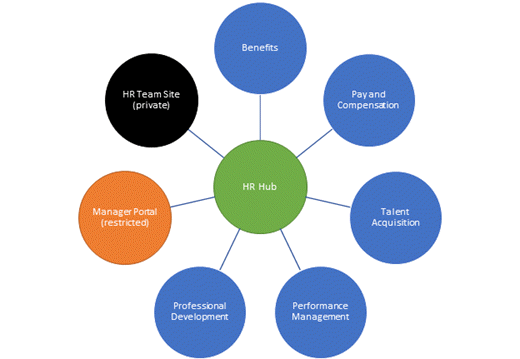
Identify primary users (all employees, department-specific, managers). Plan content zones: News & Updates, HR/Benefits, IT Help, Project Hub, Culture. Map each zone to a SharePoint site or hub.
Set up hub sites in SharePoint admin center for major departments/functions. Link regular team sites to hub sites so content flows up and users see navigation across related sites.
Build a modern SharePoint homepage with featured news, important announcements, quick-link cards, and search-friendly content. Keep above-the-fold content to high-priority business items.
Enable News web parts on hub sites to surface announcements from connected team sites. Set up content moderation: draft → review → publish. Assign editorial team ownership.
Configure the global search box to search across all intranet sites. Create navigation breadcrumbs linking related content. Test search results are relevant and performant.
Launch to a pilot group (managers/champions), gather feedback, refine content structure. Provide training on how to post news, request content promotion, and find resources. Monitor adoption metrics.
Before creating a single page, map out the structure. Modern SharePoint offers three site types, each with a distinct purpose:
| Site type | Purpose | Example |
|---|---|---|
| Hub site | Aggregates associated sites; shared navigation and search scope | Company intranet hub |
| Communication site | Publishing content to a broad audience; read-heavy | HR portal, IT service desk, News |
| Team site | Collaborative workspace for a group; edit-heavy | Marketing team, Finance team |
A typical intranet hierarchy: one root hub site (the homepage) associated with department-level communication sites (HR, IT, Finance, Operations) and team sites for individual working groups. The hub association means navigation, search, and news can be scoped to the whole intranet or filtered by department.
Architecture principle: Flat is better than deep. Aim for no more than two levels of site hierarchy below the hub. Deep nesting creates navigation complexity that users give up on and search can't compensate for.
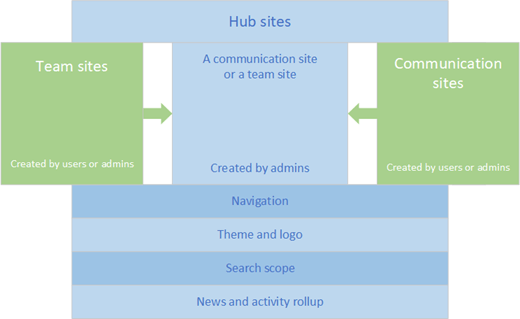
Navigation is where most intranets lose users. SharePoint supports three navigation levels: global navigation (across the tenant via Viva Connections), hub navigation (across all hub-associated sites), and local navigation (within a single site).
Design rules that work in practice:
The intranet homepage is the most visited page and the one that sets first impressions. Effective modern SharePoint homepages typically include:
Avoid homepage clutter. A page with 20 web parts overwhelms rather than helps. Ruthlessly prioritise based on actual usage analytics, not stakeholder requests.
SharePoint's news feature is its most powerful built-in publishing tool. Set up correctly, it creates a structured, searchable, subscription-worthy news experience. Key configurations:
Microsoft Search is the backbone of intranet findability. Out of the box it's good; with configuration it becomes excellent:
If your workforce includes frontline workers, field staff, or remote employees, mobile access is not optional. SharePoint Online is responsive — modern pages render correctly on mobile browsers — but a deliberate mobile experience requires additional thought:
An intranet without governance degrades. Content goes stale, navigation links break, site owners change jobs and nobody inherits the site, and the number of sites grows uncontrolled. Governance prevents all of this:
SharePoint provides built-in analytics for every page and site — accessible from the site's gear icon → Site Usage. Track weekly:
Run a user survey 90 days after launch and annually thereafter. Combine quantitative analytics with qualitative feedback to prioritise your roadmap. The intranet should improve measurably each quarter.
We've delivered 60+ SharePoint intranet projects, from 50-person companies to global organisations with 10,000 users. Our approach covers architecture, design, configuration, launch, and governance — not just the build. Start with a free 60-minute consultation.
Book a Free Consultation →A hub site connects related SharePoint sites together, sharing common navigation, branding, and a rolled-up news and search experience.
Hubs are the backbone of a modern intranet because they let you organise content by department or function without nesting sites, and you can re-associate sites to a different hub as the organisation changes.
A focused intranet for a small organisation can launch in 4–6 weeks. Mid-size rollouts with custom branding, multiple departmental sites, and governance typically run 8–14 weeks.
The biggest variables are content migration, the number of departments involved, and how much stakeholder review each page needs.
Use communication sites for the published, one-to-many parts of the intranet — homepage, news, HR, and policy pages — where a small group authors content for a wide audience.
Use team sites for collaboration within a department or project. A typical intranet combines a communication-site homepage and hub with team sites underneath.
Modern SharePoint pages are responsive by default and render in the SharePoint and Viva Connections mobile apps. To get the best result, keep page layouts simple, lead with the most important content, use clear section headings, and test news and navigation in the mobile app before launch.
Viva Connections adds a tailored mobile dashboard for frontline and on-the-go staff.
Put a content lifecycle in place before launch: assign each page or section an owner, set review dates, and schedule periodic checks for stale policies, superseded forms, and broken links.
Governance and ownership are what keep an intranet useful a year after go-live — not the initial build.
Implementation path: Apply the planning framework with user research, publishing ownership, measurable findability, and adoption criteria. SharePoint intranet development →
OceanCloud specialises in SharePoint consulting, M365 migration, Power Platform solutions, and enterprise governance. Let's discuss how we can help.
Book a Free 60-Minute Consultation ➜20-page workbook with planning templates and launch timeline.