10 SharePoint Automation Workflows Using Power Automate
Practical automation examples across HR, finance, IT, legal, and operations — with triggers, actions, and time-savings notes for every flow you can build this week.
Practical automation examples across HR, finance, IT, legal, and operations — with triggers, actions, and time-savings notes for every flow you can build this week.
If you are searching for practical SharePoint automation workflows, start with processes that fire from real business events: new hires, contract dates, approvals, policy updates, and stale content. SharePoint becomes far more valuable when each document upload, list item change, or status update triggers structured action. These ten workflows are the highest-impact automations we repeatedly deploy for clients, and each can be built by a confident Power Automate user in half a day.
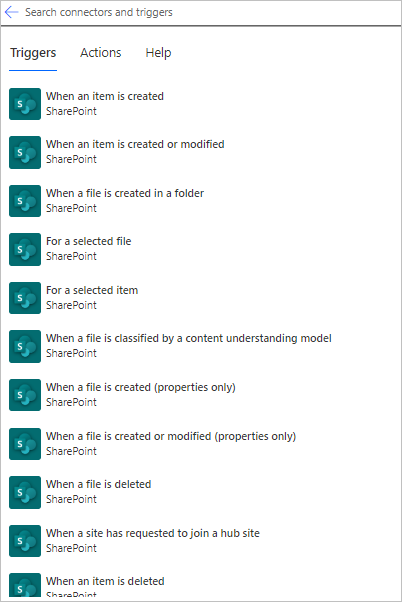
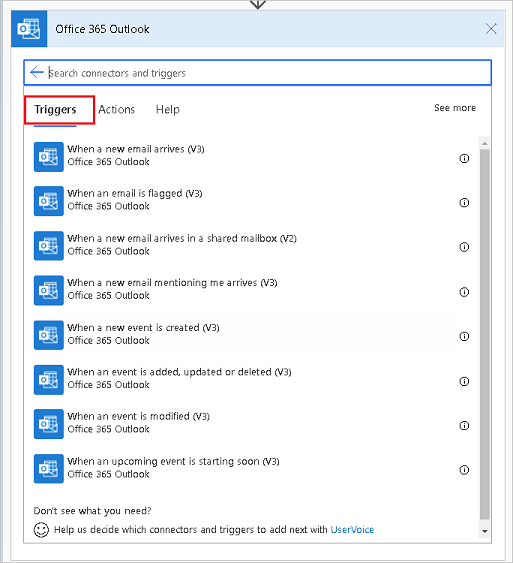
Prerequisites for all flows below: A Microsoft 365 Business Standard, Premium, or E plan includes Power Automate with SharePoint, Teams, Outlook, and Approvals connectors at no extra cost. Only flows using premium connectors (HTTP, Dataverse, SAP, Salesforce) require a Power Automate premium licence.
When HR adds a new employee record to the SharePoint HR list, this flow creates a personal onboarding site (from a PnP template), generates a Planner plan with 20 standard onboarding tasks pre-assigned to the relevant owners (IT for laptop setup, Facilities for access card, HR for benefits enrollment), sends the new hire a welcome email with their first-week schedule, and posts an introduction in the relevant Teams channel.
A scheduled flow runs daily and queries the Contracts SharePoint list for items where the Expiry Date is within 90, 60, or 30 days. For each expiring contract, it sends a structured reminder to the contract owner and their manager with the contract details, renewal instructions, and a link to the document. The reminder cadence and recipient list are configurable from the SharePoint list — no flow edits needed to change thresholds.
When a scanned invoice is uploaded to the SharePoint Invoices library, a flow uses AI Builder's invoice processing model to extract vendor name, invoice number, amount, and line items. The extracted data is written to a SharePoint list, the invoice is routed to the appropriate approver based on amount thresholds, and upon approval the GL codes are written back to the list for the finance system export. Rejection sends the invoice back to Accounts Payable with comments.
When a new project is approved (item status changes to "Approved" in the Projects SharePoint list), a flow automatically provisions a new SharePoint team site using the PnP Sites Core library via Azure Functions, applies the correct site template (IT project, Marketing campaign, Client delivery), adds the project team as members, creates a linked Teams team, sets up the document library structure, and posts a welcome message to the project Teams channel. See our end-to-end SharePoint site provisioning automation guide for a full walkthrough with Logic Apps and PnP PowerShell.
All company policies are stored in a SharePoint Policies library with a Review Date column. A monthly scheduled flow finds all policies due for review in the next 30 days, sends the policy owner a review request, creates a Planner task, and marks the policy as "Under Review" in SharePoint. When the owner updates the document and changes the status to "Reviewed", the flow automatically sets the next Review Date (12 months forward) and notifies the compliance team that the policy is current.
Employees submit leave requests through a SharePoint list form (or a Power Apps canvas app over the same list). The flow immediately checks the shared team calendar for conflicts, sends the manager an approval request in Teams with an Adaptive Card showing the dates, existing team leave, and any public holidays. Approval updates the SharePoint record, sends the employee a confirmation, and (optionally) creates the calendar event in the team's shared Outlook calendar.
A weekly scheduled flow queries every key SharePoint library for documents that have not been modified in 18 months. It sends the document owner a notification with a direct link and three options: Keep, Archive, or Delete. The owner responds by updating a Status column on the document. After 14 days without a response, the flow escalates to the site owner. Documents marked "Archive" are moved to the Archive site automatically; "Delete" sends them to the recycle bin with a 30-day recovery window.
When a new opportunity record reaches "Proposal Stage" (synced from Salesforce via Power Automate), the flow copies the Word proposal template from a SharePoint Templates library, populates it with the client name, products, pricing, and terms using the "Populate a Word template" action, saves the completed proposal to the opportunity's SharePoint folder, and notifies the sales rep in Teams with a direct link to review and send.
A monthly scheduled flow uses the Graph API (HTTP action) to retrieve all guest users in the Microsoft Entra tenant who have access to SharePoint sites. For each guest account inactive for 90+ days, the flow emails the site owner asking them to confirm whether access should continue or be revoked. After 14 days without a response, it sends a final warning. After 30 days total, it removes the guest from the site's permission group — maintaining a clean, auditable guest access register.
When a content creator uploads a finished article, blog post, or social media asset to the SharePoint Content library and sets Status = "Ready for Review", the flow routes it to the brand approver via Teams Adaptive Card. On approval, it automatically publishes the item to the SharePoint news feed, posts a notification to the Marketing Teams channel, schedules a social sharing reminder 24 hours later, and archives the approved version to the Published library with a date-stamped filename.
With ten ideas above, deciding where to start can be the hardest part. Use this prioritisation framework:
OceanCloud runs a half-day SharePoint Automation Workshop that maps your highest-value processes to Power Automate flows — with a prioritised delivery roadmap you can execute in-house or with our team.
Book an Automation WorkshopThe highest-value starting points for small teams are: document approval workflows with Power Automate, automatic metadata tagging when files are uploaded, new employee onboarding checklists triggered by HR system events, and weekly digest emails that summarise new content added to key libraries.
No.
Most SharePoint automations can be built with Power Automate using its visual flow builder — no code required. For advanced scenarios like tenant-wide provisioning or bulk operations, PnP PowerShell adds significant capability with minimal scripting knowledge.
SharePoint Designer workflows (2010 and 2013 versions) are deprecated and will be removed.
Power Automate is the modern replacement. Power Automate connects to hundreds of services beyond SharePoint, supports mobile approvals, runs on Microsoft's cloud infrastructure, and receives ongoing investment from Microsoft.
Focus on processes that are high-frequency (done daily or weekly), involve multiple people (approvals, handoffs), or are currently tracked in email.
Document the current manual steps, estimate time per run, then multiply by weekly frequency. Start with the highest time-savings-per-build-effort ratio.
Yes.
Power Automate supports triggers from hundreds of external services including Salesforce, ServiceNow, Jira, GitHub, and Dynamics 365. You can also use SharePoint webhooks with Azure Logic Apps or Azure Functions to respond to SharePoint events from any platform.
OceanCloud specialises in SharePoint consulting, M365 migration, Power Platform solutions, and enterprise governance. Let's discuss how we can help.
Book a Free 60-Minute Consultation ➜