Power Automate SharePoint Triggers: OData, HTTP, and Actions
Every SharePoint trigger, every action, OData filter query syntax, and the advanced HTTP request action — the complete connector reference for flow builders.
Every SharePoint trigger, every action, OData filter query syntax, and the advanced HTTP request action — the complete connector reference for flow builders.
Choose the narrowest SharePoint trigger that matches the event, add trigger conditions to prevent self-triggered loops, and filter Get items at the source with OData. Use pagination and selected columns for larger lists, and reserve “Send an HTTP request to SharePoint” for operations the standard connector cannot perform. The patterns below show when each trigger and action is appropriate.
Scope and review note: This guide was technically rechecked on July 13, 2026 against Microsoft’s SharePoint connector, Power Automate, and SharePoint REST documentation. Test expressions and HTTP calls with non-production data before enabling a flow.
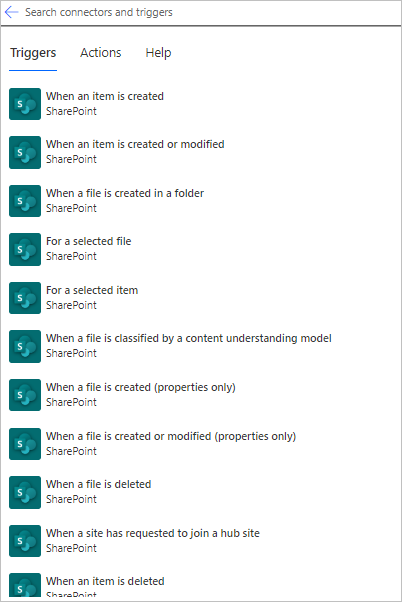
Go to powerautomate.microsoft.com > Create > select flow type (Cloud flow or Desktop flow). For this guide, we focus on Cloud flows with SharePoint triggers.
Select a trigger from 'SharePoint' or 'Microsoft 365' category (e.g., 'When an item is created', 'When an approval is completed', 'When a new email arrives'). Set any required parameters like site and list.
In the flow designer, click '+ New step'. Search for and select an action (e.g., 'Send email', 'Create reminder', 'Post message'). Map trigger outputs to action inputs using dynamic content buttons.
Click '+ Add a parallel branch' to run multiple actions simultaneously. Useful for sending emails AND creating calendar events when a trigger fires.
Add 'Condition' blocks to check if values meet criteria. For example: if email subject contains 'URGENT', escalate to manager; otherwise, route to standard process. Use all available operators and functions.
Add 'On failure' handlers to catch errors. Log to SharePoint list or send alert to admin Teams channel. Test the flow with various inputs to ensure robustness.
Triggers determine when a flow starts. The SharePoint connector offers two categories: list/library triggers (respond to item or file changes) and site triggers (respond to page or structural changes).
| Trigger | Fires when | Best for | Gotchas |
|---|---|---|---|
| When an item is created | A new list item is added to the specified list | New record workflows: approval, notification, provisioning | Does NOT fire on file uploads — use the file trigger for document libraries |
| When an item is created or modified | Any change to a list item, including creation | Status-change workflows where you need to react to updates | Fires on every column change — guard against infinite loops with a condition on a specific column value |
| When an item is deleted | A list item is deleted (moved to Recycle Bin) | Archiving, audit logging, cascade deletions to related lists | Only the item ID is available in the trigger — all other field values are gone; log them before deletion using a modified trigger |
| When a file is created (properties only) | A new file is uploaded to a document library | Document approval flows, virus scan triggers, metadata enforcement | "Properties only" means no file content — use "Get file content" action if you need to process the file itself |
| When a file is created or modified (properties only) | Any file upload or property update in a library | Document approval with re-submission; metadata update notifications | Most common source of infinite loops — always filter on a specific column value immediately after the trigger |
| When a file is created in a folder | A file appears in a specific subfolder | Folder-specific processing: scan invoices dropped in /Inbox folder | Does not fire for files added to subfolders of the specified folder — only the exact folder path |
| For a selected item | User manually triggers the flow from the SharePoint list item menu | On-demand actions: generate a PDF, send a report, trigger a one-off sync | Requires user to initiate — not suitable for automated background processes; appears in the "Automate" menu on the list |
| For a selected file | User manually triggers from a file in a document library | On-demand file processing: convert to PDF, send for signature, archive | Same as above — user-initiated only |
| Action | What it does | Key parameters |
|---|---|---|
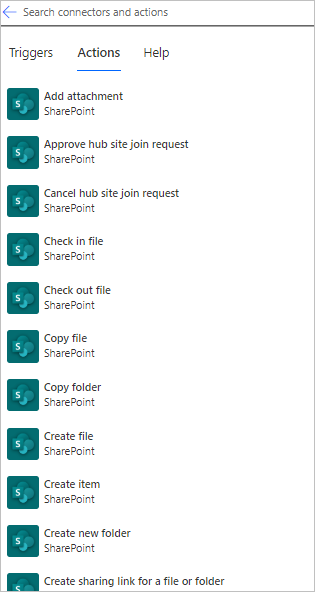
| Get items | Retrieves multiple list items — returns an array you can loop through | Filter Query (OData), Top Count, pagination, Order By, Select Columns |
| Get item | Retrieves a single list item by its ID | ID (integer — not the item's title or GUID) |
| Create item | Adds a new item to a SharePoint list | All list column values; required columns must have values or the action fails |
| Update item | Modifies an existing list item — only specified fields are changed | ID of the item to update; only include columns you want to change |
| Delete item | Moves an item to the Recycle Bin | ID of the item |
| Get list views | Returns metadata about configured views in a list | Rarely needed in flows; useful for view-filtered data export scenarios |
| Action | What it does | Key parameters |
|---|---|---|
| Create file | Uploads a file to a document library; creates the file if it doesn't exist | Site Address, Folder Path (relative), File Name, File Content (binary) |
| Get file content | Downloads the binary content of a file | Site Address, File Identifier (path or ID from trigger) |
| Get file metadata | Returns metadata for a file (size, created date, modified by, etc.) without downloading content | File Identifier |
| Update file properties | Writes to the metadata columns of a document library item | Site Address, Library Name, ID, and any columns to update |
| Get file metadata using path | Same as Get file metadata but accepts a folder path string instead of file ID | File path relative to site root |
| Copy file | Copies a file to a new location (same or different site) | Current Path, Destination Path, Whether to overwrite |
| Move or rename a file | Moves a file or changes its name | Current Path, New Path |
| Delete file | Moves a file to the Recycle Bin | File Identifier |
| Extract folder | Unzips a ZIP archive into a specified folder | Source file path, Destination folder path |
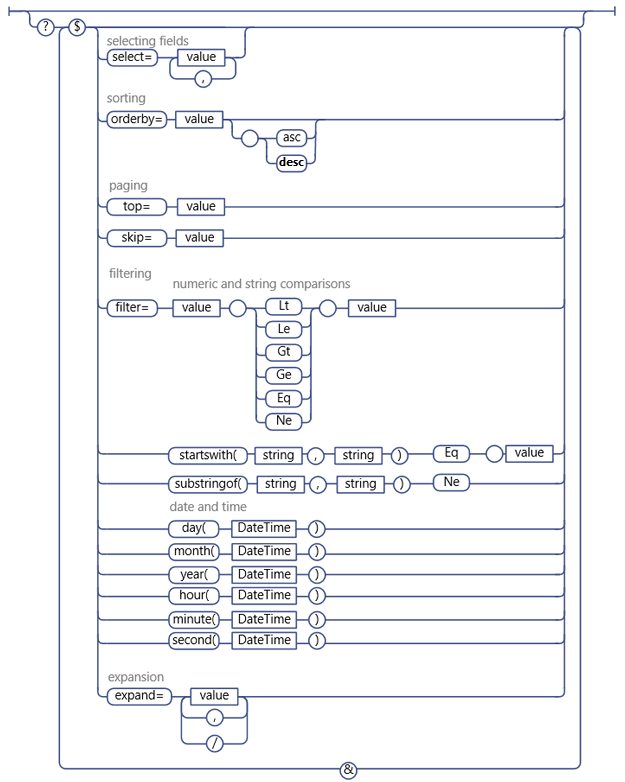
The Filter Query parameter in "Get items" is where most Power Automate beginners lose time. It uses OData query syntax — a standard query language for REST APIs. Without it, "Get items" returns up to the Top Count limit regardless of what you actually need.
Person column gotcha: SharePoint Person columns store user objects, not strings. To filter by a person field, you must use the sub-property notation: AssignedTo/EMail eq '[email protected]' — not AssignedTo eq 'User Name'. The display name filter will always fail.
This action is the most powerful in the SharePoint connector and should be in every advanced flow builder's toolkit. It lets you call SharePoint's REST API directly — accessing capabilities not exposed through the standard actions, including:
Set the Top Count to the minimum number you actually need. For larger result sets, enable the "Pagination" option in the action's Settings tab so Power Automate can retrieve multiple pages instead of relying on one oversized request.
By default, "Get items" returns all columns for every item, including internal system columns. Use the "Select Columns" parameter to specify only the columns your flow actually needs — this significantly reduces the payload size and speeds up large list queries:
Power Automate processes "Apply to each" loops sequentially by default (one item at a time). For large result sets this is slow. Enable concurrency in the loop's Settings tab (up to 50 concurrent iterations) — but be careful: concurrent SharePoint writes can cause throttling. Test with 5–10 concurrent iterations first.
OceanCloud's Power Platform team can review your existing flows, identify inefficiencies, and rebuild them with production-grade patterns — or design new flows from your requirements.
Book a Flow Review'When a file is created' fires only on new file creation. 'When a file is created or modified' fires on both create and update.
'When an item is created' and 'When an item is created or modified' work the same way but for list items. Use the narrowest trigger to avoid unnecessary flow runs and reduce throttling risk.
Power Automate actions are the steps that run after a trigger starts the flow.
SharePoint actions create, update, read, copy, or delete SharePoint items and files. Data Operations actions reshape data inside the flow, and HTTP actions call REST endpoints when the connector does not expose the operation directly.
Use an OData filter query in the 'Get items' action. For example: Status eq 'Approved' filters to approved items only.
You can combine filters with 'and' / 'or', filter by date with ge (greater than or equal), and reference column internal names. Always set a Top Count limit to avoid retrieving thousands of items unnecessarily.
This action calls the SharePoint REST API directly, giving you access to operations not exposed by the standard connector — such as managing permissions, working with site collections, updating content types, or reading term store data.
It requires knowing the REST endpoint and passing correct Accept and Content-Type headers.
The default Top Count is 100. Increase it up to 5000 in the action settings.
For lists larger than 5000 items, use pagination: enable 'Pagination' in Settings and set the threshold. For very large lists, consider filtering server-side with OData queries first to reduce the result set before pagination.
Throttling occurs when too many API calls hit SharePoint in a short window.
Mitigation strategies: avoid loops that call SharePoint on every item (batch with Select columns instead), add a Delay action between iterations, use 'Get items' with OData filters rather than filtering client-side after retrieving all items, and schedule high-volume flows outside business hours.
Implementation path: Move from individual flows to governed environments, documented ownership, monitoring, and deployment controls. Power Platform consulting →