5 Microsoft Teams Automations That Save Hours Every Week
Practical Power Automate flows for Microsoft Teams — from turning meeting notes into Planner tasks to sending rich Adaptive Card approvals without leaving Teams.
Practical Power Automate flows for Microsoft Teams — from turning meeting notes into Planner tasks to sending rich Adaptive Card approvals without leaving Teams.
Microsoft Teams is where most M365 organisations do their daily work. But Teams alone is a passive communication tool — it records what happened, not what needs to happen next. Power Automate bridges that gap, turning Teams conversations, messages, and meetings into structured actions without requiring anyone to copy things between systems. Here are five automations that have the highest impact-to-effort ratio for most teams, with step-by-step implementation guidance.
Audit: channel message workflows, meeting scheduling, bot integrations, file management. Prioritise high-frequency, repetitive tasks (notifications, approvals, data entry).
Option 1: Use Power Virtual Agent for chatbot flows. Option 2: Use connectors (Slack-like automation). Build flow triggered by Teams message or mention. Route messages to appropriate handlers.
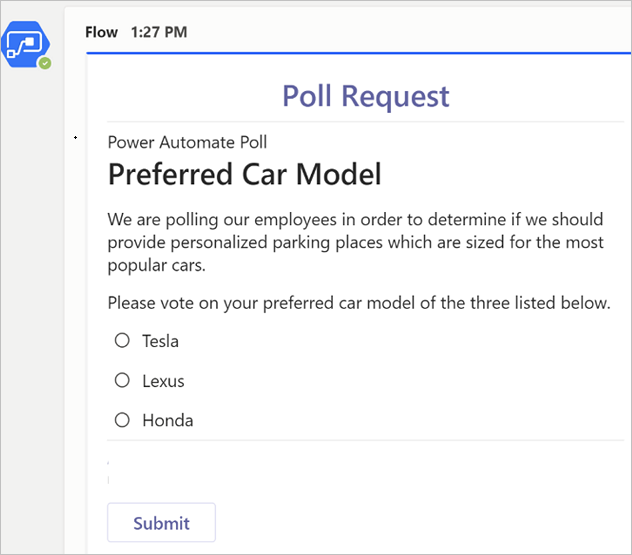
Design adaptive card templates in Power Automate: approval cards, form cards, data display cards. Send cards to Teams channels when events trigger (e.g., 'New help desk ticket approved').
Create flows that route notifications to Teams channels based on priority/category: 'Urgent' → @channel mention; 'Info' → no mention. Aggregate notifications to reduce noise.
Connect Teams messages/approvals to backend systems: approve in Teams → update SharePoint list → trigger invoice process. Use HTTP connectors or Dataverse for data sync.
Launch bot/automation to test team. Gather feedback on card design, messaging clarity, workflow logic. Iterate before org-wide rollout to prevent user frustration.
All five automations in this guide are built with Power Automate (make.powerautomate.com). They require:
Building tip: Create and test each flow using a test Teams team and test Planner plan before enabling it in a production team. Power Automate's built-in "Test" button lets you run the flow manually with a sample trigger to verify each step before going live.
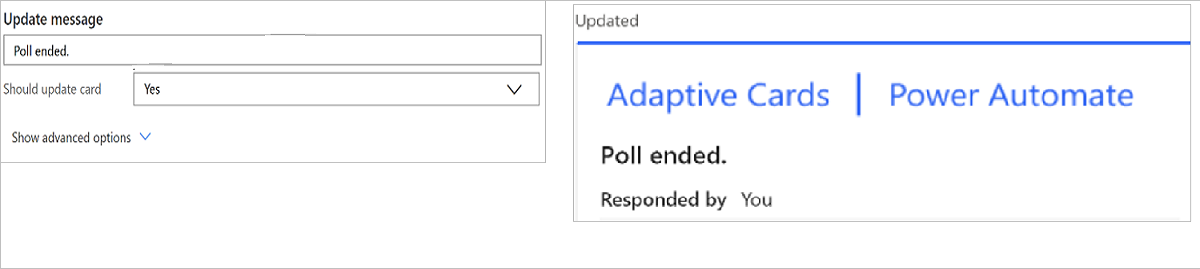
After a Teams meeting ends, the organiser posts action items in the meeting chat using a simple format (e.g., "ACTION: @Person — Task description by DD/MM"). This flow detects those messages, parses the action items, creates a Planner task for each one with the right assignee and due date, and posts a confirmation card back to the chat.
This flow eliminates the "who was going to do that?" problem that follows most meetings. Action items are captured immediately in Planner, assignees get a notification, and nothing falls through the cracks between the meeting and the next standup.
Instead of sending approval requests to email (where they get buried), this flow sends rich Adaptive Cards directly to the approver's Teams chat. The card shows all relevant request details, and the approver clicks Approve or Reject without leaving Teams. The decision is recorded in SharePoint and the requester is notified instantly.
Adaptive Cards are JSON-defined UI cards that render natively inside Teams. Unlike plain text messages, they can include structured layouts with labelled fields, images, expandable sections, and interactive buttons that trigger Power Automate actions. The Adaptive Card Designer at adaptivecards.io lets you build cards visually and preview them in Teams before using the JSON in Power Automate.
📄 Microsoft Teams cards reference — learn.microsoft.com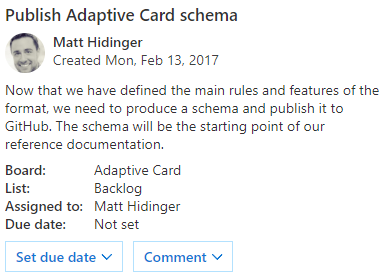
When a new member joins a Teams team, this flow automatically sends them a personalised welcome message in the General channel, sends them a direct message with an onboarding checklist, adds them to the relevant Planner plan, and optionally creates a SharePoint onboarding checklist item for HR to track progress.
Pro tip: Customise the welcome card by team. A welcome to the Engineering team should link to the dev wiki and deployment process. A welcome to Sales should link to the CRM guide and territory map. Store team-specific onboarding content in SharePoint and have the flow look it up by team ID.
Monitors one or more Teams channels for specific keywords — competitor names, critical client mentions, escalation phrases like "urgent" or "down", or regulatory terms. When a keyword is detected, the flow immediately notifies a specific person or posts to an escalation channel, ensuring nothing important is missed in high-volume channels.
contains(triggerBody()?['body/content'], 'keyword') — chain multiple conditions with OR for multiple keywordsCommon use cases: a sales team monitoring for their competitor's name across all customer-facing channels; a support team watching for "system down" or "critical" in any project channel; a compliance team logging all messages mentioning specific regulatory terms in finance or healthcare environments.
Every Monday morning, this scheduled flow posts a rich Adaptive Card digest to the team's General channel, showing: open Planner tasks due this week (with assignees), any SharePoint pages published last week, upcoming calendar events for the team, and a "last week's wins" prompt that rotates a different team member each week to share a highlight.
The weekly digest replaces the Monday morning status meeting that most teams dread. Team members arrive informed, with their tasks visible and the week's events clear — before the first standup begins. The "wins" prompt builds team culture by ensuring positive outcomes are shared systematically, not just when someone remembers.
OceanCloud can design and build Power Automate flows tailored to your Teams setup — from simple notifications to complex multi-step approval workflows with Adaptive Cards and SharePoint integration.
Discuss Your Automation NeedsPower Automate can post adaptive card messages to channels, create Planner tasks from meeting action items, send approval requests inside Teams, trigger welcome messages for new members, monitor keywords in conversations, and send weekly digest cards — all without any custom development.
Most Teams automations use standard connectors (Teams, Planner, SharePoint, Outlook) which are included in Microsoft 365 business licences.
Premium connectors like HTTP requests or third-party SaaS integrations require a Power Automate Premium (formerly Per-User) plan.
Use the 'Post adaptive card in a chat or channel' action in the Teams connector.
You provide the team and channel, then paste in your adaptive card JSON. Use the Adaptive Cards designer at adaptivecards.io to build the card visually, then copy the JSON into Power Automate.
Yes.
Use the 'When a new channel message is added' trigger, then add a Condition action that checks if the message body contains your keyword. Because Teams stores message content as HTML, use a 'contains' check on the body/content field, not an exact match.
Use the 'When a Teams meeting ends' trigger (requires Teams Premium or Meeting Recording connector), then parse the meeting transcript or action items with an AI action, and create Planner tasks via the Planner connector.
For simpler setups without Teams Premium, use a post-meeting form or an approval step that extracts actions manually.
OceanCloud specialises in SharePoint consulting, M365 migration, Power Platform solutions, and enterprise governance. Let's discuss how we can help.
Book a Free 60-Minute Consultation ➜