Build a Power Apps Canvas App from a SharePoint List
Connect the list, build forms and galleries, handle delegation and permissions, then publish to Teams, SharePoint, or mobile.
Connect the list, build forms and galleries, handle delegation and permissions, then publish to Teams, SharePoint, or mobile.
To build a Power Apps canvas app from a SharePoint list, connect the list as a data source, bind a gallery and edit form, validate delegable filters, then share both the app and the underlying SharePoint permissions. This guide walks through that sequence and explains the design choices that prevent incomplete search results, broken lookups, and access errors after publishing.
Scope and review note: This guide was technically rechecked on July 13, 2026 against Microsoft’s SharePoint connector and canvas-app documentation. Test formulas with production-scale sample data because delegation behavior may not appear in a small development list.
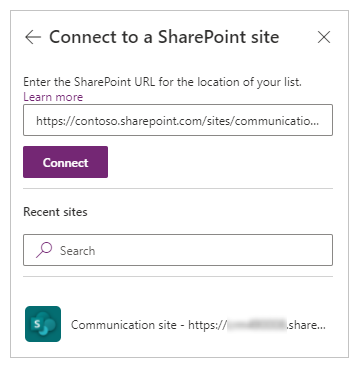
Go to your SharePoint site and create or identify the list you want to use as your app's data source. Make sure column names are clear and column types are set correctly (text, choice, person, date, lookup, etc.). Poor column setup here leads to bad app performance later.
Go to powerapps.microsoft.com > Create > Canvas app from blank. Give it a name and choose phone or tablet layout based on your primary users. Power Apps launches in edit mode.
Click 'Data' (left sidebar) > 'Add data' > search for SharePoint > select your site > select your list. Power Apps now has read/write access to your list columns.
Drag text input, choice dropdown, date picker, and other controls onto your screen. For each control, set its 'Default' property to point to list columns (e.g., TextInput1.Default = ThisItem.Title). Build the form layout that suits your task.
Insert buttons with OnSelect formulas: Save = Patch(ListName, ThisItem, {updated fields}); New = NewForm(FormName); Delete = Remove(ListName, ThisItem). Test each action thoroughly before sharing.
Publish the app. Go to Share > enter user names or groups. Each user needs a Power Apps licence (included in Microsoft 365). Test the app as an end user before full rollout.
Power Apps comes in two fundamentally different types. Choosing the wrong one is the most common Power Apps mistake. Here's the clear comparison:
| Canvas App | Model-Driven App | |
|---|---|---|
| Best for | Task-focused apps with custom UI: data entry forms, inspection checklists, approval screens | Data-rich business applications: CRM, case management, project tracking with complex relationships |
| Data sources | 400+ connectors including SharePoint, Excel, SQL, Salesforce, and more | Microsoft Dataverse (formerly CDS) — structured relational database in the Power Platform |
| UI design | Fully custom — drag and drop controls, set position and size of every element | Data-driven — generated automatically from data schema; less visual flexibility |
| Mobile experience | Excellent — design specifically for phone or tablet screens | Good but less optimised for mobile-first scenarios |
| Complexity | Lower — good for 1–3 SharePoint lists | Higher — better for multi-table relationships and business logic |
| SharePoint fit | Native — SharePoint lists are a first-class data source | Indirect — usually requires Dataverse, though SharePoint data can be synced |
For most SharePoint-based use cases, canvas apps are the right choice. Model-driven apps shine when you're building something closer to a Dynamics 365 application with complex entity relationships. If your data lives in SharePoint lists, start with canvas.
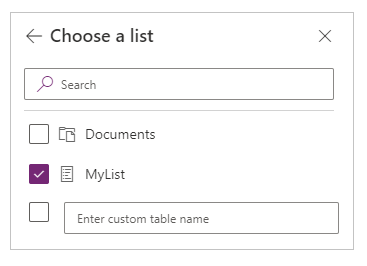
SharePoint lists are one of the simplest data sources to connect in Power Apps. When you connect a SharePoint list to a canvas app, Power Apps reads the list's columns (including column types: text, choice, person, date, lookup) and uses them to generate forms automatically.
| SharePoint column type | Default Power Apps control | Notes |
|---|---|---|
| Single line of text | Text input | Simple text box; supports max length |
| Choice | Dropdown / Radio buttons | Options auto-populated from SharePoint choices |
| Person or Group | People picker | Searches Microsoft Entra ID; returns user object |
| Date and Time | Date picker | Timezone-aware; can be date-only |
| Yes/No | Toggle | Boolean; useful for approval flags |
| Lookup | Dropdown | References another SharePoint list — delegation applies |
| Managed metadata | Limited | Requires workaround; Power Automate often handles this better |
A canvas app that replaces a shared Excel spreadsheet used by the facilities team to track company assets — laptops, monitors, projectors, vehicles. The SharePoint list stores asset details (category, serial number, assigned user, location, condition, last-checked date). The app provides a mobile-first interface for staff to check assets in and out, log condition notes, and scan barcodes using the device camera.
A two-screen canvas app replacing email-based IT support requests. Screen 1 is a submission form for staff to log issues — category, priority, description, and photo attachment. Screen 2 is an IT team dashboard showing all open tickets, filterable by status and assignee. Tickets are stored in a SharePoint list; Power Automate handles routing and SLA notifications.
A mobile-first canvas app for submitting and approving expense claims. Employees photograph receipts (stored in a SharePoint document library), enter claim details, and submit. Managers receive an Adaptive Card in Teams asking them to approve or reject, with the receipt image embedded. Finance sees an aggregate view of all pending claims with export-to-Excel.
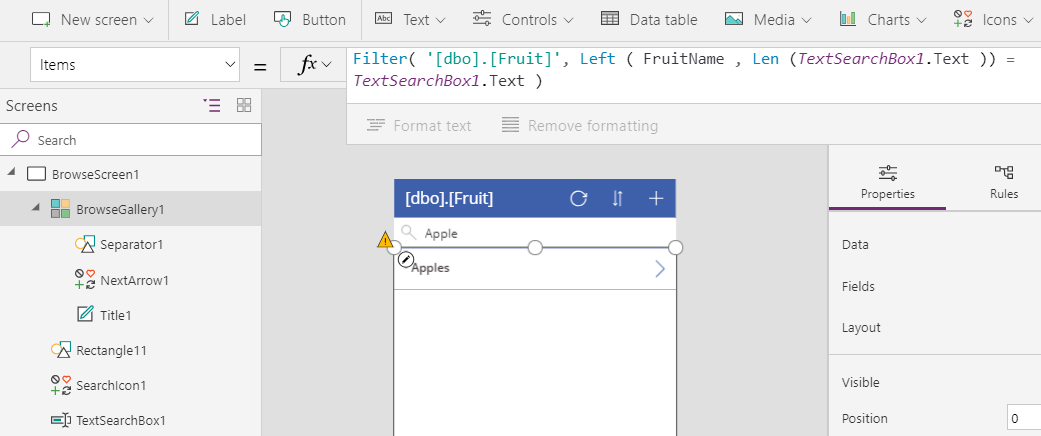
Delegation is the most misunderstood concept in Power Apps, and ignoring it causes apps to silently return wrong data in production. Here is what it means and why it matters.
When Power Apps queries a SharePoint list, it can either process the query locally (loading data to the device first, then filtering) or delegate the query to SharePoint (letting SharePoint do the filtering server-side). Delegation is far more efficient — but not all functions support it.
For non-delegable queries, Power Apps loads a maximum of 2,000 records to the device (this was 500 before 2019; it is now configurable up to 2,000). If your SharePoint list has 5,000 items and you use a non-delegable filter like Search() without delegation, your app only sees the first 2,000 items — and Power Apps shows a yellow delegation warning, which many developers ignore.
| Function | Delegable to SharePoint? | Notes |
|---|---|---|
Filter() with simple comparisons (=, <, >) | Yes | Most column types supported |
Sort() | Yes | Single column; multi-column sort not always delegable |
Search() | Yes (text columns only) | Searches title and text fields |
StartsWith() | Yes | Text column prefix match |
Filter() with in operator | No | Use multiple Or conditions instead |
CountIf() | No | Loads all records; use Dataverse for aggregate queries |
Filter() with lookup columns | Limited | ID field delegable; expanded fields may not be |
Delegation rule of thumb: If your SharePoint list will ever exceed 2,000 records, design around delegation from day one. For lists that genuinely need aggregate queries or complex filtering, consider migrating that list to Dataverse or using a SQL Azure backend instead.
Once your canvas app is built, you have several ways to deploy it to users — each suited to different scenarios:
The most popular option for internal business apps. Users access the app directly in Teams without installing anything. Requires publishing as an app package from Power Apps and adding it to Teams via the Admin Centre or individually by users. Apps can be pinned to specific Teams channels, making them contextual to the team's work. Microsoft documentation walks through the exact steps.
📄 Embed a canvas app as a Teams tab — learn.microsoft.comEmbed your app directly into a SharePoint page using the Power Apps web part. This works well when the app is related to a specific SharePoint site — for example, embedding an asset management app in the Facilities team site. Users don't need a separate app installed; they access it while browsing SharePoint.
Share a direct URL (from make.powerapps.com) with users. They open it in a browser and can pin it as a progressive web app on their desktop or home screen. Good for apps shared across departments where there's no single Teams team or SharePoint site as a home.
Available on iOS and Android. Users install the Microsoft Power Apps app from the App Store or Google Play, sign in with their M365 credentials, and all apps shared with them appear in the app library. Ideal for frontline workers without Windows devices — field engineers, warehouse staff, retail teams.
Power Apps makes it very easy for citizen developers to build and share apps — which is great for productivity but creates governance challenges if unmanaged.
OceanCloud can design, build, and deploy a canvas app on your existing SharePoint environment in 2–4 weeks — or train your team to build their own. Either way, we handle governance and ensure it scales.
Talk to a Power Apps SpecialistYes, SharePoint is the most common data source for Power Apps in Microsoft 365 environments.
You connect via the SharePoint connector and work with list items directly. For simple data entry and viewing scenarios it works well, but it has delegation limits — queries that can't be processed server-side are limited to 500–2000 records client-side.
In Power Apps, choose Create, select Start from data, connect to SharePoint, choose the SharePoint site, and pick the list.
Power Apps generates a canvas app with browse, detail, and edit screens. Review the generated forms, rename controls, set delegation-safe filters, and test list permissions before publishing.
Delegation means the data source (SharePoint) processes a filter or sort query on the server, returning only matching records.
Non-delegable functions (like Search() or most text functions) run client-side on a capped record set. If your list has more than 2000 items and you use non-delegable filters, users will see incomplete results without any warning.
Canvas apps give you pixel-precise control over layout and connect to any data source.
Model-driven apps are data-first: you define the data model and the app generates its UI automatically. Canvas apps suit custom interfaces; model-driven apps suit complex business data with relationships, business rules, and standard CRM-style views.
From the Power Apps portal, open the app and select Share. Enter names or groups.
Users need at least a Microsoft 365 licence to run Power Apps that connect to standard connectors. For premium connectors, each user needs a Power Apps Premium (Per User) licence. Also share the underlying SharePoint list with appropriate permissions.
Yes.
Power Apps supports hundreds of connectors including SQL Server, Dataverse, Salesforce, ServiceNow, REST APIs via custom connectors, and on-premises data sources via the on-premises data gateway. Connectors marked 'Premium' require a Power Apps Premium licence.
Implementation path: Plan delegation, environments, data policy, application lifecycle, ownership, and support before production rollout. Power Platform consulting →
OceanCloud specialises in SharePoint consulting, M365 migration, Power Platform solutions, and enterprise governance. Let's discuss how we can help.
Book a Free 60-Minute Consultation ➜