SharePoint vs Microsoft Teams: When to Use Which
The most-asked question in Microsoft 365 — answered with a clear decision framework and the surprising truth about how these tools relate.
The most-asked question in Microsoft 365 — answered with a clear decision framework and the surprising truth about how these tools relate.
"Should we put this in SharePoint or Teams?" is the question we hear on almost every Microsoft 365 engagement. It causes genuine confusion, creates duplicate content, and often results in neither tool being used well. The answer requires understanding what these tools actually are — and the surprising relationship between them.
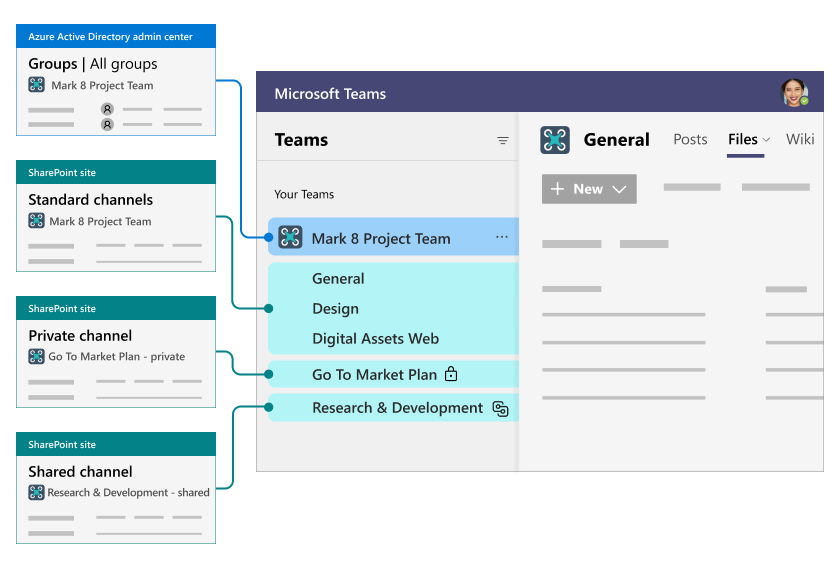
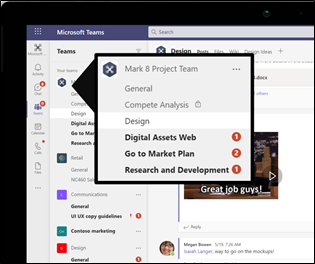
Every Microsoft Teams team automatically creates a SharePoint site behind the scenes. Every Teams channel gets its own document library folder within that site. When you upload a file in a Teams channel, it is stored in SharePoint — you're just accessing it through the Teams interface.
This means the question isn't really "SharePoint or Teams?" — it's "which interface is right for this audience and this use case?" Teams and SharePoint are deeply integrated layers of the same platform, not competing alternatives.
Files shared in Microsoft Teams are stored in SharePoint document libraries. Version history, metadata, permissions, and retention policies all apply automatically — Teams simply gives you a different way to access and collaborate on that content.
SharePoint is the publishing and governance layer of Microsoft 365. It excels at:
SharePoint pages are designed to be navigated and read by many people, not just edited by a small team. Communication sites — as opposed to team sites — are the right format when your goal is broadcasting information, not collaborative workspaces.
Teams is the real-time collaboration and communication layer. It excels at:
Teams is designed around conversation first. The interface prioritises activity, notifications, and participation — it's not well-suited for read-heavy content consumption by a broad audience.
| Scenario | Best tool | Why |
|---|---|---|
| Company-wide HR policy library | SharePoint | Broad audience, formal structure, version control needed |
| Marketing team's daily collaboration | Teams | Ongoing conversation, quick file sharing, meetings |
| Client-facing project extranet | SharePoint | Controlled external access, no need for external chat |
| Cross-department product launch | Teams | Real-time coordination across multiple stakeholders |
| Company intranet homepage | SharePoint | News publishing, org directory, search for all staff |
| Weekly team stand-up & follow-ups | Teams | Meetings, chat, action items in one place |
| Contract repository with approval workflow | SharePoint + Power Automate | Metadata, retention, structured approval routing |
| Onboarding a new employee | Both | Teams for daily intro; SharePoint for policies and handbook |
Many of the best Microsoft 365 implementations use Teams and SharePoint in deliberate combination. A project team lives in Teams for daily work — then at project close, key deliverables and learnings are published to a SharePoint communication site visible to the wider organisation. The Teams site can even embed a SharePoint page as a tab, giving team members a view of the broader context without leaving their workspace.
Viva Connections takes this further — it brings the SharePoint intranet directly into the Teams interface as a tab, meaning employees can access company news, policies, and tools from Teams without ever needing to navigate directly to SharePoint.
If your organisation doesn't have clear guidance on when to create a Teams team vs a SharePoint site, you're likely accumulating both. Here's a quick action plan:
We regularly help organisations audit their M365 environment, consolidate overlapping workspaces, and establish a governance model that prevents sprawl from returning. Start with a free 60-minute consultation.
Book a Free Consultation →SharePoint is a document management and intranet platform for storing, organising, and publishing content. Microsoft Teams is a chat-based collaboration hub for meetings, calls, and real-time teamwork.
They are complementary, not competing — every Teams team is backed by a SharePoint site that stores its files behind the scenes.
Files you share in a Teams channel are stored in the SharePoint site connected to that team, inside a document library folder named after the channel.
Files shared in a private one-to-one or group chat are stored in the sender's OneDrive instead. This is why SharePoint governance directly affects Teams content.
Use SharePoint as the system of record for documents — it provides metadata, versioning, retention, and a structured library experience. Use Teams as the day-to-day interface where people open and co-author those same files.
In practice you store in SharePoint and access through Teams, because they share the same underlying library.
Choose SharePoint when you need a published intranet, company news, policy pages, structured document libraries, or content for a wide audience that isn't tied to a single team's chat.
Choose Teams when the work is conversational and collaborative within a defined group. Many scenarios use both together.
Establish a provisioning process so new teams and sites are created intentionally with an owner, naming convention, and expiry review, rather than ad hoc. Combine this with lifecycle policies that archive inactive workspaces.
Governance up front is far cheaper than consolidating duplicated workspaces later.
OceanCloud specialises in SharePoint consulting, M365 migration, Power Platform solutions, and enterprise governance. Let's discuss how we can help.
Book a Free 60-Minute Consultation ➜Policy document with decision matrix and guidance.