Migrate SharePoint Sites with PnP PowerShell
A complete end-to-end PowerShell guide — inventory, migrate libraries, lists, pages, and permissions, then validate every item made it across.
A complete end-to-end PowerShell guide — inventory, migrate libraries, lists, pages, and permissions, then validate every item made it across.
Use PnP PowerShell for controlled same-tenant SharePoint site migrations where you need explicit handling of libraries, lists, pages, metadata, groups, and permissions. Inventory the source first, apply structure before content, pass named connection objects to every command, and compare source and destination counts before cutover. Use Microsoft migration tooling instead when version history or cross-tenant transfer is a primary requirement.
Scope and review note: This runbook was technically rechecked on July 13, 2026. Test every script in a non-production site, retain the source until validation passes, and review current PnP.PowerShell and Microsoft migration documentation before production use.
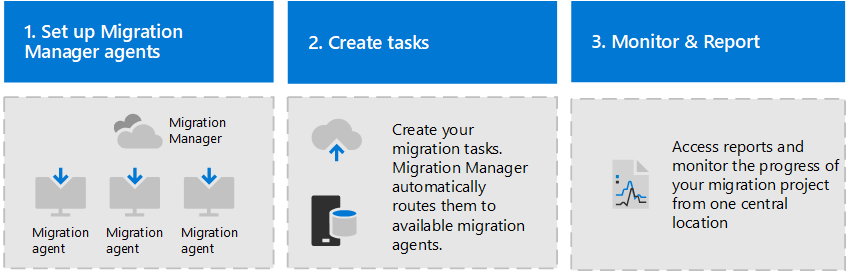
Use PnP command: Get-PnPProvisioningTemplate -Out 'template.xml' to export site structure, lists, and content. Add flags like -IncludeContentTypes, -IncludeTermGroups as needed. Export takes time for large sites.
Open template.xml in editor. Remove unwanted list items (often data bloat). Customize column mappings, security groups, branding. Remove hardcoded GUIDs if template will be reused across tenants.
Create target site collection in destination tenant. Pre-create required Azure AD groups. Assign permissions to ensure PnP has rights to apply template (admin or site owner).
Run: Apply-PnPProvisioningTemplate -Path 'template.xml' against target site. Verify all lists, content types, columns created successfully. Check permissions applied correctly.
Use PnP Copy-PnPFile or Invoke-PnPSiteTransfer to move files and list items. Map source users to target tenant identities. Verify nobody has lost access post-migration.
Smoke test: access lists, download files, run workflows, check formulas. Compare source vs target side-by-side for missing content. Get sign-off from business owner.
Before writing a single line of PowerShell, align expectations. PnP covers the majority of routine content migrations but some artifacts require supplementary tools.
Same-tenant vs cross-tenant: This guide covers same-tenant site-to-site migration (both sites are in your Microsoft 365 organisation). For cross-tenant migrations — mergers, acquisitions, divestiture — use the SharePoint Migration Tool (SPMT) or Microsoft's Cross-Tenant Migration tooling.
You need PowerShell 7.4 or later, the latest PnP.PowerShell module, and an Entra app registration with the right permissions. If you have not done this yet, start with our PnP Entra App Registration guide before continuing.
| Requirement | Minimum version / detail |
|---|---|
| PowerShell | 7.4 or later (pwsh --version) |
| PnP.PowerShell | Latest stable release (Get-Module PnP.PowerShell -ListAvailable) |
| Entra app permissions | Sites.FullControl.All (Application) on Microsoft Graph |
| SharePoint Admin role | Required at tenant level for site collection operations |
| Access to both sites | Site Collection Administrator on both source and destination |
# Verify PowerShell version (must be 7.4+)
$PSVersionTable.PSVersion

# Install or update PnP.PowerShell
Install-Module PnP.PowerShell -Scope CurrentUser -Force -AllowClobber

# Confirm installed version
Get-Module PnP.PowerShell -ListAvailable | Select-Object Name, Version
You need two live connections — one to the source site and one to the destination. PnP PowerShell lets you switch between connections using the -Connection parameter, which keeps your code explicit about which site each cmdlet targets.
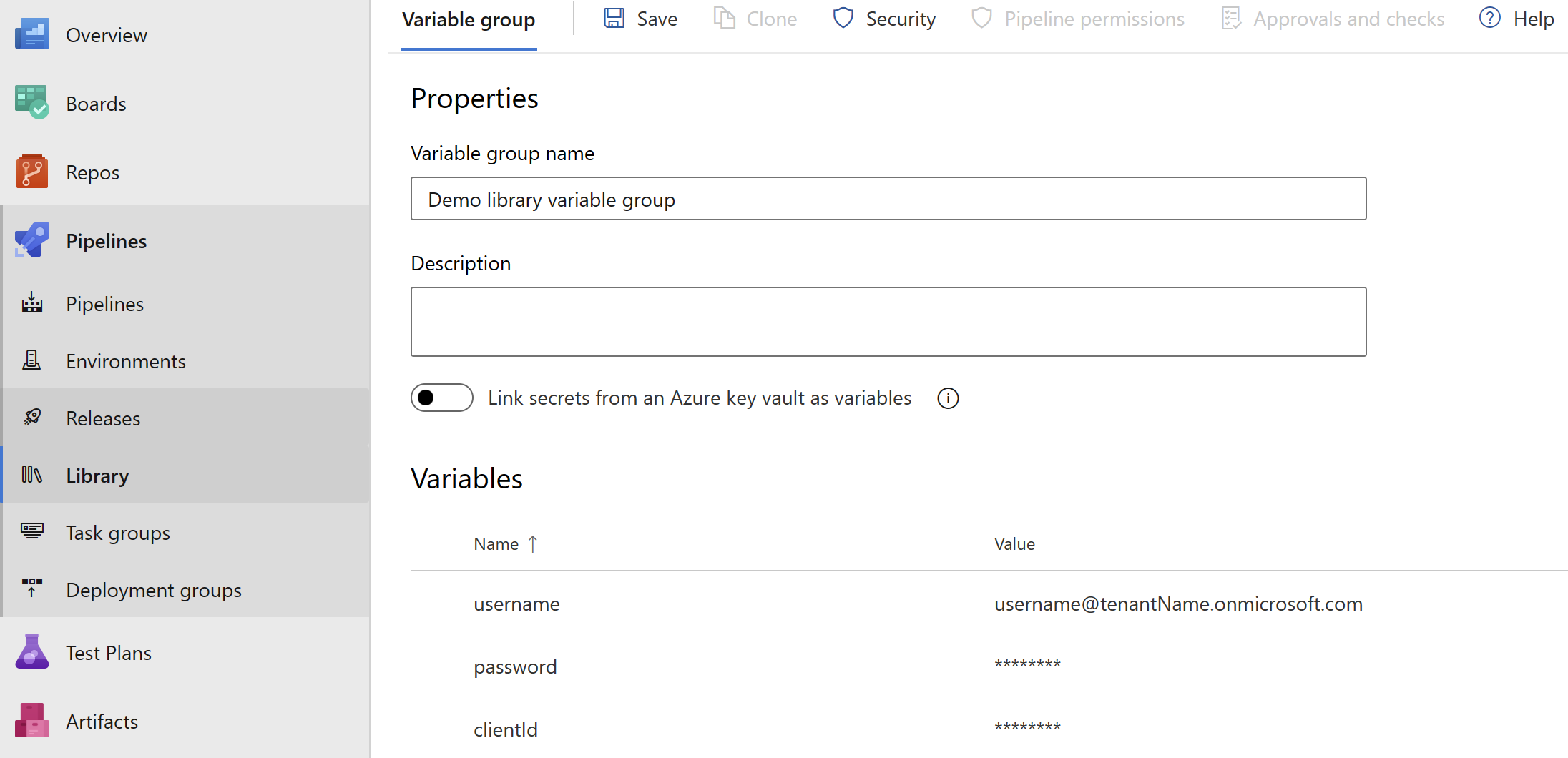
Tip: Store connections in clearly named variables ($src and $dst) and always pass -Connection explicitly. Without it, PnP uses the most recently established connection — a common source of accidental writes to the wrong site.
# Source site you are migrating from.
$srcUrl    = "https://contoso.sharepoint.com/sites/OldIntranet"

# Destination site you are migrating into.
$dstUrl    = "https://contoso.sharepoint.com/sites/NewIntranet"

# Entra app Client ID used for certificate authentication.
$clientId  = "xxxxxxxx-xxxx-xxxx-xxxx-xxxxxxxxxxxx"

# Tenant name for the Entra app registration.
$tenant    = "contoso.onmicrosoft.com"

# PFX certificate file linked to the Entra app registration.
$certPath  = "C:\Certs\PnPSharePointApp.pfx"

# PFX password; use a secure secret source for production.
$certPass  = ConvertTo-SecureString "YourP@ssw0rd" -AsPlainText -Force
$src = Connect-PnPOnline `
    -Url                 $srcUrl `
    -ClientId            $clientId `
    -CertificatePath     $certPath `
    -CertificatePassword $certPass `
    -Tenant              $tenant `
    -ReturnConnection

$dst = Connect-PnPOnline `
    -Url                 $dstUrl `
    -ClientId            $clientId `
    -CertificatePath     $certPath `
    -CertificatePassword $certPass `
    -Tenant              $tenant `
    -ReturnConnection

Write-Host "Source     : $((Get-PnPWeb -Connection $src).Title)"
Write-Host "Destination: $((Get-PnPWeb -Connection $dst).Title)"Before migrating anything, produce a complete inventory of the source site. This CSV becomes your migration manifest and your post-migration validation baseline.
# CSV output path for the source inventory report.
$reportPath = "C:\Migration\source-inventory-$(Get-Date -Format 'yyyyMMdd').csv"
$inventory  = @()

$lists = Get-PnPList -Connection $src |
    Where-Object { -not $_.Hidden -and $_.BaseType -in 'DocumentLibrary','GenericList' }

foreach ($list in $lists) {
    $items = Get-PnPListItem -List $list.Title -Connection $src -PageSize 500

    $inventory += [PSCustomObject]@{
        ListTitle    = $list.Title
        ListType     = $list.BaseType
        ItemCount    = $list.ItemCount
        LastModified = $list.LastItemModifiedDate.ToString("yyyy-MM-dd")
        HasUniquePermissions = $list.HasUniqueRoleAssignments
    }
    Write-Host "  $($list.Title) — $($list.ItemCount) items"
}

$inventory | Export-Csv -Path $reportPath -NoTypeInformation -Encoding UTF8
Write-Host "`nInventory saved to: $reportPath"
Write-Host "Total lists/libraries: $($inventory.Count)"
Write-Host "Total items          : $(($inventory | Measure-Object ItemCount -Sum).Sum)"
Large libraries: If a library has more than 5,000 items, Get-PnPListItem will hit the list view threshold. Use -PageSize 500 combined with -Fields to fetch only the columns you need, and consider batching by folder.

The site template captures columns, content types, list schemas, navigation, and regional settings — everything except the actual content. Apply it to the destination site first so that the structure exists before you copy data.
# PnP template XML output path.
$templatePath = "C:\Migration\site-template.xml"

Get-PnPSiteTemplate `
    -Connection          $src `
    -Out                 $templatePath `
    -Handlers            ContentTypes, Fields, Lists, Navigation, SupportedUILanguages `
    -ExcludeHandlers     ExtensibilityProviders `
    -Force

Write-Host "Template exported to: $templatePath"

# Review the XML in a text editor before applying — remove any lists
# that already exist at the destination to avoid duplication errors.
Invoke-PnPSiteTemplate `
    -Connection $dst `
    -Path       $templatePath

Write-Host "Template applied to destination site."
Before applying: Open the exported XML and remove <pnp:ListInstance> nodes for any lists that already exist at the destination (Documents, Site Assets, Site Pages). Applying a template that tries to create an already-existing list will throw a non-fatal but noisy error.
Copy-PnPFile is the fastest way to move files within the same tenant — it calls the SharePoint server-side copy API, so nothing transfers through your local machine. For large libraries, combine it with folder enumeration and progress tracking.
# Source library server-relative URL.
$srcLibUrl = "/sites/OldIntranet/Shared Documents"

# Destination library server-relative URL.
$dstLibUrl = "/sites/NewIntranet/Shared Documents"

Copy-PnPFile `
    -SourceUrl      $srcLibUrl `
    -TargetUrl      $dstLibUrl `
    -Overwrite `
    -SkipSourceFolderName `
    -Connection     $src

Write-Host "Library copy complete."# CSV output path for copy results.
$logPath = "C:\Migration\copy-log-$(Get-Date -Format 'yyyyMMdd-HHmm').csv"
$log = @()
function Copy-SPFolder {
param($FolderUrl, $SrcConn, $DstSiteUrl)
$files = Get-PnPFolderItem -FolderSiteRelativeUrl $FolderUrl `
-ItemType File -Connection $SrcConn
foreach ($file in $files) {
$srcFile = $file.ServerRelativeUrl
$dstFile = $srcFile -replace "/sites/OldIntranet", "/sites/NewIntranet"
try {
Copy-PnPFile -SourceUrl $srcFile -TargetUrl $dstFile `
-Overwrite -Connection $SrcConn
$log += [PSCustomObject]@{
File = $srcFile
Status = "OK"
Error = ""
}
} catch {
$log += [PSCustomObject]@{
File = $srcFile
Status = "FAILED"
Error = $_.Exception.Message
}
Write-Warning "FAILED: $srcFile — $($_.Exception.Message)"
}
}
$subFolders = Get-PnPFolderItem -FolderSiteRelativeUrl $FolderUrl `
-ItemType Folder -Connection $SrcConn |
Where-Object { $_.Name -notin "Forms","_t","_w" }
foreach ($sub in $subFolders) {
Copy-SPFolder -FolderUrl $sub.ServerRelativeUrl -SrcConn $SrcConn -DstSiteUrl $DstSiteUrl
}
}
Copy-SPFolder -FolderUrl "/sites/OldIntranet/Shared Documents" `
-SrcConn $src -DstSiteUrl $dstUrl
$log | Export-Csv -Path $logPath -NoTypeInformation -Encoding UTF8
$failed = ($log | Where-Object { $_.Status -eq "FAILED" }).Count
Write-Host "`nCopied: $($log.Count - $failed) files | Failed: $failed | Log: $logPath"For custom lists (not document libraries) you need to read items from the source and create them at the destination. PnP PowerShell maps field values via a hashtable — you match source field internal names to destination field internal names.
Lookup columns: Lookup field values cannot be copied as-is because they reference item IDs in the source list — IDs that won't match at the destination. You must resolve the lookup text value and re-link it to the destination list's ID. The script below handles single-value text lookups; multi-value and cascading lookups require additional resolution logic.
# Source list display name.
$srcListName = "Project Register"

# Destination list display name.
$dstListName = "Project Register"

$srcItems = Get-PnPListItem `
    -List       $srcListName `
    -Connection $src `
    -PageSize   500 `
    -Fields     "Title","ProjectStatus","Department","StartDate","DueDate","Budget"

Write-Host "Migrating $($srcItems.Count) items from '$srcListName'…"
$migrated = 0
$errors   = 0

foreach ($item in $srcItems) {
    try {
        $values = @{
            Title         = $item["Title"]
            ProjectStatus = $item["ProjectStatus"]
            Department    = $item["Department"]
            StartDate     = $item["StartDate"]
            DueDate       = $item["DueDate"]
            Budget        = $item["Budget"]
        }

        # Remove null values — Add-PnPListItem errors on null for some field types
        $values = $values.GetEnumerator() |
            Where-Object { $null -ne $_.Value } |
            ForEach-Object -Begin { $h = @{} } -Process { $h[$_.Key] = $_.Value } -End { $h }

        Add-PnPListItem -List $dstListName -Values $values -Connection $dst | Out-Null
        $migrated++
    } catch {
        Write-Warning "Item '$($item["Title"])' failed: $($_.Exception.Message)"
        $errors++
    }
}

Write-Host "Done — Migrated: $migrated | Errors: $errors"Modern pages present the biggest challenge. The page text, images, and layout migrate cleanly. Web part configurations — Highlighted Content, Quick Links, News web parts with specific filters — often need manual reconfiguration after the copy because their data references the source site URL.
# Folder where page template XML files will be written.
$pagesExportDir = "C:\Migration\pages"
New-Item -ItemType Directory -Path $pagesExportDir -Force | Out-Null

$pages = Get-PnPListItem -List "Site Pages" -Connection $src `
             -Fields "FileLeafRef","Title","_ModernAudienceTargetUserField" |
         Where-Object { $_["FileLeafRef"] -match "\.aspx$" }

Write-Host "Found $($pages.Count) pages to migrate."

foreach ($page in $pages) {
    $pageName = $page["FileLeafRef"]
    Write-Host "  Exporting: $pageName"

    try {
        $pageTemplate = "$pagesExportDir\$($pageName -replace '\.aspx$','.xml')"
        Get-PnPSiteTemplate `
            -Connection   $src `
            -Out          $pageTemplate `
            -Handlers     PageContents `
            -Pages        $pageName `
            -Force

        Invoke-PnPSiteTemplate `
            -Connection $dst `
            -Path       $pageTemplate

        Write-Host "    ✓ $pageName migrated"
    } catch {
        Write-Warning "    ✗ $pageName failed: $($_.Exception.Message)"
    }
}

Write-Host "`nPage migration complete. Review web part configurations manually."
After page migration: Open each migrated page in edit mode and check News, Highlighted Content, and Quick Links web parts. Any web part that references a specific SharePoint list or library will still point to the source site URL and must be re-pointed to the equivalent destination list.
Permissions are migrated in two stages: recreate the SharePoint groups at the destination (with the same permission levels), then add the original members to each group. Item-level unique permissions require a separate pass.
$srcGroups = Get-PnPSiteGroup -Connection $src |
    Where-Object { $_.Title -notin "Excel Services Viewers","Style Resource Readers" }

foreach ($group in $srcGroups) {
    Write-Host "Processing group: $($group.Title)"

    $dstGroup = Get-PnPSiteGroup -Connection $dst |
        Where-Object { $_.Title -eq $group.Title }

    if (-not $dstGroup) {
        $dstGroup = New-PnPGroup `
            -Title       $group.Title `
            -Description $group.Description `
            -Connection  $dst
        Write-Host "  Created group: $($group.Title)"
    }

    $members = Get-PnPGroupMember -Group $group.Title -Connection $src

    foreach ($member in $members) {
        if ($member.PrincipalType -eq "User") {
            try {
                Add-PnPGroupMember `
                    -Group      $dstGroup.Title `
                    -LoginName  $member.LoginName `
                    -Connection $dst
            } catch {
                Write-Warning "  Could not add $($member.LoginName): $($_.Exception.Message)"
            }
        }
    }

    Write-Host "  Added $($members.Count) members to $($group.Title)"
}

Write-Host "Group migration complete."# Get role assignments from source root web
$srcWeb = Get-PnPWeb -Connection $src -Includes RoleAssignments
$srcRoles = $srcWeb.RoleAssignments
Invoke-PnPQuery -Connection $src
foreach ($ra in $srcRoles) {
$principal = $ra.Member
$bindings = $ra.RoleDefinitionBindings
Invoke-PnPQuery -Connection $src
foreach ($binding in $bindings) {
if ($binding.Name -in "Limited Access","System Account") { continue }
try {
Set-PnPWebPermission `
-Group $principal.LoginName `
-AddRole $binding.Name `
-Connection $dst
Write-Host " Set '$($binding.Name)' on '$($principal.LoginName)'"
} catch {
Write-Warning " Could not set role '$($binding.Name)' for '$($principal.LoginName)'"
}
}
}Never declare a migration complete without a validation pass. This script compares item counts between source and destination for every list and library, and flags any discrepancy.
# CSV output path for validation results.
$validationPath = "C:\Migration\validation-$(Get-Date -Format 'yyyyMMdd-HHmm').csv"
$results = @()

$srcLists = Get-PnPList -Connection $src |
    Where-Object { -not $_.Hidden -and $_.BaseType -in 'DocumentLibrary','GenericList' }

foreach ($srcList in $srcLists) {
    # Find matching list at destination by title
    $dstList = Get-PnPList -Identity $srcList.Title -Connection $dst -ErrorAction SilentlyContinue

    $srcCount = $srcList.ItemCount
    $dstCount = if ($dstList) { $dstList.ItemCount } else { -1 }
    $match    = $srcCount -eq $dstCount

    $results += [PSCustomObject]@{
        List        = $srcList.Title
        SourceCount = $srcCount
        DestCount   = $dstCount
        Match       = if ($match) { "OK" } elseif ($dstCount -eq -1) { "MISSING" } else { "MISMATCH" }
    }

    $icon = if ($match) { "✓" } elseif ($dstCount -eq -1) { "✗ MISSING" } else { "⚠ MISMATCH" }
    Write-Host "  $icon  $($srcList.Title) — Source: $srcCount  Dest: $dstCount"
}

$results | Export-Csv -Path $validationPath -NoTypeInformation -Encoding UTF8

$ok       = ($results | Where-Object { $_.Match -eq "OK" }).Count
$mismatch = ($results | Where-Object { $_.Match -ne "OK" }).Count
Write-Host "`n─────────────────────────────────────────────"
Write-Host "Matched: $ok / $($results.Count)"
if ($mismatch -gt 0) {
    Write-Warning "$mismatch list(s) need attention — see: $validationPath"
} else {
    Write-Host "✓ All lists match. Migration validated successfully."
}The script below orchestrates all eight steps as a single runnable file. Adjust the configuration block at the top, run in PowerShell 7, and pipe the output to a log file for a complete audit trail.
#Requires -Version 7
#Requires -Modules PnP.PowerShell

<#
.SYNOPSIS
    OceanCloud — SharePoint Online Site-to-Site Migration
.DESCRIPTION
    Migrates document libraries, list items, modern pages, and permissions
    from one SharePoint Online site to another within the same tenant.
    Run as: pwsh -File Invoke-SPMigration.ps1 *>&1 | Tee-Object migration.log
#>

$Config = @{
    # Source and destination SharePoint sites.
    SourceUrl    = "https://contoso.sharepoint.com/sites/OldIntranet"
    DestUrl      = "https://contoso.sharepoint.com/sites/NewIntranet"

    # Entra app and certificate authentication values.
    ClientId     = "xxxxxxxx-xxxx-xxxx-xxxx-xxxxxxxxxxxx"
    Tenant       = "contoso.onmicrosoft.com"
    CertPath     = "C:\Certs\PnPSharePointApp.pfx"
    CertPass     = "YourSecurePassword"

    # Folder for logs, exports, and page templates.
    OutputDir    = "C:\Migration"

    # Lists to skip during migration.
    ExcludeLists = @("Form Templates","Preservation Hold Library")

    # Set each switch to false to skip that migration phase.
    MigrateTemplate    = $true
    MigrateLibraries   = $true
    MigrateLists       = $true
    MigratePages       = $true
    MigratePermissions = $true
}
$null = New-Item -ItemType Directory -Path $Config.OutputDir -Force
$certPassSec = ConvertTo-SecureString $Config.CertPass -AsPlainText -Force

Write-Host "`n=== OceanCloud SP Migration — $(Get-Date -Format 'yyyy-MM-dd HH:mm') ===`n"

$connParams = @{
    ClientId            = $Config.ClientId
    CertificatePath     = $Config.CertPath
    CertificatePassword = $certPassSec
    Tenant              = $Config.Tenant
}
$src = Connect-PnPOnline @connParams -Url $Config.SourceUrl -ReturnConnection
$dst = Connect-PnPOnline @connParams -Url $Config.DestUrl   -ReturnConnection
Write-Host "Connected: $((Get-PnPWeb -Connection $src).Title)  →  $((Get-PnPWeb -Connection $dst).Title)`n"

if ($Config.MigrateTemplate) {
    Write-Host "[1/5] Exporting and applying site template…"
    $tpl = "$($Config.OutputDir)\site-template.xml"
    Get-PnPSiteTemplate -Connection $src -Out $tpl -Handlers ContentTypes,Fields,Lists,Navigation -Force
    Invoke-PnPSiteTemplate -Connection $dst -Path $tpl
    Write-Host "      Template applied.`n"
}

if ($Config.MigrateLibraries) {
    Write-Host "[2/5] Copying document libraries…"
    $libs = Get-PnPList -Connection $src |
        Where-Object { $_.BaseType -eq 'DocumentLibrary' -and -not $_.Hidden `
                       -and $_.Title -notin $Config.ExcludeLists }
    foreach ($lib in $libs) {
        $srcPath = $lib.RootFolder.ServerRelativeUrl
        $dstPath = $srcPath -replace [regex]::Escape(([uri]$Config.SourceUrl).AbsolutePath), ([uri]$Config.DestUrl).AbsolutePath
        Write-Host "  Copying: $($lib.Title)"
        try { Copy-PnPFile -SourceUrl $srcPath -TargetUrl $dstPath -Overwrite -Connection $src }
        catch { Write-Warning "  Failed: $($_.Exception.Message)" }
    }
    Write-Host "      Libraries done.`n"
}

if ($Config.MigrateLists) {
    Write-Host "[3/5] Migrating list items…"
    $lists = Get-PnPList -Connection $src |
        Where-Object { $_.BaseType -eq 'GenericList' -and -not $_.Hidden `
                       -and $_.Title -notin $Config.ExcludeLists }
    foreach ($list in $lists) {
        $items = Get-PnPListItem -List $list.Title -Connection $src -PageSize 500
        Write-Host "  $($list.Title): $($items.Count) items"
        foreach ($item in $items) {
            try {
                $vals = @{ Title = $item["Title"] }
                Add-PnPListItem -List $list.Title -Values $vals -Connection $dst | Out-Null
            } catch { Write-Warning "  Item failed: $($_.Exception.Message)" }
        }
    }
    Write-Host "      Lists done.`n"
}

if ($Config.MigratePages) {
    Write-Host "[4/5] Migrating modern pages…"
    $pages = Get-PnPListItem -List "Site Pages" -Connection $src -Fields "FileLeafRef" |
             Where-Object { $_["FileLeafRef"] -match "\.aspx$" }
    foreach ($page in $pages) {
        $name = $page["FileLeafRef"]
        $out  = "$($Config.OutputDir)\page-$name.xml"
        try {
            Get-PnPSiteTemplate -Connection $src -Out $out -Handlers PageContents -Pages $name -Force
            Invoke-PnPSiteTemplate -Connection $dst -Path $out
            Write-Host "  ✓ $name"
        } catch { Write-Warning "  ✗ $name : $($_.Exception.Message)" }
    }
    Write-Host "      Pages done.`n"
}

if ($Config.MigratePermissions) {
    Write-Host "[5/5] Migrating groups and permissions…"
    $groups = Get-PnPSiteGroup -Connection $src
    foreach ($grp in $groups) {
        if (-not (Get-PnPSiteGroup -Connection $dst | Where-Object { $_.Title -eq $grp.Title })) {
            New-PnPGroup -Title $grp.Title -Description $grp.Description -Connection $dst | Out-Null
        }
        $members = Get-PnPGroupMember -Group $grp.Title -Connection $src
        foreach ($m in $members | Where-Object { $_.PrincipalType -eq "User" }) {
            try { Add-PnPGroupMember -Group $grp.Title -LoginName $m.LoginName -Connection $dst }
            catch { Write-Warning "  Could not add $($m.LoginName)" }
        }
        Write-Host "  ✓ $($grp.Title) ($($members.Count) members)"
    }
    Write-Host "      Permissions done.`n"
}

Write-Host "=== Migration complete — $(Get-Date -Format 'yyyy-MM-dd HH:mm') ===`n"
Write-Host "Next: run validation script, then check page web parts manually."Sites.FullControl.All at the application level, or the app has not been granted admin consent. Fix: In the Entra portal → your app → API permissions → click Grant admin consent for [tenant]. Then verify in the SharePoint Admin Centre that the app is registered as a site collection administrator.
-Overwrite was not specified. Fix: Add -Overwrite to Copy-PnPFile, or delete the conflicting file at the destination first. If you want to preserve the destination version, remove the file from your source copy list.
$null on initial migration, then resolve lookup IDs in a second pass after all referenced items are created.
Get-PnPList -Connection $dst | Select Title, InternalName to confirm the exact internal name and adjust your mapping.
? # % &). Fix: Check the source file names with Get-PnPFolderItem | Where-Object { $_.Name -match '[?#%&]' } and rename the files before re-exporting the template.
-PageSize 500 and use -Query with a CAML filter to process items in batches, or index the column you are filtering on before querying.
OceanCloud plans and executes site-to-site migrations for organisations of all sizes — from single-site restructures to full intranet consolidations. We handle the scripting, testing, cutover planning, and post-migration validation so your team experiences zero surprises.
Talk to a Migration SpecialistPnP PowerShell can migrate site structure (content types, columns, views), document libraries with files and metadata, list items with column values, modern site pages, navigation, and site theme.
It cannot migrate workflows, permissions inheritance, custom code, or large files over the tenant upload limit.
You need at minimum Site Collection Admin rights on both the source and destination sites.
For cross-tenant migrations or bulk operations across many sites, a Global Admin or SharePoint Admin role with an app registration (client credentials) is more practical than interactive sign-in.
The Invoke-PnPSiteTemplate approach migrates the latest version of files only.
To preserve version history, use the built-in SharePoint Migration Manager or SPMT, which supports version history migration. PnP PowerShell's Copy-PnPFile cmdlet copies files but does not preserve version history.
For files over 250 MB, use the chunked upload method with Set-PnPFileToLocal and Add-PnPFile with the -Chunked parameter.
For bulk library migrations, batch files into groups and add error handling with try/catch blocks to log failures without stopping the entire run.
A small site with under 1,000 files typically completes in under 30 minutes.
A large site with 50,000+ files can take several hours depending on average file size and SharePoint throttling. Run migrations outside business hours and add retry logic to handle 429 throttling responses.
Implementation path: Use this runbook with a documented migration scope, pilot, cutover, and source-to-target validation plan. Microsoft 365 migration services →