SharePoint Permissions: Best Practices for Secure Sites
Least privilege, group-based access, external sharing controls, audit methodology, and the top mistakes that create security liabilities — a definitive security-focused guide.
Least privilege, group-based access, external sharing controls, audit methodology, and the top mistakes that create security liabilities — a definitive security-focused guide.
SharePoint permissions are deceptively easy to get wrong. The platform makes it trivially simple to share content — which is by design — but that ease of sharing, without governance, creates the oversharing problems that result in data breaches, compliance failures, and Copilot AI surfacing documents to people who should never have seen them. This guide sets out the permission design principles, structural patterns, and audit approaches that prevent those problems.
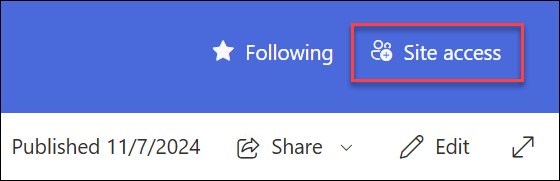
The least privilege principle means granting users the minimum access required to do their job — no more. In SharePoint, this translates to concrete decisions at every level of the permission hierarchy:
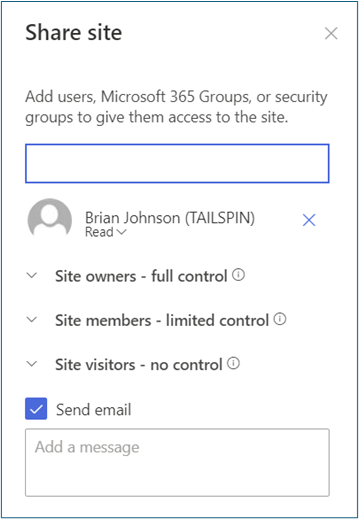
Granting access to individual user accounts — rather than Microsoft Entra groups or SharePoint groups — is the most common SharePoint permission anti-pattern. It creates three problems:
Best practice: For every SharePoint site, use three Microsoft Entra groups: Site Owners, Site Members, and Site Visitors. Map these directly to the SharePoint Owners, Members, and Visitors groups. Manage all access by adding users to the Entra groups — never by adding individuals directly to SharePoint groups.
SharePoint's external sharing settings operate at three levels: tenant, site collection, and item/library. Each lower level can only be as permissive as the level above it — you cannot enable Anyone links for a site if the tenant setting disables them.
| Sharing setting | Who can access | Recommended use |
|---|---|---|
| Anyone (anonymous) | Any person with the link — no sign-in required; not tracked in audit logs as a named user | Avoid entirely for business data; acceptable for public-facing marketing assets only |
| New and existing guests | External users; new guests must verify identity before first access | Client collaboration sites, partner project sites with appropriate governance |
| Existing guests only | External users already in Microsoft Entra ID | IT-controlled guest access; new guests require an Entra guest invitation from IT |
| Only people in your organisation | Internal M365 users only; no external access possible | Default setting for all internal sites; HR, Finance, Legal, Executive sites |
Set the tenant default to "New and existing guests" at most. Then disable external sharing at the site level for all internal sites (HR, Finance, Legal, IT, Executive), leaving it enabled only for sites with a legitimate collaboration need. Use SharePoint Advanced Management's Data Access Governance reports monthly to identify sites where sharing settings have drifted from the baseline.
📄 External sharing overview for SharePoint — learn.microsoft.com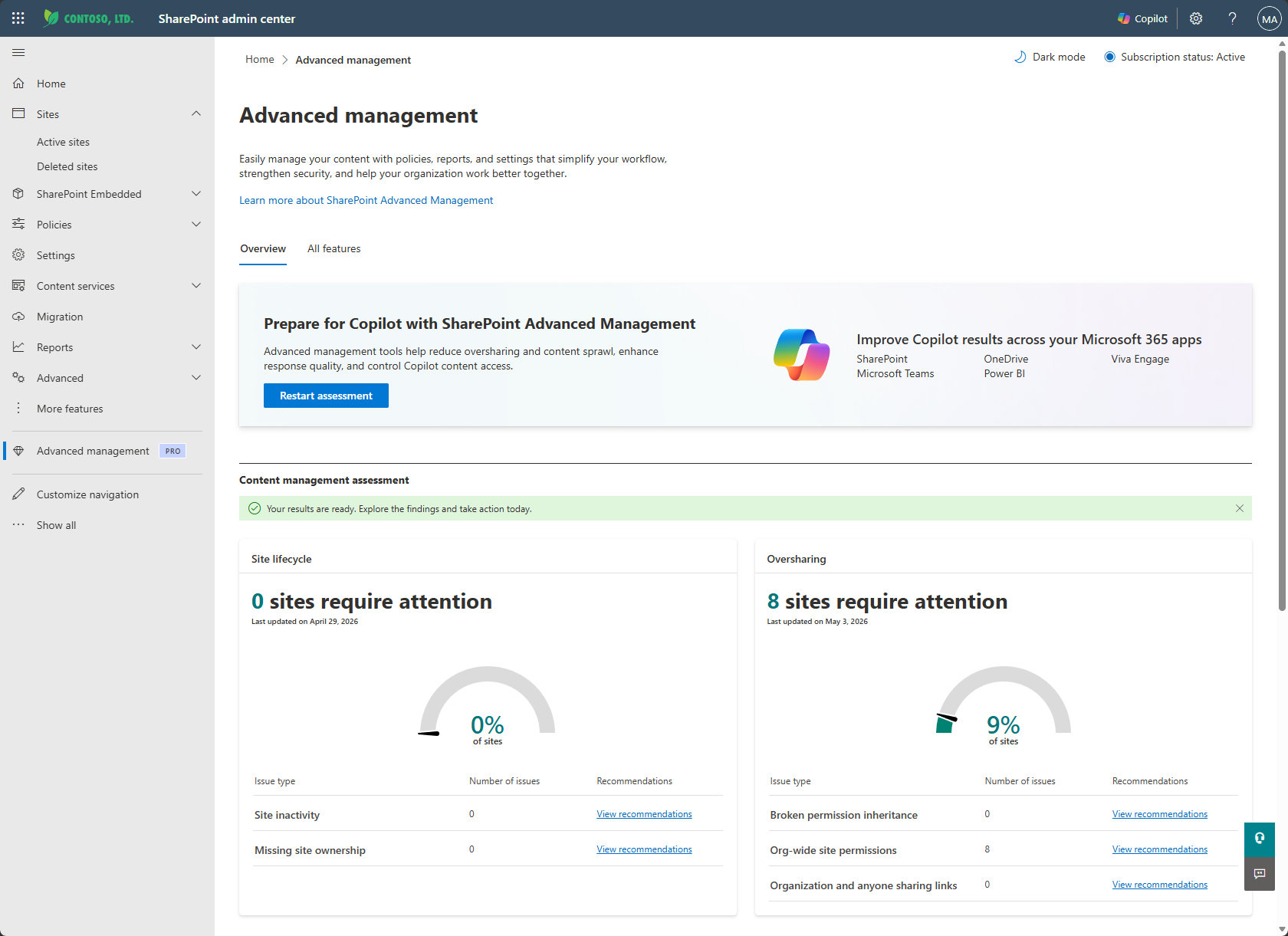
Sites without a designated owner accumulate access grants that no one reviews. Every SharePoint site must have at least one named human owner (not a shared mailbox or service account) responsible for quarterly access reviews.
The default sharing link type — what appears when a user clicks Share — defaults to "Anyone with the link" in many tenants. Change the tenant default to "Specific people" or "People in your organisation" so the secure option is the path of least resistance.
If Anyone links are permitted for specific sites, configure a mandatory expiry (30 days is standard). Expired links require re-sharing — which creates a natural governance checkpoint.
Item-level unique permissions (broken inheritance on a single file or list item) are invisible in the site's permission summary, nearly impossible to audit at scale, and frequently forgotten. Use folder or library-level permissions instead, or create a separate site for genuinely restricted content.
At minimum, HR, Finance, Legal, and Executive sites should have their member lists reviewed every 90 days. Use SharePoint Advanced Management's Site Access Review feature to automate the request — owners receive an email with a list of current members and confirm or revoke each one.
Guest accounts in Microsoft Entra ID persist until explicitly removed. An ex-client's employee with guest access to your SharePoint client site retains that access indefinitely unless removed. Build a process: when a client relationship ends, an offboarding checklist includes removing guest accounts.
Create three site classifications: Public (internal), Confidential, and Highly Confidential. Define the baseline sharing settings, guest access rules, and sensitivity label requirements for each. Apply the classification to every site at creation and enforce it via SharePoint Advanced Management policies.
The SharePoint Admin Centre's Active Sites report shows the external sharing status of every site. Review it monthly. Sites where external sharing is enabled that were not expected to have it are a governance failure signal.
Sensitivity labels can enforce site-level access policies that cannot be bypassed through the SharePoint UI — including disabling Anyone links for Confidential-labelled sites, enforcing download restrictions for Highly Confidential content, and preventing sharing with external users regardless of site-level settings.
Copilot respects SharePoint permissions exactly — if a user has access (even through a forgotten sharing link), Copilot will use that content in its responses. Run the oversharing audit before Copilot rollout, not after. See our SharePoint Copilot Readiness guide for the full methodology.
A permissions audit should answer three questions: Who has access to what? How did they get it? Is that access still appropriate?
Get-PnPListItem with permission expansion to find list items and folders with unique permissions — these are the blind spots in most permission reviews# Target SharePoint site to audit.
$siteUrl = "https://contoso.sharepoint.com/sites/finance"
# Document library display name to scan.
$library = "Documents"
# Entra app Client ID used by PnP.PowerShell interactive authentication.
$clientId = "xxxxxxxx-xxxx-xxxx-xxxx-xxxxxxxxxxxx"
Connect-PnPOnline -Url $siteUrl -Interactive -ClientId $clientId
$items = Get-PnPListItem `
-List $library `
-PageSize 2000 `
-Includes HasUniqueRoleAssignments, FileSystemObjectType, FieldValuesAsText
$items |
Where-Object { $_.HasUniqueRoleAssignments -eq $true } |
Select-Object `
@{Name="SiteUrl"; Expression={ $siteUrl }},
@{Name="Library"; Expression={ $library }},
Id,
FileSystemObjectType,
@{Name="Name"; Expression={ $_.FieldValuesAsText.FileLeafRef }},
@{Name="Path"; Expression={ $_.FieldValuesAsText.FileRef }} |
Export-Csv .\unique-permissions-finance.csv -NoTypeInformationAudit safely: This script reports broken inheritance; it does not remove access. Review the CSV with each site owner before changing permissions, especially in libraries used by legal, finance, HR, or executive teams.
Audit cadence: An annual SharePoint permissions audit is the minimum for any organisation. Quarterly audits are recommended for organisations in regulated industries or those deploying Microsoft 365 Copilot. Use SharePoint Advanced Management's automated access reviews to make quarterly reviews operationally feasible at scale.
OceanCloud conducts SharePoint permissions audits using SharePoint Advanced Management, PnP PowerShell, and Microsoft Purview — delivering a risk-scored findings report with a prioritised remediation plan. Typical engagement: 2–3 weeks.
Request a Permissions AuditLeast privilege means users receive only the minimum permission level needed to do their job.
In SharePoint this means most users get Contribute or Read on their team sites, never Full Control. Site Owners should be kept to a small group, and permission changes should require documented justification.
For team sites connected to Microsoft Teams or Outlook, use Microsoft 365 group membership — changes in Teams membership automatically flow to SharePoint.
For communication sites or standalone sites, use SharePoint groups (Owners, Members, Visitors). Avoid assigning permissions directly to individual accounts.
Use the SharePoint admin center's Active sites report to identify sites with external sharing enabled.
Run the 'Check permissions' tool on individual sites for user-level inspection. For tenant-wide auditing, use PnP PowerShell's Get-PnPSiteCollectionAdmin and Get-PnPGroupMember cmdlets, or the Microsoft 365 Purview audit log for permission change history.
Microsoft recommends quarterly access reviews for sensitive sites and annually for standard sites.
Use Microsoft Entra ID Access Reviews (included in Entra ID P2) to automate the review process — site owners are prompted to confirm or remove each member without IT intervention.
Unique permissions on folders or items break inheritance and create a shadow permission model that is difficult to audit. They are invisible in the standard site permissions view.
Over time, users leave the organisation but retain access to individual items. Best practice is to separate sensitive content into its own library or site rather than using item-level unique permissions.
OceanCloud specialises in SharePoint consulting, M365 migration, Power Platform solutions, and enterprise governance. Let's discuss how we can help.
Book a Free 60-Minute Consultation ➜