The 10-Step Microsoft 365 Migration Checklist
A practical, field-tested checklist for moving your organisation to Microsoft 365 without the surprises that derail most migrations.
A practical, field-tested checklist for moving your organisation to Microsoft 365 without the surprises that derail most migrations.
A Microsoft 365 migration is not a file copy. Organisations that treat it like one can reproduce the same disorganised content in the cloud, with unclear permissions and poor findability. A safer migration treats discovery, information architecture, governance, validation, and adoption as one programme.
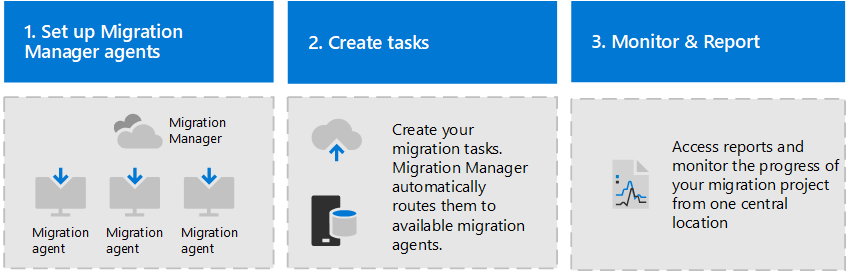
The two most common migration failure modes are skipping the cleanup phase (migrating years of junk into a pristine new environment) and underestimating adoption (assuming users will figure it out on their own). Both are avoidable with the right preparation.
Budget roughly one week of planning for every 100 users, and plan your migration timeline working backwards from a target cutover date.
Document what you have: total data volume by location (file servers, email stores, legacy SharePoint), number of users and licences, active applications, integrations with third-party systems, and custom workflows or automations. Use Microsoft's Assessment and Planning Toolkit or third-party discovery tools for accuracy. You cannot plan a migration without knowing what you're moving.
Delete content nobody needs: duplicate files, drafts older than two years, personal files that shouldn't be on company drives, and archived project folders with no ongoing relevance. Most organisations find they can reduce their data footprint by 20–40% before migration. Moving less data is faster, cheaper, and leaves users with a cleaner experience on day one.
Map out your target state: which teams get Microsoft Teams workspaces vs SharePoint communication sites, how OneDrive replaces personal drives, how your hub site hierarchy should look, and what naming conventions you'll enforce. Decisions made here are expensive to reverse after migration — invest time in getting them right. Review our SharePoint intranet guide for architecture principles.
Before migrating content, set up the environment: configure tenant-level sharing and security settings in the SharePoint Admin Center, deploy DLP (Data Loss Prevention) policies via Microsoft Purview, set retention labels for compliance requirements, enable multi-factor authentication, and configure conditional access policies. Your new environment should be secure by default from day one.
Ensure all users are provisioned in Microsoft Entra ID with the right licences. If you're coming from Active Directory on-premises, verify Microsoft Entra Connect Sync is working and all accounts are matched. Enable self-service password reset. Configure password policies and MFA enforcement before any content moves. Identity problems discovered mid-migration cause the most disruptive delays.
Select 10–30 representative users (ideally including tech-savvy early adopters and some typical non-technical users) and migrate their content first. This surfaces issues with file name restrictions, permissions mapping, metadata loss, and sync client behaviour before they affect everyone. Gather structured feedback. Resolve issues before the broad migration wave.
Adoption is the single most underinvested phase of every migration. Users who receive training before cutover adapt 3x faster than those trained reactively. Create role-based training paths: basic users need OneDrive sync, file sharing in Teams, and finding content via Microsoft Search. Power users need Teams channel management and SharePoint page editing. Managers need governance responsibilities. Use Microsoft's free Adoption Hub resources as a starting point.
Use Microsoft's free SharePoint Migration Tool (SPMT) for file share and older SharePoint migrations. Use the built-in Exchange migration tools for email. For complex scenarios — large volumes, complex permissions, third-party platforms — evaluate Sharegate, AvePoint, or Metalogix. Migrate department by department or team by team, not all-at-once. Each wave is smaller, more manageable, and gives you time to support users before moving to the next group.
After each wave, verify: file counts match between source and destination, permissions are correctly mapped (no data is over- or under-shared), version history is preserved where required, metadata is retained, and users can find their content via search. Run a structured validation checklist against a random sample of 5% of migrated items. Fix discrepancies before decommissioning the source.
Once all users are validated on M365, decommission the source system (update DNS records, disable old email routing, retire file servers). Immediately establish your governance practice: site ownership registry, guest access review schedule, retention policy review cadence, and a process for requesting new Teams or SharePoint sites. A migration with no governance plan will degrade within 18 months. With governance, it improves over time.

Timeline rule of thumb: Small (<100 users): 4–8 weeks. Mid-size (100–500): 8–16 weeks. Enterprise (500+): 3–12 months in waves. The single biggest variable is data volume and how much pre-migration cleanup is required.
Start with a free 60-minute scoping call. We will review the information you provide about the source environment, workloads, risks, and constraints, then outline a proposed assessment path and written estimate.
Book a Free Scoping Call →A basic mailbox-only migration for a 50-user organisation can take 2–4 weeks.
A full migration including SharePoint, OneDrive, Teams, and hybrid Exchange typically takes 8–16 weeks. Enterprise migrations above 1,000 users are usually 6–12 month programmes with phased cutover.
SharePoint Designer workflow history, InfoPath forms, custom list views with complex XSL, SharePoint 2010/2013 custom solution packages (.wsp), and third-party app data stored in SharePoint's app catalog all require manual reconstruction rather than migration.
Legacy calendar overlays and publishing page layouts also require rebuild.
For email migrations, yes — a hybrid Exchange configuration lets you run on-premises and Exchange Online simultaneously with full mailflow.
For SharePoint, parallel environments are optional but recommended for a validation window. For Teams, most organisations cut over by tenant with no parallel running period.
Migrating without first cleaning up the source environment.
Migrating stale content, obsolete sites, outdated distribution lists, and expired licences increases project cost and creates a cluttered destination. A pre-migration clean-up of unused mailboxes, sites older than 2 years, and large personal drives typically saves 20–40% of migration effort.
Microsoft's SharePoint Migration Tool (SPMT) is free and handles on-premises SharePoint and file share migrations.
Mover (also free, bundled in M365 admin center) handles Google Workspace, Box, and Dropbox. For complex enterprise migrations, third-party tools like ShareGate, Sharegate, or AvePoint offer reporting, scheduling, and incremental sync features.
Implementation path: Translate the checklist into workload waves, acceptance criteria, rollback decisions, and post-cutover evidence. Microsoft 365 migration services →
OceanCloud specialises in SharePoint consulting, M365 migration, Power Platform solutions, and enterprise governance. Let's discuss how we can help.
Book a Free 60-Minute Consultation ➜Comprehensive 30-page guide covering all 5 migration phases.