MC1243549: SharePoint OTP Retirement & Entra B2B
Rollout dates, sign-in changes, Gmail identity paths, and the checks administrators should complete.
Rollout dates, sign-in changes, Gmail identity paths, and the checks administrators should complete.
MC1243549 retires the legacy SharePoint Online OTP experience and moves external sharing authentication to Microsoft Entra B2B. It does not remove every email passcode scenario: Entra B2B email one-time passcode can remain available as a fallback when no other supported identity matches the invited user. Administrators should validate rollout timing, invitation redemption, Gmail identity routing, and access to previously shared content.
Source and review note: This guide was rechecked on July 13, 2026 against Microsoft Learn documentation for SharePoint and OneDrive Entra B2B integration, invitation redemption, email OTP, and Google federation. Tenant behavior can vary during phased rollout, so test with representative guest identities before changing production policy.
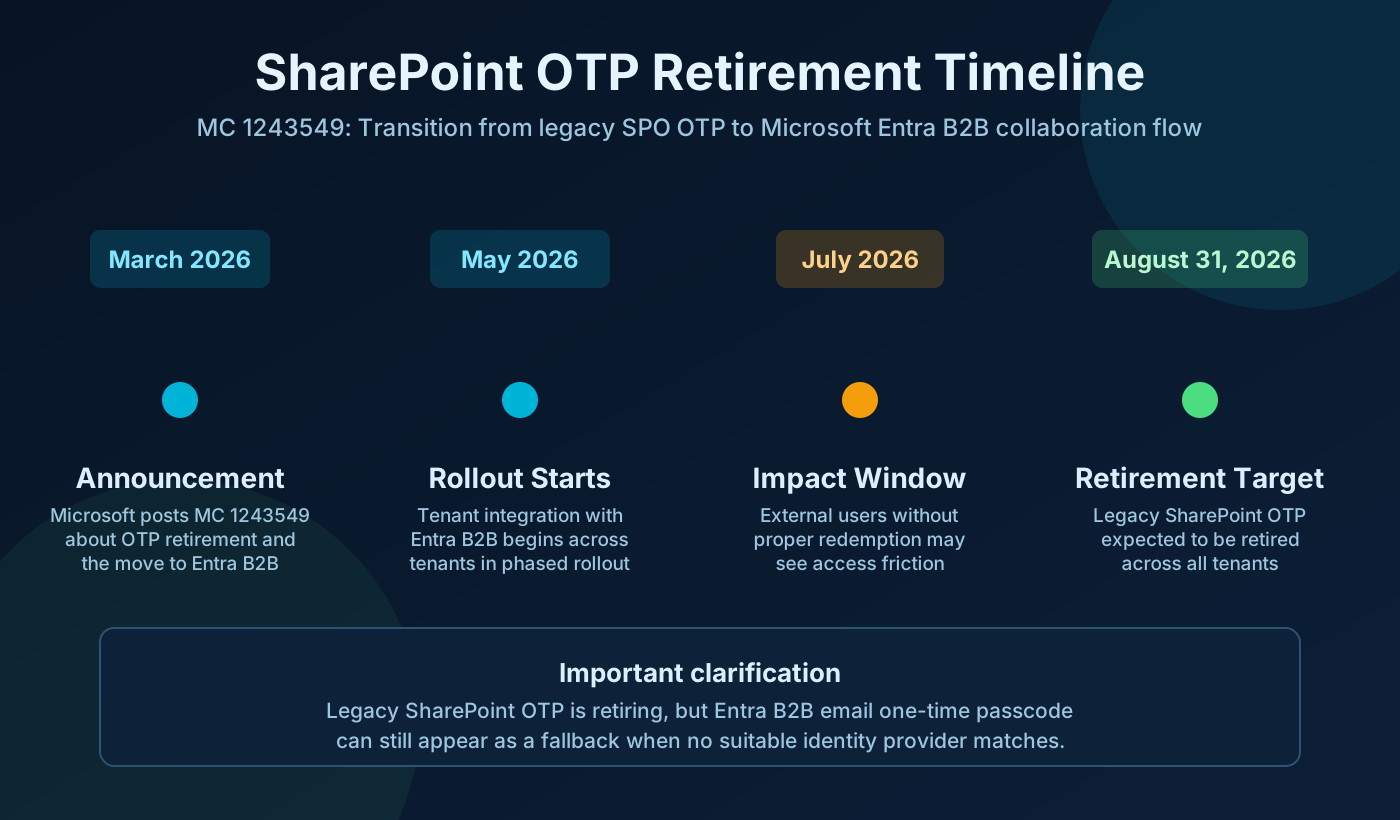
For years, some external users accessed SharePoint and OneDrive links through a legacy OTP flow tied to SharePoint itself. Microsoft is now standardizing this experience under Microsoft Entra B2B collaboration. That means external users are expected to redeem invitations through Entra's identity routing process instead of the old SharePoint-specific mechanism.
The practical effect is not "everyone loses OTP." Instead, the sign-in experience becomes more identity-aware. A user from another organization may sign in with their work account. A personal Microsoft account user may sign in with MSA. A Gmail user may sign in through Google if you configure Google federation. If none of those paths apply and your tenant allows it, Entra B2B email OTP can still be used as the fallback method.
Key clarification: "SharePoint OTP retirement" and "all OTP removed" are not the same statement. Legacy SPO OTP is retiring. Entra B2B email OTP can still exist in supported fallback scenarios.
The timeline matters because many organizations compare behavior across tenants and conclude something is wrong when outcomes differ. In reality, phased rollout means one tenant can look modern while another still appears "old" for a short period.
| Date/phase | What happened | Why it matters |
|---|---|---|
| March 2026 | Microsoft published Message Center MC 1243549 about retirement of legacy SharePoint OTP and transition to Entra B2B. | Admins were given advance notice to validate external access and update identity provider configuration. |
| May 2026 | Microsoft began enabling SharePoint/OneDrive integration with Entra B2B across tenants. | In migrated tenants, old setting behavior changed, including reduced dependence on EnableAzureB2BIntegration. |
| July 2026 onward | Some external collaborators without proper guest redemption started seeing access friction. | This is often where support incidents rise, especially for long-standing ad hoc sharing patterns. |
| By August 31, 2026 | Legacy SharePoint OTP expected to be retired. | Tenants still relying on old assumptions should complete readiness checks before this date. |
At a high level, the change is a move from a SharePoint-owned authentication experience to an Entra-owned collaboration identity experience. This sounds abstract, so here is the operational version: when an external user clicks a sharing link, Entra B2B now decides how that user authenticates based on available identity options and tenant configuration.
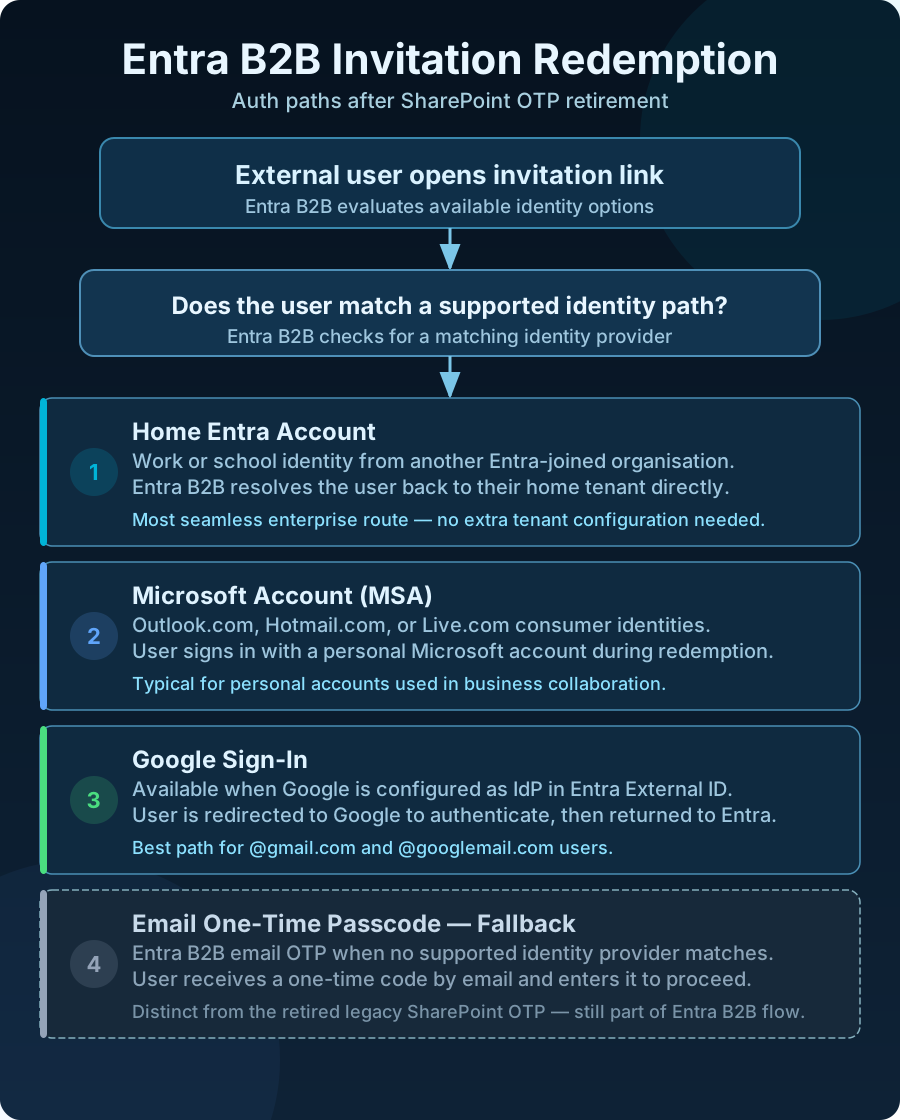
The end-user experience therefore becomes more predictable when identity provider configuration is done correctly. If it is not configured, behavior can still work, but often through fallback paths you did not intend, which can make troubleshooting and user guidance harder.
One of the biggest points of confusion is the historical tenant setting EnableAzureB2BIntegration. In earlier phases of the platform journey, this setting was often discussed as the switch that influenced external auth behavior. With the 2026 rollout, Microsoft has indicated that once integration is applied to a tenant, this old control no longer acts as the main behavior gate it used to be.
Practical advice: do not build operational runbooks that assume this old setting will fully describe external sign-in outcomes in every tenant post-rollout. Validate real invitation redemption behavior instead.
This is a pattern we see often in Microsoft 365 modernization: old controls remain visible for a period while underlying architecture moves forward. For support teams, this means checking both configuration and live behavior, not configuration alone. The most reliable source of truth is still a controlled test invite with known user identities.
One task that often gets deferred is configuring Google as an identity provider in Entra External ID, and right now it deserves priority. For many organizations, the largest group of external collaborators is still Gmail-based consultants, vendors, and partner staff. Without Google federation configured, those users can fall into alternate paths, including Entra email OTP fallback, depending on tenant setup and user account profile.
That fallback may technically work, but it is not always the smoothest or most consistent user experience, especially when your help desk scripts tell users to "sign in with Google" while the user sees a passcode prompt instead. Aligning configuration with expected user behavior reduces confusion dramatically.
@gmail.com and @googlemail.com are typically redirected to Google sign-in during redemption.The process has two sides: Google Developer configuration and Entra identity provider configuration. The order matters. Build the Google OAuth app first, then enter its values in Entra.
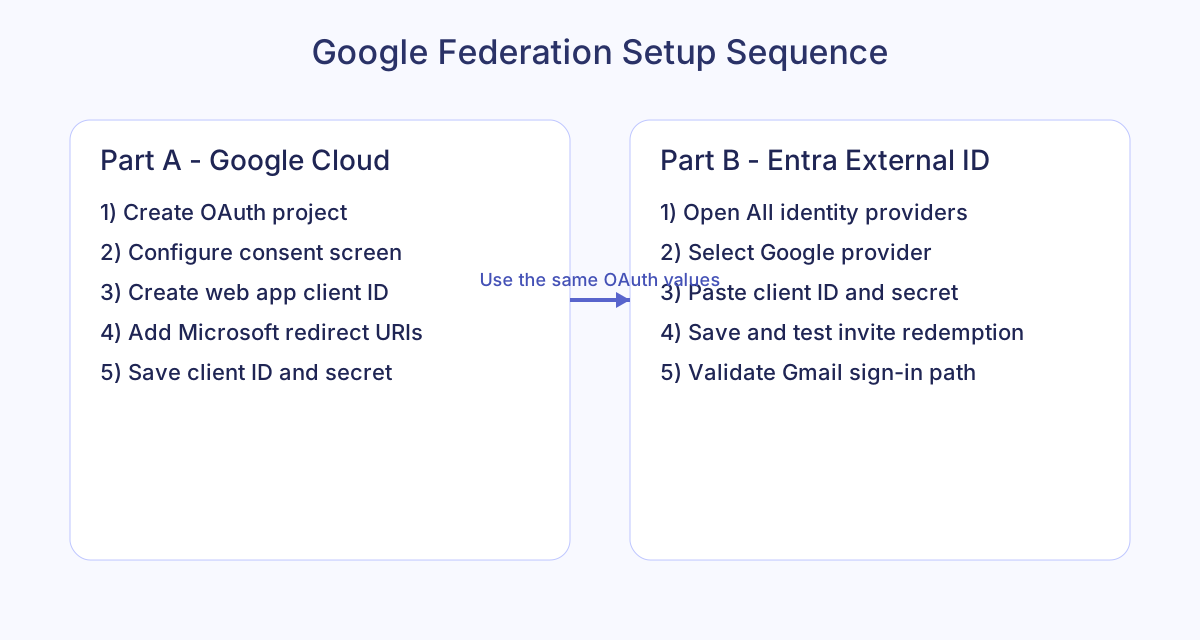
microsoftonline.com.https://login.microsoftonline.comhttps://login.microsoftonline.com/te/<tenant-id>/oauth2/authresphttps://login.microsoftonline.com/te/<tenant-name>.onmicrosoft.com/oauth2/authresp@gmail.com account.Governance tip: keep this as a one-time tenant foundation task, but add annual secret rotation and quarterly redemption testing to your security operations calendar.
One of the biggest real-world confusion points is this: "We configured Google, why is [email protected] not redirected to Google?" If that custom domain is hosted in Google Workspace, the built-in Google identity provider in Entra does not always handle it the same way as @gmail.com and @googlemail.com. Microsoft documentation typically points to SAML/WS-Fed identity provider federation for custom domains.
In other words, built-in Google federation is not a universal "all Google-hosted mail" switch. It is focused on consumer Google identities. For enterprise-like custom domains on Google Workspace, plan dedicated federation architecture and testing.
Do not announce "all external access updated" until you run controlled invitations against identity personas that represent your actual partner ecosystem. The right test matrix is simple and usually catches hidden issues in under one hour.
| Persona | Example account | Expected path | Validation check |
|---|---|---|---|
| Enterprise partner | [email protected] (Entra tenant) | Home Entra sign-in | User redeems invite and accesses file/site without OTP fallback. |
| Consumer Microsoft | [email protected] | Microsoft account sign-in | Invitation redemption maps correctly and repeat access is stable. |
| Gmail user | [email protected] | Google sign-in (after setup) | User is redirected to Google and can open shared content post redemption. |
| No matching IdP | [email protected] | Entra B2B email OTP fallback | Email OTP prompt appears only as fallback, not because of misconfiguration. |
If a user already redeemed a guest invitation using an older path, you may not see the new expected sign-in route immediately. In those situations, administrators commonly reset invitation redemption state (or remove and re-invite the guest) to test the updated authentication experience cleanly. Always perform this in a controlled test cycle first, not on active client accounts during business hours.
For teams that prefer the command line, here are practical snippets to use for pre-checks and audit context. These are not the only commands you need, but they are useful sanity checks before and after rollout windows.
Connect-SPOService -Url https://<tenant>-admin.sharepoint.com

Get-SPOTenant | Select-Object `
  SharingCapability, `
  DefaultSharingLinkType, `
  RequireAnonymousLinksExpireInDays, `
  EnableAzureB2BIntegration
This output helps you understand your external sharing baseline and record state during change windows. Remember, in migrated tenants, the legacy integration setting may no longer fully control behavior. Use it as context, not as your only decision source.
Get-SPOSite -Limit ALL |
  Select-Object Url, SharingCapability |
  Sort-Object Url
This lets you identify sites that are more permissive than expected. If your organization plans to tighten collaboration models during the Entra transition, this report is often your fastest cleanup starting point.
Get-SPOSite -Limit ALL |
  Select-Object Url, Owner, SharingCapability, LastContentModifiedDate |
  Export-Csv .\spo-sharing-review.csv -NoTypeInformation -Encoding UTF8
Most organizations do better with a short, staged plan than a large migration project. The change itself is platform-driven by Microsoft, so your job is readiness, communication, and exception handling.
When external sharing breaks, teams often jump straight into tenant-wide setting changes. That usually makes things worse because the failure is commonly user-level identity mismatch, not a platform outage. A better approach is a short triage sequence that isolates what failed: invitation routing, identity redemption, or post-redemption authorization.
These checks resolve a large portion of incidents without tenant-wide policy changes. If they fail, escalate with concrete facts: invited email, observed sign-in prompt, timestamp, target URL, and expected identity path. Escalations with those five data points are much faster to resolve than generic "external user cannot access" tickets.
| Symptom | Likely cause | Quick remediation |
|---|---|---|
| User gets unexpected OTP when expecting Google sign-in | Google IdP not configured or not matching invited identity path | Validate Google provider config and retest with fresh invite + private session |
| User says "I can sign in, but still cannot open file" | Auth succeeded but SharePoint permission missing | Verify item/site ACL and link scope; re-share to named user if needed |
| User sees account chooser loops | Multiple cached sessions causing identity mismatch | Test in private browser or clear session cookies and retry |
| Behavior changed after policy updates but old user still follows old path | Existing redemption state bound to prior method | Reset redemption status or remove/re-invite guest for clean validation |
| Custom Google Workspace domain not redirecting to Google | Built-in Google IdP does not automatically cover custom domains | Plan SAML/WS-Fed federation for that domain per Microsoft guidance |
If you manage multiple client tenants, consistency matters more than speed. Use a lightweight worksheet so each tenant is assessed using the same logic. This avoids "hero admin" decisions that work once and fail at scale.
With this worksheet, you can run weekly reviews and quickly identify which tenants are at risk before the retirement deadline. It also helps leadership teams understand that this is not just a technical task. It is a coordination task between identity admins, SharePoint admins, support teams, and business stakeholders who frequently share with external contacts.
A useful maturity checkpoint is simple: if your service desk can correctly explain why one user sees Google sign-in and another sees email OTP fallback without escalating to engineering, your rollout documentation is strong. If they cannot, keep refining the domain-path matrix and troubleshooting guide until they can.
The platform transition is Microsoft-led across tenants, but Google identity provider setup is tenant-specific. So the answer is: the rollout happens everywhere, but your configuration actions still happen per tenant. If a tenant expects Gmail users to authenticate via Google sign-in, that tenant must configure Google in Entra External Identities.
Usually yes. It is generally a one-time tenant-level setup that then supports future B2B invitation redemption flows. Operationally, treat it as one-time foundation plus ongoing maintenance: secret rotation, periodic test redemption, and documentation review.
Because rollout is phased and identity resolution is contextual. One tenant may already be moved to new behavior, another may still be in transition. Also, seeing an OTP prompt does not always mean old SharePoint OTP is still in control; it may be Entra B2B email OTP fallback for a user with no matching supported identity path.
If users do not have Entra, Microsoft account, Google federation match, or another configured IdP, Entra B2B email OTP can be used as fallback if enabled in your tenant. This is why your support playbook should include a domain-to-expected-auth map rather than a one-line rule.
Do not assume built-in Google provider automatically covers them. Microsoft guidance generally points to SAML/WS-Fed federation for custom domains. Plan this separately from Gmail consumer identity handling.
If you need to explain this to non-technical leaders, use this version:
"Microsoft is standardizing external file-sharing sign-in. Instead of an older SharePoint passcode flow, external users now go through Entra B2B identity checks. This improves consistency and security. For Gmail users, we need Google sign-in configured in our tenant so their login journey stays smooth."
That short message avoids unnecessary technical details while still preparing people for visible sign-in changes.
Subject: External sharing sign-in update for SharePoint and OneDrive

Microsoft is updating external access authentication for SharePoint and OneDrive.

What changes:
- Legacy SharePoint one-time passcode flow is being retired.
- External access now uses Microsoft Entra B2B invitation redemption.

What this means for users:
- Some external users may see a different sign-in prompt than before.
- Users must redeem invitations with the same email account that was invited.

For Gmail users:
- We are enabling Google sign-in support in Entra External Identities.

Support:
If an external collaborator cannot access a shared file or site, contact
<support mailbox> with the invitee email address and URL.
If you complete these six items, you are in a strong position for a smooth transition. Most post-change incidents then become user guidance issues instead of platform incidents.
OceanCloud can run a tenant-by-tenant B2B readiness review, configure identity providers, test redemption flows, and produce a support-ready operational runbook for your team.
Book a Free Discovery Call →Microsoft retired the legacy SharePoint one-time passcode (OTP) experience in favour of Microsoft Entra B2B Direct Connect.
External users who previously received a one-time email code to access SharePoint content must now authenticate through Entra B2B — typically using a Microsoft account, Google account, or their own Entra ID tenant.
Users who were accessing SharePoint via OTP are prompted to complete Entra B2B redemption on their next login attempt.
If they have a compatible identity (Microsoft account or their organisation's Entra tenant), they redeem seamlessly. Users with only personal email addresses may need Google federation or email one-time passcode configured in your tenant's Entra External Identities settings.
EnableAzureB2BIntegration is a SharePoint admin setting that controls whether SharePoint external sharing goes through Entra B2B invitation flows.
When set to True, external invitations create Entra B2B guest accounts in your directory. Microsoft has been enabling this by default across tenants as part of the OTP retirement rollout.
In the Entra admin center, go to External Identities > All identity providers > Google.
Create a Google OAuth app at console.developers.google.com, configure the authorised redirect URI to your Entra tenant's callback URL, then enter the Google Client ID and Client Secret in Entra. External users with Gmail addresses can then redeem invitations using their Google credentials.
No. Anonymous (Anyone) links are unaffected — they never required authentication to begin with.
OTP retirement only affects authenticated external guest access where external users sign in to view content. Anonymous links bypass identity entirely and should be governed separately through your tenant sharing settings.
Ready-to-use migration scripts and templates.