DLP File Quarantine: SharePoint & OneDrive Setup Guide
How the Purview quarantine action works, the setup order that trips people up, and why restores are manual only.
How the Purview quarantine action works, the setup order that trips people up, and why restores are manual only.
Microsoft Purview Data Loss Prevention has added a new action for SharePoint and OneDrive locations: Block everyone and move file to quarantine location. It sounds like a simple upgrade to the existing "restrict access" actions, but the setup sequence and the restore limitations are strict enough that skipping ahead in the wizard just won't let you proceed — and getting the restore process wrong can mean a business-critical file sitting inert with its sharing links broken.
This guide walks through exactly what the quarantine action does, the order you have to configure things in, how to build and test the policy safely, and the operational gaps — like manual-only restore — that you need a plan for before you turn this on for real content.
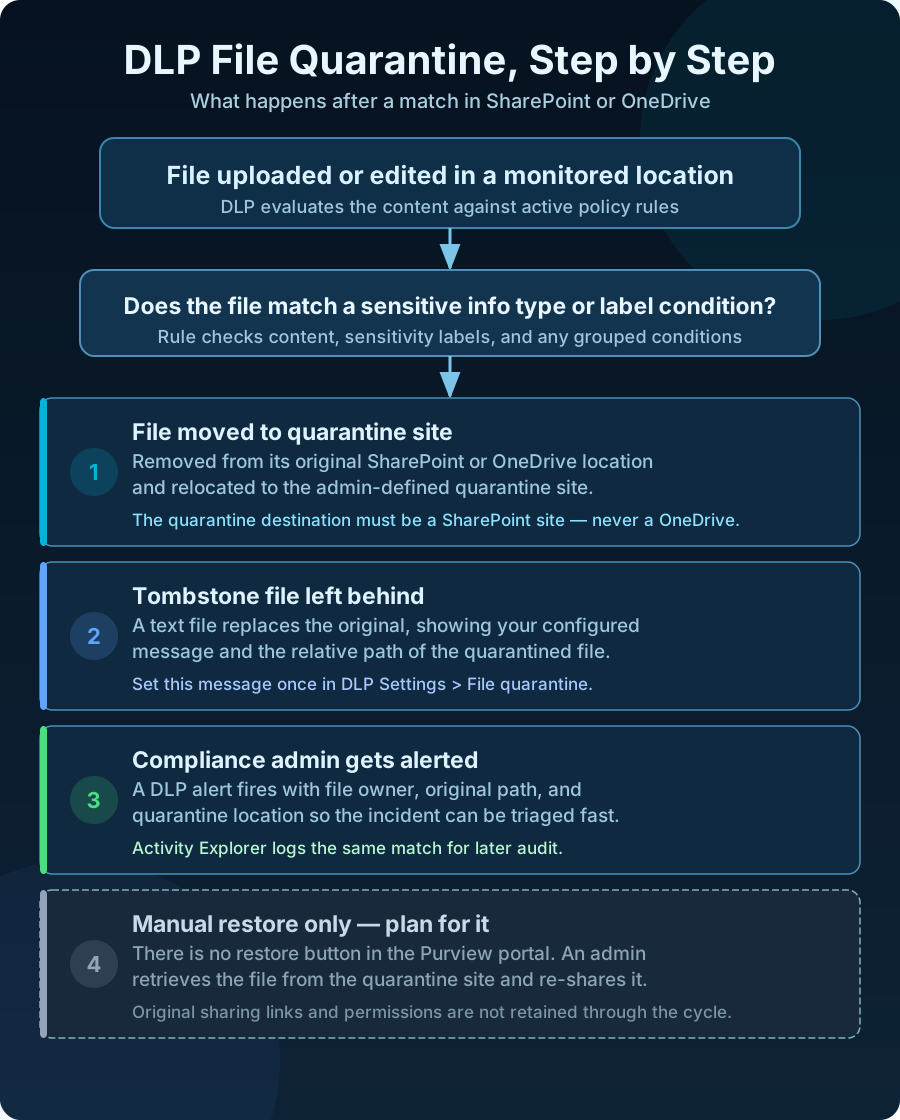
When a file uploaded or edited in a monitored SharePoint site or OneDrive account matches your DLP rule conditions — sensitive info types, sensitivity labels, or both — the quarantine action removes the file from its original location, moves it to a SharePoint site you designate as the quarantine destination, and drops a plain-text tombstone file in its place carrying your configured message and the file's original relative path. A DLP alert fires with the file owner, original path, and quarantine location so your compliance team can triage immediately.
Key clarification: quarantine is not the same as "block access" or "restrict to owner." The file physically leaves its original location. Recovery is a deliberate admin action, not a policy toggle.
The Purview policy wizard will not let you select the quarantine action until two prerequisites are in place. Trying to skip ahead just prompts you back to finish them first.
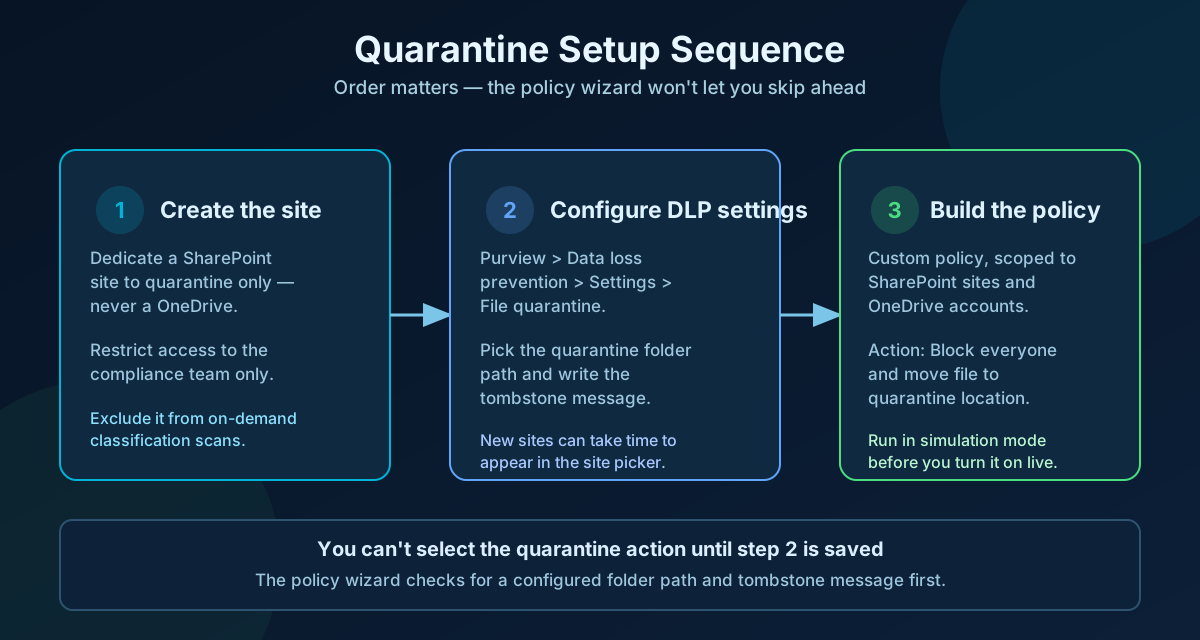
Common trap: if you just created the quarantine site, it can take time before it appears in the site picker. Don't assume the feature is broken — wait and check back.
Once the site and settings are in place, the quarantine action becomes available inside a custom advanced DLP rule.
Test before you enforce: on the final step, choose Run the policy in simulation mode. Simulation mode is fully supported for the quarantine action — review matches in Activity Explorer and the DLP alerts dashboard before switching the policy to enforce and actually move files.
Quarantine is deliberately the most restrictive DLP action available for SharePoint and OneDrive — it removes access from everyone, including the file owner, not just external or unauthorized users. Two side effects of that design are easy to miss when you're planning a rollout.
| Scenario | Expected result |
|---|---|
| A matching file is uploaded to a SharePoint site in scope | File is moved to the quarantine site; a tombstone file appears at the original location; a DLP alert is generated |
| Check the tombstone file at the original location | Displays your configured message and the relative path of the quarantined file |
| Review the DLP alert | Shows file owner, original file path, and quarantine file location |
| Review Activity Explorer | A DLP rule match event appears with quarantine file location details |
There is no restore action inside the Microsoft Purview portal. Restore is entirely manual, and Microsoft documents it as four concrete steps an administrator has to perform:
Critical limitations: original sharing permissions and links are not retained through the restore, so recipients typically need to be re-shared. Only the latest file version is restored — earlier version history is not preserved through the cycle. And by design, the same DLP rule will not re-quarantine that restored file again, even if it's modified or the rule changes later, which prevents a restore-then-requarantine loop (other DLP rules still apply normally).
DLP file quarantine for SharePoint and OneDrive requires an E5-level Microsoft 365 or Purview compliance license. Confirm licensing coverage across the users and sites you intend to scope before building policies, since a policy that targets locations outside your licensed population will not enforce as expected.
| Symptom | Likely cause | Quick remediation |
|---|---|---|
| Quarantine action is greyed out in the policy wizard | Quarantine folder path or replacement message not yet configured | Go to DLP Settings > File quarantine and complete both fields, then return to the wizard |
| New quarantine site doesn't appear in the folder path picker | Site was just created and hasn't propagated to the picker yet | Wait and check back; avoid recreating the site as a workaround |
| File owner says the file just "disappeared" | Quarantine action executed as designed — tombstone file may have been overlooked | Check the original location for the tombstone text file, which lists the relative path and admin message |
| Restored file's sharing links no longer work | Sharing permissions and links are not retained through quarantine/restore | Re-share the file to the intended recipients after restoring; this is expected behavior, not a bug |
| Policy matched far more files than expected on go-live | Policy was enforced live without a simulation-mode test pass first | Pull the policy back to simulation mode, review Activity Explorer matches, then tune conditions before re-enforcing |
| Existing sensitive files weren't quarantined after enabling the policy | Quarantine only evaluates files created or modified after the policy was turned on | Expected behavior, not a bug — plan a separate remediation pass for pre-existing files if needed |
| A newly uploaded file with the same name also got quarantined | Known file-name-collision limitation — a same-named file overwrites the previously quarantined copy | Treat repeated uploads under one file name as a scenario to test; rename before re-upload if the earlier copy still matters |
Technically the picker may allow it, but Microsoft's guidance is explicit: use a dedicated site, not one with active business content. Mixing quarantine with live collaboration content increases the chance a restricted-access site becomes a support and audit headache.
The trigger and workflow are the same — a file in either location can be moved into quarantine — but the destination is always a SharePoint site. You cannot designate a OneDrive account as the quarantine target.
Microsoft's official walkthrough documentation for creating a quarantine policy is currently marked as a preview scenario, while the underlying action itself has been reported broadly available in tenants since early July 2026. Treat it as newly available: verify it appears in your own tenant's policy wizard before promising it to stakeholders on a specific date.
"We can now configure automatic removal of files that clearly violate our data protection rules — for example, files containing sensitive financial data shared somewhere they shouldn't be. Instead of just blocking access, the file itself is moved to a secure, admin-only location, and the person who owned it sees a note explaining what happened and who to contact. Getting the file back is a manual step our compliance team controls."
Complete these six steps and quarantine becomes a controlled, auditable safety net instead of a surprise disappearing act for end users.
OceanCloud can build and pilot your quarantine policy in simulation mode, set up a restore runbook, and validate scope against your E5 licensing before anything goes live.
Book a Free Discovery Call →When a file in SharePoint or OneDrive matches a DLP policy rule with the quarantine action, the file is removed from its original location, moved to an admin-defined quarantine site.
The original location is replaced with a tombstone text file containing an admin-configured message and the file's relative path.
No. The quarantine destination must be a SharePoint site within your tenant.
You can use any SharePoint site template, but it should be a dedicated site restricted to the administrators who manage quarantine operations, not a site with active business content.
The quarantine action only becomes selectable after you configure quarantine settings first: in the Microsoft Purview portal, go to Data Loss Prevention, then Settings, then File quarantine, and set the quarantine folder path and replacement file message.
Until that configuration is saved, the policy wizard will prompt you to complete it.
Restore is manual only; there is no restore action inside the Microsoft Purview portal.
An administrator locates the file in the quarantine site, identifies the original path from audit logs, moves the file back, and deletes the tombstone file. Original sharing permissions and links are not retained, only the latest file version comes back, and the same DLP rule won't re-quarantine that restored file.
Test it first. Simulation mode is supported for the quarantine action, so you can run the policy without actually moving files.
Review matches in Activity Explorer and the DLP alerts dashboard before switching the policy to enforce and quarantine live content.
OceanCloud specialises in SharePoint consulting, M365 migration, Power Platform solutions, and enterprise governance. Let's discuss how we can help.
Book a Free 60-Minute Consultation ➜DLP quarantine rollout checklist and restore runbook template.