Switch SharePoint Classic Calendar to Modern View with PnP PowerShell
A production-ready process for modernizing classic calendar list views using pre-checks, PowerShell verification, API safety guards, and rollback planning.
A production-ready process for modernizing classic calendar list views using pre-checks, PowerShell verification, API safety guards, and rollback planning.
A lot of SharePoint teams still run important scheduling workflows on classic calendar lists. The list itself may be stable, but the user experience is usually not: classic rendering behaves differently across browsers, responsive behavior is weak, and long-term support confidence is lower than modern list experiences. If your objective is to preserve calendar data while giving users a cleaner modern view, you do not need to rebuild everything from scratch. In many cases you can add a modern-friendly list view and set it as default, while retaining the original view for fallback.
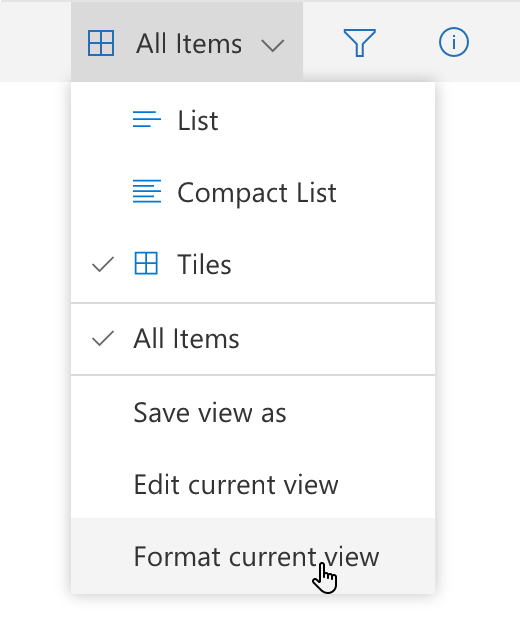
This guide gives you a full admin runbook for switching from classic calendar view to modern view with PnP PowerShell and SharePoint REST endpoints. It includes hard pre-checks for PowerShell and module readiness, validation of list schema and fields, optional dry-run mode, post-change verification, and a practical rollback pattern. It is written for Microsoft 365 administrators and SharePoint owners who need low-risk execution, auditability, and repeatability across multiple sites.
Important: not every classic calendar customization can be recreated one-to-one in modern view. Always test in a non-production site first, compare rendered behavior against business requirements, and keep at least one fallback view while users validate.
Classic calendar list views were useful for years, especially for department schedules and project timelines. But operational pressure has changed. Teams expect mobile-friendly rendering, simpler filtering, and consistent behavior with other modern SharePoint lists. Calendar data is still valid; the issue is usually the presentation layer and maintenance burden.
Switching views, rather than replacing the list, keeps risk controlled. Existing columns, list items, permissions, and integrations stay in place. You introduce a modern view and make it default when testing passes. That means less disruption for owners and less retraining for users compared to replacing the entire solution.
| Approach | Risk profile | When to choose it |
|---|---|---|
| Create modern view on existing list | Low to medium | You want minimal disruption and quick rollback options. |
| Rebuild list in a new app architecture | Medium to high | Current schema is broken, unmanaged, or cannot meet future requirements. |
| Keep classic permanently | Hidden long-term risk | Only valid as temporary hold if business-critical dependency blocks migration. |
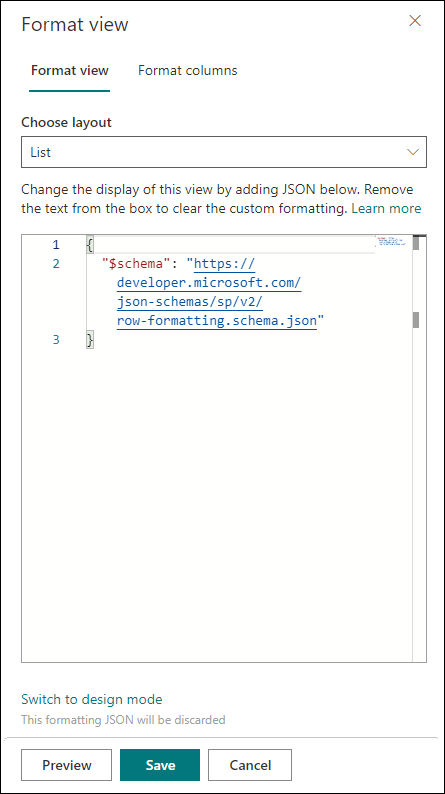
The script in this guide is based on a proven pattern: connect with PnP.PowerShell, call SharePoint REST to add a view definition, then optionally set the created view as default. The hardened version adds a guardrail layer before and after the REST call so the script can fail early and explain exactly why.
Verifies running edition and minimum version.
Confirms module is installed and at required version.
Validates site connectivity and target list presence.
Checks required columns for day/week/month rendering.
Adds modern view via REST endpoint and tracks response.
Reads view back, confirms settings, and can set default.
Do not skip pre-checks. Most migration pain is not in the REST payload itself. It comes from running with the wrong shell, wrong module version, missing permissions, or a list schema that does not match calendar assumptions. A ten-minute pre-flight check can prevent a failed change window.
For modern automation and predictable module behavior, run PowerShell 7.4 or newer. Windows PowerShell 5.1 can still run many older commands, but the current PnP.PowerShell module requires PowerShell 7.4. The script checks edition and version and exits with clear guidance if requirements are not met.
Modern PnP authentication patterns and cmdlet behavior evolve. Pin a tested minimum version and enforce it in script logic. If the module is missing or too old, fail fast with a direct install/update command. That keeps execution deterministic across admin laptops and automation runners.
Use an account with sufficient rights to create and update views on the target list. The script performs a lightweight list read as a permission probe before writing anything. If this fails, you get an immediate stop instead of partial changes.
The sample payload expects calendar-relevant columns such as title, category, start/end date, and recurrence fields. If your list uses alternate internal names, map them before execution. The script checks field internal names and blocks the change when required fields are missing.
Decide whether to skip, overwrite, or version an existing modern view title. In this guide, the default is safe-skip for an existing view title. You can switch behavior if your governance model prefers replacing old artifacts.
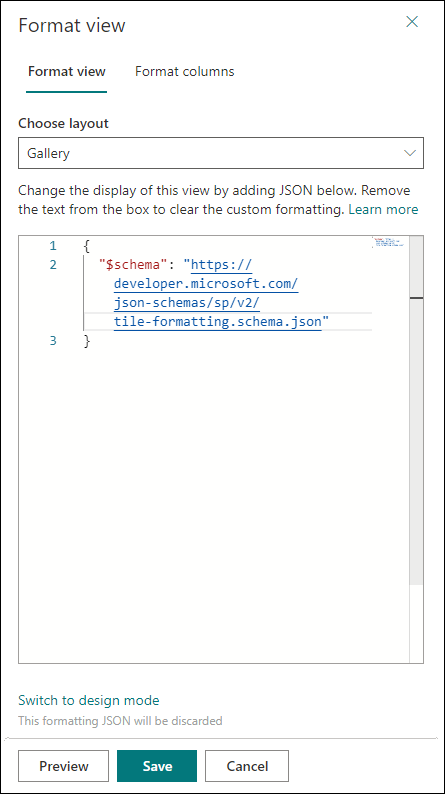
The script below includes your original REST pattern, but adds validation, dry-run support, and post-change verification so it can be used repeatedly across sites. Start with dry-run mode in a test site, then run in production once validation passes.
#requires -Modules PnP.PowerShell
param(
# Target SharePoint site that contains the classic calendar list.
[Parameter(Mandatory = $false)]
[string]$SiteUrl = "https://contoso.sharepoint.com/sites/PerformanceManagement",
# Entra app Client ID used by PnP.PowerShell interactive authentication.
[Parameter(Mandatory = $false)]
[string]$ClientId = "00000000-0000-0000-0000-000000000000",
# Calendar list display name or internal list title.
[Parameter(Mandatory = $false)]
[string]$ListName = "Calendar",
# Name for the modern calendar view that will be created.
[Parameter(Mandatory = $false)]
[string]$NewViewTitle = "MODERNCALENDAR",
# Add this switch only after testing if the new view should become default.
[Parameter(Mandatory = $false)]
[switch]$SetAsDefault,
# Add this switch for validation-only runs that make no changes.
[Parameter(Mandatory = $false)]
[switch]$DryRun,
# Minimum PnP.PowerShell version accepted by the pre-check.
[Parameter(Mandatory = $false)]
[Version]$MinPnPVersion = [Version]"3.0.0"
)
$ErrorActionPreference = "Stop"
function Write-Section {
param([string]$Message)
Write-Host "`n=== $Message ===" -ForegroundColor Cyan
}
function Test-PowerShellRuntime {
Write-Section "Runtime pre-check"
if ($PSVersionTable.PSEdition -ne "Core") {
throw "PowerShell 7.4 or later is required. Current edition: $($PSVersionTable.PSEdition)."
}
if ($PSVersionTable.PSVersion -lt [Version]"7.4.0") {
throw "PowerShell 7.4 or later is required. Current version: $($PSVersionTable.PSVersion)."
}
Write-Host "PowerShell edition : $($PSVersionTable.PSEdition)"
Write-Host "PowerShell version : $($PSVersionTable.PSVersion)"
}
function Test-PnPModule {
Write-Section "PnP.PowerShell pre-check"
$module = Get-Module -ListAvailable -Name PnP.PowerShell |
Sort-Object Version -Descending |
Select-Object -First 1
if (-not $module) {
throw "PnP.PowerShell module not found. Install with: Install-Module PnP.PowerShell -Scope CurrentUser"
}
if ($module.Version -lt $MinPnPVersion) {
throw "PnP.PowerShell $($module.Version) found. Minimum required version is $MinPnPVersion. Run Update-Module PnP.PowerShell."
}
Import-Module PnP.PowerShell -MinimumVersion $MinPnPVersion -Force
Write-Host "PnP.PowerShell version : $($module.Version)"
}
function Assert-RequiredValue {
param(
[string]$Value,
[string]$Name
)
if ([string]::IsNullOrWhiteSpace($Value)) {
throw "$Name cannot be empty."
}
}
function Escape-SingleQuotesForRest {
param([string]$Value)
return $Value.Replace("'", "''")
}
function Test-RequiredFields {
param(
[string]$TargetListName,
[string[]]$RequiredInternalNames
)
$fields = Get-PnPField -List $TargetListName
$fieldMap = @{}
foreach ($field in $fields) {
$fieldMap[$field.InternalName] = $true
}
$missing = @()
foreach ($required in $RequiredInternalNames) {
if (-not $fieldMap.ContainsKey($required)) {
$missing += $required
}
}
if ($missing.Count -gt 0) {
throw "List '$TargetListName' is missing required fields: $($missing -join ', ')"
}
}
function New-ModernCalendarViewPayload {
param([string]$Title)
$viewDataJson = @{
ViewType = "CALENDAR"
CalendarViewStyles = @{
Day = @{
StartDateField = "EventDate"
EndDateField = "EndDate"
TitleField = "Title"
IsMonthView = $false
}
Week = @{
StartDateField = "EventDate"
EndDateField = "EndDate"
TitleField = "Title"
IsMonthView = $false
}
Month = @{
StartDateField = "EventDate"
EndDateField = "EndDate"
TitleField = "Title"
IsMonthView = $true
}
}
} | ConvertTo-Json -Depth 10 -Compress
return @{
parameters = @{
__metadata = @{ type = "SP.View" }
Title = $Title
PersonalView = $false
RowLimit = 30
ViewData = $viewDataJson
ViewQuery = "For enterprise tenants, avoid one-shot tenant-wide rollout. Use phased execution and evidence gates. That gives site owners confidence and gives your admin team enough signal to detect edge cases before broad rollout.
Operational tip: include a change ticket ID and operator name in your run logs. Even if the technical change is simple, audit context is what helps when a business team reports behavior changes weeks later.
Technical success is not only "view created". Real success is "users can complete their scheduling task without friction". Validate both platform-level outputs and user-facing behavior.
If business users report a blocker, rollback should be immediate and predictable. The safest rollback is to set the previous view back as default and keep the modern view for troubleshooting. Avoid deleting artifacts during the same incident window.
param(
    # Target SharePoint site that contains the calendar list.
    [string]$SiteUrl,

    # Entra app Client ID used by PnP.PowerShell interactive authentication.
    [string]$ClientId,

    # Calendar list display name or internal list title.
    [string]$ListName = "Calendar",

    # Existing view title to restore as the default view.
    [string]$FallbackViewTitle = "All Events"
)

Connect-PnPOnline -Url $SiteUrl -Interactive -ClientId $ClientId
$fallback = Get-PnPView -List $ListName -Identity $FallbackViewTitle -ErrorAction Stop
Set-PnPView -List $ListName -Identity $fallback.Id -Values @{ DefaultView = $true }
Write-Host "Rollback complete. Default view is now: $FallbackViewTitle"
Disconnect-PnPOnline
After rollback, compare modern vs classic behavior with a small reproducible test set. Most issues are usually field mapping assumptions or specific calendar rendering expectations that need a tailored view payload.
| Issue | Likely cause | Fix |
|---|---|---|
| View created but not visible | Permissions or list browser caching | Confirm rights, refresh, test as owner and member users. |
| Recurring events missing | Recurrence field not included in ViewFields | Add Recurrence to payload and re-create versioned view. |
| Date blocks shift unexpectedly | Timezone or all-day flag handling | Check regional settings and validate EventDate/EndDate values. |
| REST call 403/401 | Insufficient list rights or auth context issue | Reconnect with correct account and verify list-level permission. |
| Set default fails | View lookup mismatch | Resolve by view ID instead of title, then re-run Set-PnPView. |
Once you complete the first migration wave, lock in a repeatable governance model. Define a standard modern calendar payload, pin minimum PnP module versions, and maintain a site migration registry with owner sign-off status. This keeps ad-hoc scripts from drifting over time.
It also helps to publish a short owner guide for what changed in navigation and how to request field updates. Admin teams often focus on technical migration only, but user-facing communication is what reduces support tickets after rollout.
If your team started from the direct REST pattern below, keep it as a baseline reference. The hardened script in this guide wraps this method with safeguards and validation:
# Target SharePoint site that contains the classic calendar list.
$SiteUrl = "https://contoso.sharepoint.com/sites/PerformanceManagement"
# Entra app Client ID used by PnP.PowerShell interactive authentication.
$ClientId = "00000000-0000-0000-0000-000000000000"
# Calendar list display name or internal list title.
$ListName = "Calendar"
Connect-PnPOnline -Url $SiteUrl -Interactive -ClientId $ClientId
$List = Get-PnPList -Identity $ListName -ErrorAction Stop
if ($null -eq $List) {
throw "List '$ListName' not found."
}
$Endpoint = "$SiteUrl/_api/web/lists/getbytitle('$ListName')/Views/Add"
$Body = @"
{
"parameters": {
"__metadata": { "type": "SP.View" },
"Title": "MODERNCALENDAR",
"PersonalView": false,
"RowLimit": 30,
"ViewData": "{\"ViewType\":\"CALENDAR\",\"CalendarViewStyles\":{\"Day\":{\"StartDateField\":\"EventDate\",\"EndDateField\":\"EndDate\",\"TitleField\":\"Title\",\"IsMonthView\":false},\"Week\":{\"StartDateField\":\"EventDate\",\"EndDateField\":\"EndDate\",\"TitleField\":\"Title\",\"IsMonthView\":false},\"Month\":{\"StartDateField\":\"EventDate\",\"EndDateField\":\"EndDate\",\"TitleField\":\"Title\",\"IsMonthView\":true}}}",
"ViewQuery": "OceanCloud can help you standardize classic-to-modern view migrations across business units with validation scripts, governance controls, and low-risk rollout plans.
Book a SharePoint Modernization SessionThe classic SharePoint calendar view relied on Silverlight and legacy JavaScript rendering that is no longer supported in modern browsers.
Microsoft has been deprecating classic SharePoint experiences in favour of the modern, responsive interface. Classic calendar views do not display on mobile devices and are not compatible with Microsoft Teams-embedded SharePoint pages.
The modern Calendar view is the direct replacement — it provides the same monthly/weekly/daily views on any modern SharePoint list or library with a Date column.
For advanced calendaring (overlaying multiple lists, multi-tenant views), Microsoft recommends integrating with Outlook Calendar or Microsoft Bookings via Power Automate.
No.
The migration only changes the view — the underlying list items (events) remain intact. The migration script creates a new Modern Calendar view on the same list without deleting the Classic view, so you can validate the modern view before decommissioning the old one.
Yes, with PnP PowerShell you can enumerate all site collections, find lists using the Events base template (106), and apply the migration script to each one in a loop.
Build in tenant throttling protection (pause between sites) and log successes and failures to a CSV for post-run review.
Because the migration only adds a new view and does not modify list data, rollback is straightforward — delete the new modern view and restore the original Classic view as the default.
Run Remove-PnPView targeting the newly created view name. Existing items are completely unaffected.
OceanCloud specialises in SharePoint consulting, M365 migration, Power Platform solutions, and enterprise governance. Let's discuss how we can help.
Book a Free 60-Minute Consultation ➜