Restore SharePoint Recycle Bin Items with PnP PowerShell
Recover deleted files and folders by folder path, deleted date, and deleted user without scanning a large recycle bin in one risky operation.
Recover deleted files and folders by folder path, deleted date, and deleted user without scanning a large recycle bin in one risky operation.
When a SharePoint folder is accidentally deleted, the first instinct is often to open the recycle bin and restore everything that looks related. That works for small sites. It gets risky in large libraries, migration projects, or document centers where thousands of recycle bin entries may share similar names. This guide shows how to restore SharePoint deleted files and folders with PnP PowerShell using precise filters for folder path, deleted date, and deleted-by user.

The script below is designed for SharePoint Online admins who need a controlled recovery process. It reads first-stage recycle bin items in pages through CSOM, filters each page in memory, restores folders before files where possible, checks whether the original item already exists, and writes a CSV log of every action. It defaults to WhatIf mode, so your first run reports what would be restored before anything changes.
Safety first: Recycle bin restoration is a production operation. Run the script in WhatIf mode, review the CSV, confirm the folder paths and deleted date, then set $WhatIfMode = $false only when the matched items are correct.
Use this approach when you need more control than the SharePoint recycle bin UI provides. It is especially useful when the business says something like: "Restore only the files deleted from these two folders on May 20th" or "Recover items deleted by one user during a migration cleanup."
| Scenario | Why the script helps |
|---|---|
| Deleted SharePoint folder | Filters by the original folder path and restores child items from the recycle bin. |
| Large recycle bin | Uses CSOM paging instead of loading every recycle bin item at once. |
| Accidental bulk delete | Limits recovery by deleted date and optional deleted-by email. |
| Migration rollback | Produces a CSV audit trail showing what was skipped, restored, or failed. |
| Restore dry run | Reports matching items before performing any restore action. |
Uses Connect-PnPOnline -Interactive -ClientId $ClientId so the current PnP.PowerShell module has a valid Entra app ID.
Reads first-stage recycle bin items with CSOM paging to reduce threshold pressure.
Matches original folder path, deleted date window, and optional deleted-by email.
Checks whether the original file or folder already exists before restoring.
Restores matching items only when WhatIf mode is disabled.
Exports every matched item and action to CSV for audit and troubleshooting.
$WhatIfMode = $true and inspect the CSV log before restore.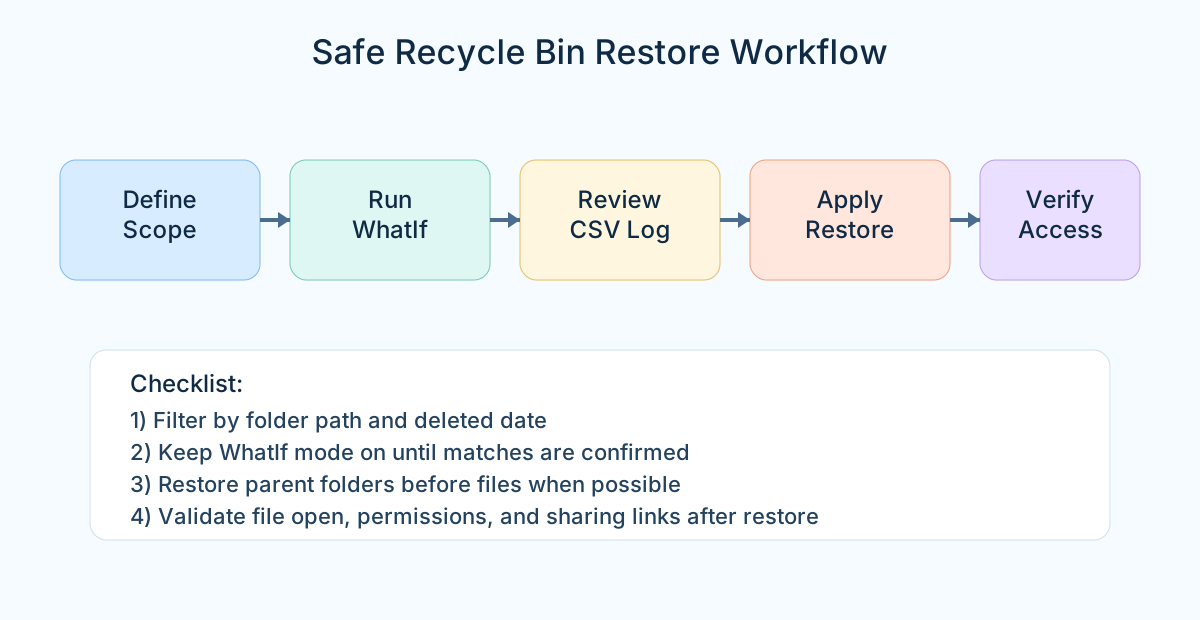
Folder path format: The folder paths should not start with a slash. Use values like sites/Retail/Shared Documents/Folder1. The script normalizes the paths and compares them against each recycle bin item's original directory.
Update the configuration block first. Keep WhatIf mode enabled until the log shows exactly the items you expect.
#requires -Modules PnP.PowerShell

# Restore first-stage recycle bin items from selected folders
# deleted on one date, using CSOM paging to reduce threshold risk.

# Target SharePoint site where items were deleted.
$SiteUrl = "https://contoso.sharepoint.com/sites/Retail"

# Entra app Client ID used by PnP.PowerShell interactive authentication.
$ClientId = "xxxxxxxx-xxxx-xxxx-xxxx-xxxxxxxxxxxx"

# Folder paths without a leading slash.
$FolderPaths = @(
    "sites/Retail/Shared Documents/Folder1",
    "sites/Retail/Shared Documents/Folder2"
)

# Calendar date when the items were deleted.
$DeletedOnDate = Get-Date "05/20/2026"
$FromDate = $DeletedOnDate.Date
$ToDate = $DeletedOnDate.Date.AddDays(1).AddSeconds(-1)

# Leave blank to restore items deleted by any user.
$DeletedByEmail = ""

# Keep below 5000 to reduce threshold risk.
$PageSize = 1000

# Keep true until you have reviewed the CSV log.
$WhatIfMode = $true

# CSV log path for restored, skipped, and failed items.
$LogPath = "C:\Temp\RecycleBinRestoreLog_{0}.csv" -f (Get-Date -Format "yyyyMMdd_HHmmss")

Connect-PnPOnline -Url $SiteUrl -Interactive -ClientId $ClientId
$Context = Get-PnPContext

function Normalize-Path {
    param([Parameter(Mandatory = $true)][string]$Path)
    return $Path.Trim().TrimStart("/").TrimEnd("/")
}

function Test-ItemMatchesFolderPath {
    param(
        [Parameter(Mandatory = $true)]$RecycleBinItem,
        [Parameter(Mandatory = $true)][string[]]$NormalizedFolderPaths
    )

    $ItemDirName = Normalize-Path -Path $RecycleBinItem.DirName

    foreach ($FolderPath in $NormalizedFolderPaths) {
        if ($ItemDirName -like "$FolderPath*") {
            return $true
        }
    }

    return $false
}

function Test-OriginalItemExists {
    param([Parameter(Mandatory = $true)]$RecycleBinItem)

    $OriginalLocation = "/" + $RecycleBinItem.DirName.TrimStart("/") + "/" + $RecycleBinItem.LeafName

    try {
        if ($RecycleBinItem.ItemType -eq "File") {
            $ExistingFile = Get-PnPFile -Url $OriginalLocation -AsListItem -ErrorAction SilentlyContinue
            return ($null -ne $ExistingFile)
        }

        $ExistingFolder = Get-PnPFolder -Url $OriginalLocation -ErrorAction SilentlyContinue
        return ($null -ne $ExistingFolder)
    }
    catch {
        return $false
    }
}

function Get-NextPagingInfo {
    param([Parameter(Mandatory = $true)]$LastItem)

    try {
        $IdValue = [System.Uri]::EscapeDataString($LastItem.Id.ToString())
        $TitleValue = [System.Uri]::EscapeDataString($LastItem.Title)
        $SearchValue = [System.Uri]::EscapeDataString(
            $LastItem.DeletedDate.ToUniversalTime().ToString("yyyy-MM-ddTHH:mm:ssZ")
        )

        return "id=$IdValue&title=$TitleValue&searchValue=$SearchValue"
    }
    catch {
        return $null
    }
}

$NormalizedFolderPaths = $FolderPaths | ForEach-Object { Normalize-Path -Path $_ }
$Log = New-Object System.Collections.Generic.List[Object]

Write-Host "Site URL            : $SiteUrl" -ForegroundColor Cyan
Write-Host "Deleted date filter : $FromDate to $ToDate" -ForegroundColor Cyan
Write-Host "First-stage only    : Yes" -ForegroundColor Cyan
Write-Host "Page size           : $PageSize" -ForegroundColor Cyan
Write-Host "WhatIf mode         : $WhatIfMode" -ForegroundColor Cyan

$PagingInfo = $null
$PageNumber = 0
$TotalScanned = 0
$TotalMatched = 0
$TotalRestored = 0
$TotalSkipped = 0
$TotalFailed = 0
$ProcessedIds = @{}

do {
    $PageNumber++

    Write-Progress `
        -Activity "Scanning first-stage recycle bin" `
        -Status "Reading page $PageNumber. Total scanned: $TotalScanned" `
        -PercentComplete -1

    try {
        $RecycleBinItems = $Context.Web.GetRecycleBinItems(
            $PagingInfo,
            $PageSize,
            $false,
            [Microsoft.SharePoint.Client.RecycleBinOrderBy]::DeletedDate,
            [Microsoft.SharePoint.Client.RecycleBinItemState]::FirstStageRecycleBin
        )

        $Context.Load($RecycleBinItems)
        $Context.ExecuteQuery()
    }
    catch {
        Write-Host "Failed reading recycle bin page $PageNumber. Error: $($_.Exception.Message)" -ForegroundColor Red
        break
    }

    $CurrentPageItems = @($RecycleBinItems)
    $CurrentPageCount = $CurrentPageItems.Count

    if ($CurrentPageCount -eq 0) {
        break
    }

    $TotalScanned += $CurrentPageCount
    Write-Host "Page $PageNumber scanned. Items: $CurrentPageCount. Total scanned: $TotalScanned" -ForegroundColor DarkCyan

    $MatchingItems = $CurrentPageItems | Where-Object {
        $Item = $_

        if ($ProcessedIds.ContainsKey($Item.Id.ToString())) {
            return $false
        }

        $DateMatch = ($Item.DeletedDate -ge $FromDate -and $Item.DeletedDate -le $ToDate)
        $FolderMatch = Test-ItemMatchesFolderPath -RecycleBinItem $Item -NormalizedFolderPaths $NormalizedFolderPaths

        if ([string]::IsNullOrWhiteSpace($DeletedByEmail)) {
            $DeletedByMatch = $true
        }
        else {
            $DeletedByMatch = ($Item.DeletedByEmail -eq $DeletedByEmail)
        }

        return ($DateMatch -and $FolderMatch -and $DeletedByMatch)
    }
    $MatchingItems = $MatchingItems | Sort-Object `
        @{ Expression = { if ($_.ItemType -eq "Folder") { 0 } else { 1 } } }, `
        @{ Expression = { $_.DirName.Length } }, `
        DeletedDate

    foreach ($Item in $MatchingItems) {
        $ProcessedIds[$Item.Id.ToString()] = $true
        $TotalMatched++

        $OriginalLocation = "/" + $Item.DirName.TrimStart("/") + "/" + $Item.LeafName

        $LogEntry = [PSCustomObject]@{
            Id               = $Item.Id
            LeafName         = $Item.LeafName
            DirName          = $Item.DirName
            OriginalLocation = $OriginalLocation
            ItemType         = $Item.ItemType
            DeletedDate      = $Item.DeletedDate
            DeletedByEmail   = $Item.DeletedByEmail
            Action           = ""
            Status           = ""
            Error            = ""
        }

        try {
            $OriginalExists = Test-OriginalItemExists -RecycleBinItem $Item

            if ($OriginalExists) {
                $TotalSkipped++
                $LogEntry.Action = "Skipped"
                $LogEntry.Status = "Original item already exists"
                Write-Host "Skipped, item already exists: $OriginalLocation" -ForegroundColor Yellow
            }
            elseif ($WhatIfMode) {
                $TotalSkipped++
                $LogEntry.Action = "WhatIf"
                $LogEntry.Status = "Would restore"
                Write-Host "WhatIf: Would restore: $OriginalLocation" -ForegroundColor Cyan
            }
            else {
                $Item.Restore()
                $Context.ExecuteQuery()
                $TotalRestored++
                $LogEntry.Action = "Restored"
                $LogEntry.Status = "Success"
                Write-Host "Restored: $OriginalLocation" -ForegroundColor Green
            }
        }
        catch {
            $TotalFailed++
            $LogEntry.Action = "Failed"
            $LogEntry.Status = "Error"
            $LogEntry.Error = $_.Exception.Message
            Write-Host "Failed: $OriginalLocation. Error: $($_.Exception.Message)" -ForegroundColor Red
        }

        $Log.Add($LogEntry)
    }

    $LastItem = $CurrentPageItems[-1]
    $NewPagingInfo = Get-NextPagingInfo -LastItem $LastItem

    if ([string]::IsNullOrWhiteSpace($NewPagingInfo)) {
        Write-Host "No further paging information returned. Stopping scan." -ForegroundColor Yellow
        break
    }

    if ($NewPagingInfo -eq $PagingInfo) {
        Write-Host "Paging information did not change. Stopping to avoid a loop." -ForegroundColor Yellow
        break
    }

    $PagingInfo = $NewPagingInfo
}
while ($CurrentPageCount -eq $PageSize)

Write-Progress -Activity "Scanning first-stage recycle bin" -Completed

$LogDirectory = Split-Path -Path $LogPath -Parent
if (-not (Test-Path -Path $LogDirectory)) {
    New-Item -Path $LogDirectory -ItemType Directory -Force | Out-Null
}

$Log | Export-Csv -Path $LogPath -NoTypeInformation -Encoding UTF8

Write-Host ""
Write-Host "Completed." -ForegroundColor Cyan
Write-Host "Total scanned  : $TotalScanned" -ForegroundColor Cyan
Write-Host "Total matched  : $TotalMatched" -ForegroundColor Cyan
Write-Host "Total restored : $TotalRestored" -ForegroundColor Green
Write-Host "Total skipped  : $TotalSkipped" -ForegroundColor Yellow
Write-Host "Total failed   : $TotalFailed" -ForegroundColor Red
Write-Host "Log file : $LogPath" -ForegroundColor Cyan$SiteUrl, $ClientId, $FolderPaths, and $DeletedOnDate.$WhatIfMode = $true and run the script.$DeletedByEmail.$WhatIfMode to $false only after review.| Error or symptom | Likely cause | Fix |
|---|---|---|
Provide a valid value for ClientId | Missing or invalid Entra app Client ID. | Register an app and use Connect-PnPOnline -Interactive -ClientId $ClientId. |
| No items matched | Folder path does not match recycle bin DirName, or date is wrong. | Broaden the date range or test with one known deleted item. |
| Original item already exists | A file or folder has already been recreated at the original path. | Review manually before overwriting or renaming. |
| Paging stops early | CSOM paging token cannot be built from the last item. | Reduce page size and narrow filters; rerun with a smaller deleted-date range. |
| Restore fails for child files | Parent folder was not restored or path conflict exists. | Restore parent folders first, then rerun for files. |
After a successful run, do not stop at the PowerShell summary. Open the restored library and validate that the expected files and folders are back, permissions are appropriate, and business users can open the restored content. For sensitive sites, also check sharing links and unique permissions, because restored content can bring back access patterns that existed before deletion.
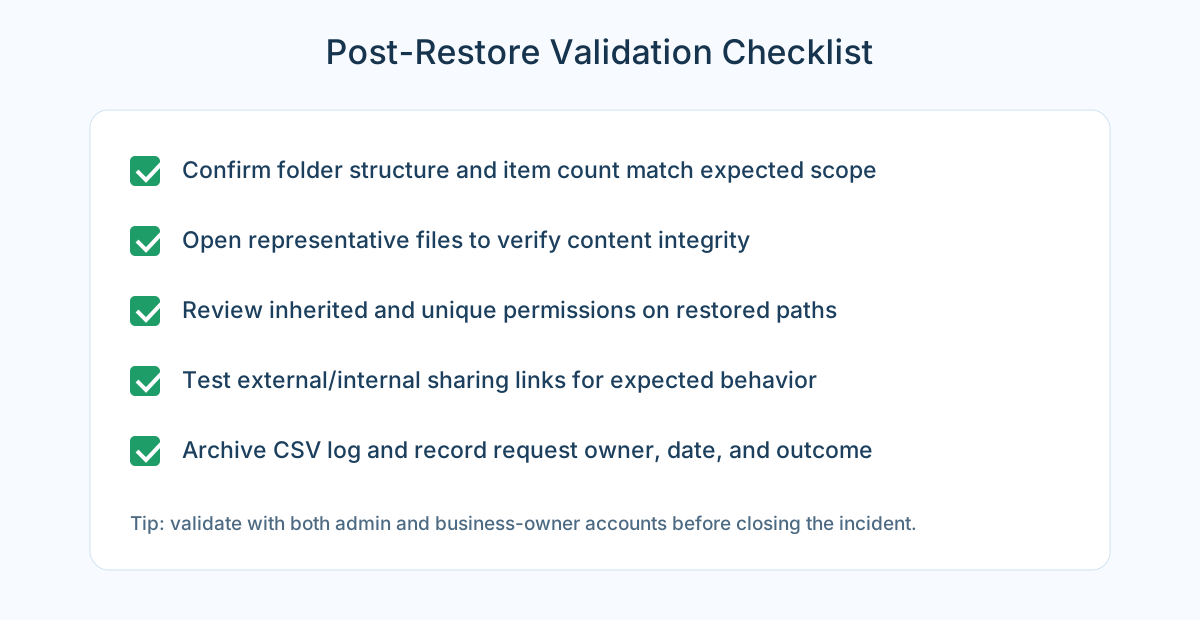
Do not bulk restore blindly. Recycle bin entries often include old drafts, duplicate folders, and items deleted intentionally during cleanup. A narrow filter plus WhatIf review is safer than restoring everything and trying to clean it again.
OceanCloud can help audit recycle bin contents, recover deleted SharePoint libraries, and build safer retention, backup, and governance processes for Microsoft 365.
Book a SharePoint Recovery Call →SharePoint retains deleted items in the first-stage (site) Recycle Bin for 93 days.
When the 93-day period expires or the Recycle Bin exceeds its storage quota, items move to the second-stage (site collection) Recycle Bin, where they remain for another 93 days before permanent deletion. Site collection admins can restore items from either stage.
After 93 days in the second-stage Recycle Bin, items are permanently deleted from SharePoint.
Recovery at that point depends on whether your tenant has Microsoft 365 Backup enabled (a paid add-on) or whether files were archived to another storage destination. Standard SharePoint recycle bin recovery only covers the 93-day window.
The script queries the site collection Recycle Bin for items matching your specified criteria (file name pattern, deleted date range, deleted-by user), outputs a preview list for review, and then restores matching items back to their original library location.
It handles both first-stage and second-stage bin items.
Yes.
When you restore an item from the SharePoint Recycle Bin, it returns with its full version history intact, as long as the item's version history was not explicitly purged before deletion. The restored item reappears at its original path with the same permissions it had before deletion.
SharePoint will attempt to restore the item but fails if the parent folder was also deleted.
First restore the parent folder from the Recycle Bin (it has its own entry), then restore the files within it. If the parent folder's Recycle Bin entry has also expired, restore files to the library root manually.
OceanCloud specialises in SharePoint consulting, M365 migration, Power Platform solutions, and enterprise governance. Let's discuss how we can help.
Book a Free 60-Minute Consultation ➜PowerShell techniques for recovery and automation.