Power Automate Approval with Multiple Approvers
Sequential chains, parallel fan-outs, first-to-respond, escalation, and delegation — every multi-approver pattern explained with Power Automate implementation guidance.
Sequential chains, parallel fan-outs, first-to-respond, escalation, and delegation — every multi-approver pattern explained with Power Automate implementation guidance.
Single-approver workflows handle the easy case. Real business approval processes almost always involve multiple people — a line manager, a finance sign-off, a compliance check, and sometimes a final executive approval. Power Automate supports multiple approvers for SharePoint through sequential approvals, parallel approvals, first-to-respond patterns, and conditional routing, but choosing the wrong model creates bottlenecks, compliance gaps, or both.
Create a list with: Title, Requestor (person), Amount (number), Approval Status (choice: Pending/Approved/Rejected), Primary Approver (person), Secondary Approver (person). Test the column setup before building the flow.
Go to powerautomate.microsoft.com > Automate > Cloud flow > Automated. Trigger: 'When an item is created' in your list. Name: 'Multi-Approver Workflow'.
Add action 'Send an approval request'. Set 'Assigned to' to the Primary Approver person field, include the request details, and wait for response. Capture approval response.
Add Condition: if Amount > [threshold], send approval request to Secondary Approver; otherwise, skip. Both approvers must approve before marking complete.
Add 'Update item' action to set Approval Status = 'Approved' if both approved, or 'Rejected' if either declines. Include rejection reason if provided.
Add 'Send an email' action to the requestor with outcome. Include approval chain summary, final status, and next steps (e.g., 'Your request has been approved and will be processed').
| Pattern | How it works | Best for |
|---|---|---|
| Sequential | Approver 1 must decide before the request reaches Approver 2. Each approval gate is completed in order. | Hierarchical sign-off: manager → director → VP. Any one rejection stops the chain. |
| Parallel (all must approve) | All approvers receive the request simultaneously. Everyone must approve for the outcome to be "Approved". | Multi-departmental sign-off: Finance AND Legal AND IT must all approve a contract. |
| Parallel (first to respond) | All approvers receive it simultaneously. The first person to respond determines the outcome. | Any one of a pool of approvers can sign off: any team lead can approve a purchase under £500. |
| Conditional routing | The approval path is determined by data in the request — value, category, risk level, or department determines who receives it. | Dynamic routing: expenses under £500 go to line manager; over £500 go to Finance Director. |
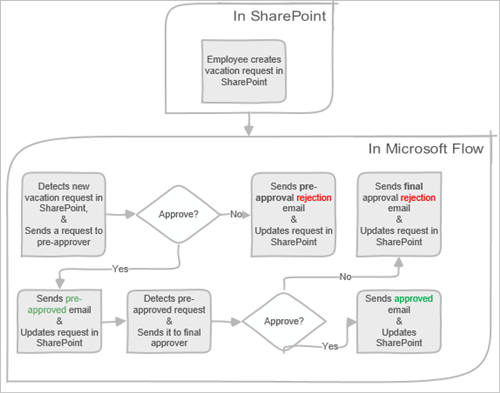
Sequential approvals are built by chaining multiple "Start and wait for an approval" actions in series. Each action completes before the next begins. If any approver rejects, the flow terminates the chain and notifies the submitter.
Power Automate implementation:
Keep context visible: When a sequential request reaches stage 3, the approver at stage 3 should see who has already approved. Include a "Previous approvals" section in the approval Details field, built from a variable you accumulate through each stage: append "Approved by [Name] at [Time]" after each successful stage.
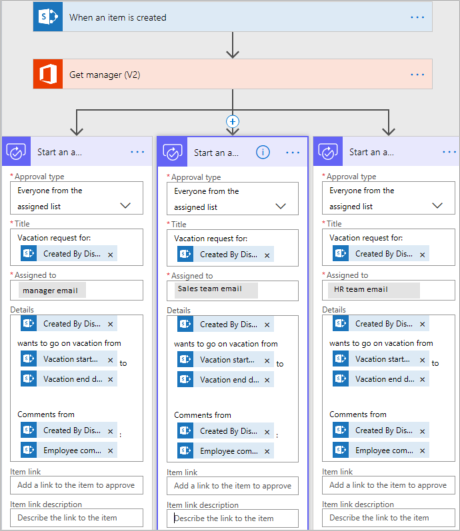
The "Start and wait for an approval" action supports multiple assignees natively. Set the Approval type to "Approve/Reject — Everyone must approve" and enter all approver email addresses (semicolon-separated or as an array). Power Automate sends the request to all approvers simultaneously and waits until every person has responded.
The outcome is "Approve" only if every assigned approver chooses Approve. If even one rejects, the outcome is "Reject" and the flow handles it accordingly.
responses array in the approval output contains each person's decision and timestamp — useful for audit trails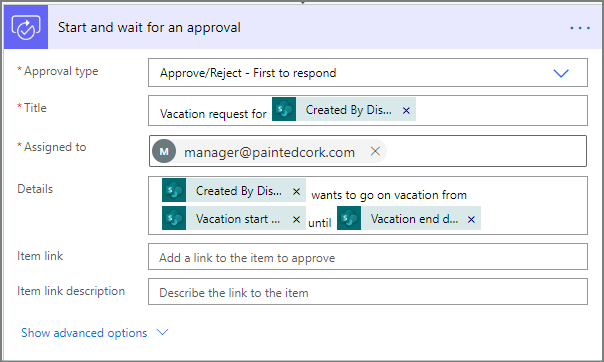
Set the Approval type to "Approve/Reject — First to respond". The request goes to all listed approvers simultaneously, but the first person to respond — approve or reject — determines the outcome. All other pending responses are cancelled automatically.
This is ideal for approval pools where any qualified person can sign off: any team lead in a department, any on-call manager, or any member of a finance committee. It reduces bottlenecks caused by one specific approver being unavailable.
responses[0]['responder']Many business processes require different approval paths depending on the request's attributes. Power Automate handles this with Switch or nested Condition actions before the approval step.
The same pattern applies to routing by document type (contracts go to Legal, policy changes go to HR, technical specs go to IT Architecture), by risk level (low/medium/high risk requiring different approval tiers), or by geography (EMEA documents go to the EMEA compliance team).
One of the most common production issues with multi-approver workflows is approvers going on leave without setting a delegate. Power Automate does not automatically reroute approvals when an approver is out of office.
Regulated industries (financial services, healthcare, legal, government) require a documented audit trail showing who approved what, when, and with what comments. Build this into every multi-approver workflow from the start.
| Business requirement | Recommended pattern |
|---|---|
| Hierarchical sign-off — each level must see previous approval | Sequential chain |
| Multiple departments must all agree | Parallel — everyone must approve |
| Any qualified person in a team can approve | Parallel — first to respond |
| Approval path depends on value, risk, or category | Conditional routing + appropriate pattern per tier |
| Compliance requires documented multi-stage sign-off | Sequential with audit log at each stage |
| Speed is critical; bottleneck risk is high | Parallel first-to-respond or small sequential chain with tight timeouts |
OceanCloud designs and builds multi-stage SharePoint approval workflows with conditional routing, escalation, delegation, and compliance audit trails — typically in 1–2 weeks.
Talk to a Workflow SpecialistUse the 'Start and wait for an approval' action in Power Automate with type 'Approve/Reject - Everyone must approve'. Add all required approvers to the Assigned To field.
The flow waits until every approver responds. If any approver rejects, the flow takes the rejection path immediately without waiting for remaining approvers.
Use Start and wait for an approval, choose either Everyone must approve for parallel approval or chain separate approval actions for sequential approval, then write each decision back to SharePoint.
Add conditions for rejection, timeout, escalation, and audit logging so the workflow does not depend on one hidden email thread.
Sequential approval sends requests one at a time — Approver 2 is notified only after Approver 1 approves.
Parallel approval (Everyone must approve) notifies all approvers simultaneously and waits for all responses. Sequential is better for hierarchical sign-off chains; parallel is better when approvers are independent and you want faster completion.
Use a Switch or nested Condition action after the trigger to read the Category column value, then set an approver variable for each case.
Pass that variable into the 'Assigned To' field of the approval action. This way a single flow handles all categories without duplicating the approval logic.
The cleanest approach is to use delegation: in Outlook, approvers set an auto-delegate when out of office.
Power Automate approval requests sent to them are auto-forwarded. Alternatively, build a fallback into the flow: if no response after N days, reassign to the approver's manager using a 'Get manager' action from Microsoft 365 Users connector.
Yes. After each approval stage resolves, log the approver name, decision, timestamp, and comments to a dedicated SharePoint list.
Combine this with SharePoint list versioning on the document library to create a full audit trail. For regulated industries, you can also route approval records to Microsoft Purview via a retention label.
Implementation path: Choose the approval pattern alongside audit, delegation, timeout, exception, and support requirements. Power Platform consulting →
OceanCloud specialises in SharePoint consulting, M365 migration, Power Platform solutions, and enterprise governance. Let's discuss how we can help.
Book a Free 60-Minute Consultation ➜