Copilot Agent for SharePoint: Setup, Limits, and PAYG
A practical guide to SharePoint agents, Copilot Studio agents, licensing, PAYG costs, SharePoint agent limits, governance, Microsoft screenshots, PowerShell checks, and SharePoint agent troubleshooting before rollout.
CopilotUpdated Jul 9, 202622 min readPublished by OceanCloud
Use SharePoint agents for fast Q&A over approved SharePoint sites, pages, libraries, folders, lists, or files.
Use Copilot Studio when the agent must run actions, call workflows, connect to external systems, or follow a controlled process.
SharePoint agent limits matter: pay-as-you-go requires Azure billing setup, a connected billing policy, and a security group; complex prompts can consume 12 Copilot Credits.
Ready-made site agents are automatic; custom agents are stored as .agent files that can be approved, shared, and governed.
Use the troubleshooting section when answers miss content, licensing blocks access, agent approval stalls, or PowerShell reports fail.
If you are evaluating a Copilot agent for SharePoint, start with the operational basics: where SharePoint agents run, what content sources are allowed, what limits apply, and how PAYG billing works in production. SharePoint agents help users ask natural-language questions over approved content, but rollout quality depends on source design, governance, and troubleshooting readiness. This guide gives you the step-by-step setup path and the failure checks admins need most.
Short version: Use a no-code SharePoint agent when you want fast Q&A over a site, library, list, folder, or selected files. Use a Copilot Studio agent when you need actions, workflows, external systems, advanced topics, or a more controlled enterprise rollout.
What's New in 2026
PAYG setup is clearer: SharePoint agents pay-as-you-go uses an Azure resource, billing policy, and security-group assignment. A complex SharePoint-agent prompt can use 12 Copilot Studio messages, and Azure currently prices Copilot Credits at $0.01.
The 20-source limit needs smarter design: A source item can be a site, library, folder, or file. One curated folder can count as one source item even when it contains many files.
Lists are improving, but test your tenant: Microsoft Support shows agent creation from a SharePoint List. If your tenant has the 2026 Lists rollout described in Message Center item MC1255409, treat List agents as a special one-list scenario.
There are two admin reports: Agent Insights shows where SharePoint agents are created. Agent Access Insights shows how agents access SharePoint and OneDrive content.
SharePoint AI authoring is separate: Copilot in the SharePoint rich text editor helps authors draft and rewrite page content. SharePoint agents answer questions over existing content.
Copilot Studio is expanding: Microsoft 2026 release notes include computer-use agents, agent-to-agent connections, Work IQ improvements, and newer model choices such as GPT-5.5 Reasoning in preview.
Choose the Right Agent for the Job
No-code SharePoint agent
Best for site owners who need a focused assistant that answers questions from SharePoint pages, documents, libraries, folders, lists, or selected files.
Copilot Studio agent
Best for IT, HR, operations, and service teams that need guided conversations, Power Automate actions, external data, or controlled deployment.
License path
Users need Microsoft 365 Copilot, or admins must enable SharePoint agents pay-as-you-go for a security group. PAYG usage is metered through Copilot Credits.
Security model
Agents respect SharePoint permissions. If a user cannot access a source, the agent should not use that source in its answer for that user.
Do not mix up the SharePoint AI tools: A SharePoint agent is a Q&A assistant for sites, pages, files, folders, and lists. Copilot in the SharePoint rich text editor is an authoring tool for drafting, rewriting, and formatting page text.
What Microsoft Says These Agents Can Do
Microsoft describes SharePoint agents as AI assistants for questions about sites, pages, libraries, lists, and files the asker already has permission to access. That last part matters: agents sit on top of SharePoint permissions; they don't replace them.
Every SharePoint site gets a ready-made agent: It appears by default, is scoped to the current site, and doesn't require a site owner to build anything. Microsoft also says this ready-made agent has no associated .agent file and can't be edited or shared like a custom agent.
Custom-built agents are created by editors: A user with the right license path and edit permissions can create an agent, choose sources, change the agent's name and purpose, and refine how it should answer.
Interaction and editing need the right access: Users need Microsoft 365 Copilot or scoped pay-as-you-go access. To edit an agent, they also need edit permissions on the SharePoint site and the .agent file.
Sharing the agent is not the same as sharing the knowledge: If someone can open the agent but cannot access a source document, the agent should not use that restricted document for that person's answer.
That makes the first rollout conversation less about clever prompts and more about SharePoint hygiene: content ownership, source quality, and permissions.
Before You Build: Licenses, Permissions, and Content
Before you build anything, check these basics. Most failed agent pilots are not technical failures. They fail because licensing, permissions, or content quality was not ready.
Microsoft 365 Copilot license or pay-as-you-go enabled: Microsoft documents these as the main access paths for SharePoint agents. For pay-as-you-go, admins first set up SharePoint agents as an Azure resource, create a billing policy, connect that policy to the SharePoint agents service, and assign the policy to a security group.
Edit permissions to create or modify agents: Visitors can interact where allowed, but site edit permissions are needed to create or edit an agent.
Modern SharePoint experience: The creation and use experience is for SharePoint Online modern sites. This is not a SharePoint Subscription Edition/on-premises feature.
Clean, readable source content: Archive stale drafts and split very long documents. Microsoft retrieval guidance recommends keeping broad SharePoint source files to about 36,000 characters, roughly 15-20 pages.
Governance decision: Decide who can create agents, who approves them, and which sites are too sensitive for agent discovery.
Important for on-prem SharePoint: SharePoint agents are SharePoint Online/Microsoft 365 capabilities. They don't run inside SharePoint Subscription Edition out of the box.
Create a No-Code SharePoint Agent
This is the quickest way to get value. Start here when the job is mainly answers from SharePoint content, not workflow automation.
Ready-made vs custom-built SharePoint agents
Type
What it does
Good for
Key limit
Ready-made agent
Appears automatically on SharePoint sites and is scoped to that site.
Quick site Q&A without any setup.
You cannot edit or share the ready-made agent like a custom agent, and it has no .agent file.
Custom-built SharePoint agent
Created by a user with edit permissions. Sources, identity, and behavior can be tailored.
Team knowledge assistants for a project, policy area, library, folder, or selected files.
Currently up to 20 source items per agent, according to Microsoft Support.
Where you can create it
Microsoft lists several entry points for creating a SharePoint agent. Choose the one that matches the scope you want.
Site homepage: Choose New > Agent for a site-focused assistant.
Document library or list command bar: Use the AI actions menu to create an agent for supported content in that library or list.
Selected files or folders: Select a narrow set of files/folders and create an agent from the context menu.
Agent chat pane: Open the Copilot button, use the agent dropdown, then create a new agent from there.
1Choose scope
Site, library, folder, list, or selected files.
2Create agent
Use New > Agent, AI actions, context menu, or the chat pane.
3Customize
Name, logo, purpose, sources, starter prompts, and behavior.
4Approve/share
Share the .agent file or mark it approved so it appears in the site's Approved picker section.
What you can customize
Name and identity: Give the agent a useful name and recognizable branding.
Knowledge sources: Add or remove the sites, pages, libraries, folders, and files the agent should use.
Behavior and starter prompts: Tell the agent how to answer, what to avoid, when to refer users to a human owner, and which first questions to show.
Example instruction prompt
You don't need a perfect prompt to start. You need a clear purpose and good boundaries.
Agent behavior prompt
You are the HR Policy Helper for Contoso.
Answer only from the HR Policy site, Employee Handbook, Benefits library, and approved HR pages included as sources.
Use simple language and bullet points.
If a policy is unclear, say that the employee should contact HR instead of guessing.
Do not give legal, payroll, or medical advice.
Always cite the source document or page when possible.
Where the .agent file is stored
Custom SharePoint agents are stored as .agent files. That matters because sharing and access to the agent are governed like other SharePoint files.
If created from the site homepage, the file is stored under Site contents > Site Assets > Copilots.
If created from another location, it is saved in the current document library folder where it was created.
Permissions on the .agent file control who can access or edit the agent.
The agent still won't reveal source content the user doesn't have permission to access.
An agent grounded in the HR SharePoint site that answers employee questions about leave policies, benefits, performance review processes, and onboarding procedures in plain English — without employees having to search the intranet. The agent is embedded as a Teams bot and available 24/7. Questions it cannot answer from the knowledge base are logged and forwarded to the HR inbox as structured tickets via Power Automate.
SharePoint knowledge source: HR Policies library, Benefits site, Employee Handbook pages. Actions: Submit a query to HR (creates a SharePoint list item). Result: ~60% reduction in repetitive HR email volume in the first 90 days post-deployment.
IT
IT Self-Service Helpdesk Agent
An agent that handles the first-line IT support questions that account for 70% of helpdesk ticket volume: password reset instructions, VPN setup, software installation guides, known issue status. The agent is grounded in the IT Knowledge Base SharePoint site and the IT Wiki. When it cannot resolve an issue, it collects structured information (issue type, priority, affected system) and creates a ServiceNow ticket via a Power Automate flow, returning the ticket number to the user.
SharePoint knowledge source: IT Knowledge Base site, IT Procedures library, Known Issues list. Actions: Create ServiceNow ticket (Power Automate), check ticket status (Power Automate HTTP action). Result: 40% deflection of Level 1 IT tickets from human agents.
Operations
Procurement Policy and Supplier Lookup Agent
An agent embedded in the Procurement SharePoint site that answers questions about purchasing policies, approval thresholds, preferred suppliers, and contract templates. It can look up supplier records from a SharePoint Suppliers list (via Power Automate) and return contact details, contract expiry dates, and preferred status. Procurement staff use it instead of emailing the team for basic lookups, freeing the team for strategic sourcing work.
SharePoint knowledge source: Procurement Policies library, Supplier Contract library. Actions: Look up supplier by name (Get items from Suppliers list via Power Automate). Result: Estimated 3 hours/week saved per procurement manager on information lookup tasks.
Sharing Agents in Teams and Copilot Chat
Custom-built agents can be shared beyond the SharePoint page, especially into Teams where people already discuss projects and support questions.
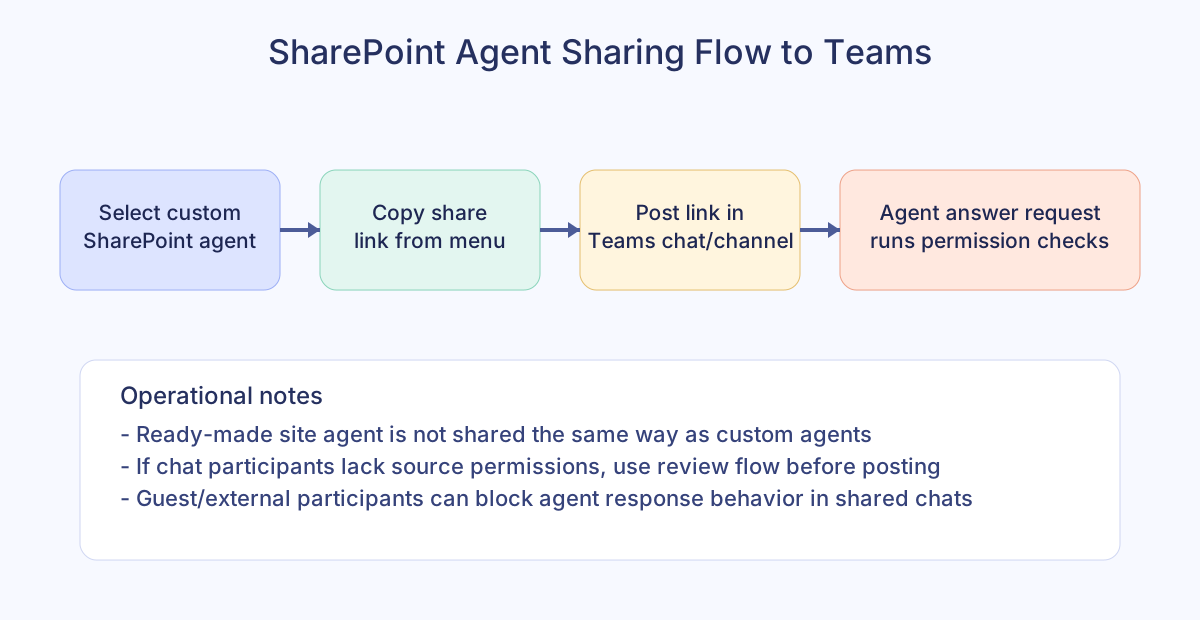
Practical sharing sequence for custom SharePoint agents in Teams, including permission-aware response behavior.
Only custom-built agents can be shared: The ready-made site agent cannot be shared like a custom agent.
Use the Teams sharing link: In SharePoint, open the agent list, choose the custom agent, select the ellipsis, and copy the link for Teams.
Teams discovery is changing: Microsoft 365 Roadmap ID 515465 lists SharePoint agent discovery from Teams chats, channels, and the Teams Store, with rollout currently shown for July 2026. Until your tenant has it, copy-link sharing is still the reliable path.
Add it to a chat or channel: After the link is posted in Teams, users are prompted to add the agent to the conversation. Then they can mention the agent in the same style as mentioning a person.
Permissions are checked per asker: If the asker can see a source but some people in the Teams chat cannot, Microsoft shows a review flow instead of automatically posting the answer to everyone.
Guest and 1:1 scenarios are limited: Microsoft says agents refuse to answer when external or guest users are in the conversation, and users cannot chat 1:1 with SharePoint-created agents yet.
These SharePoint agent limits and behaviors are worth explaining to site owners before they start creating agents.
20 source items and nesting: Microsoft Support currently says a SharePoint agent can include up to 20 source items. Because a source item can be a site, library, folder, or file, one folder with 100 approved files can count as one source item while 100 individually selected files would not fit.
Use higher-level sources carefully: Nesting is useful, but it is not a license to point agents at messy archives. Use folders, libraries, or sites only when the content has clear ownership and similar purpose.
Supported file types matter: Microsoft lists Office files, PDFs, TXT, RTF, HTML/ASPX, Loop/Fluid, and OpenDocument formats. Images, videos, meeting recordings, and OneNote notebooks are listed as coming soon for SharePoint agent chat scenarios.
Lists are improving in 2026: Microsoft Support shows agent creation from a SharePoint List command bar. During rollout, list grounding behavior can differ by tenant, and Message Center guidance has described one Microsoft List per custom SharePoint or OneDrive agent. For list-heavy use cases, test a separate list-based agent before mixing it with document Q&A guidance.
Hub sites can widen the scope: When a SharePoint hub site is included as a source, Microsoft says associated sites are included too. That can be useful, but it also means the agent may cover more content than a site owner expects.
Chat history is personal: Microsoft says only the user can see their chat history with agents. Users can rename or delete chat history from the pane.
Permissions are still the foundation: If your SharePoint permissions are messy, agents will be messy too.
A simple rule helps: keep the first version narrow. It is better to launch one reliable HR benefits agent over five approved pages than one vague "HR assistant" pointed at every HR folder created in the last ten years.
Build an Advanced Agent in Copilot Studio
Use Copilot Studio when your agent needs to do more than answer questions. This is the right path when the agent must collect details, call Power Automate, connect to external systems, use Dataverse, or follow a controlled topic flow.
Use Copilot Studio when you need
Actions: Create a ticket, update a SharePoint list, send an approval, or call an API.
External data: Use Dataverse, ServiceNow, Dynamics 365, Salesforce, SQL, custom connectors, or other non-SharePoint systems.
Topic control: Design guided conversations for HR, IT support, procurement, onboarding, or compliance workflows.
Enterprise deployment: Test, publish, approve, monitor, and retire agents through admin-owned processes and multiple channels.
How Copilot Studio uses SharePoint knowledge
Copilot Studio can add SharePoint as a knowledge source. Adding a SharePoint site URL lets the agent search that URL and its subpaths, and SharePoint credentials still apply.
SharePoint site knowledge: Add the SharePoint option from the knowledge dialog, enter one or more URLs, and give each source a useful name and description.
SharePoint list knowledge: Add lists through the SharePoint list option. Microsoft says makers can select up to 15 lists at a time, with each list added as an individual knowledge source. Current limits also say list queries return data from the first 2,048 rows, list views cannot be selected, and attachments are not indexed for answers.
Authentication: In Teams, Power Apps, and Microsoft 365 Copilot experiences, Microsoft authentication is normally preconfigured. Manual authentication may need Entra ID scopes such as Sites.Read.All and Files.Read.All.
Search restrictions still matter: Restricted SharePoint Search and Restricted Content Discovery can change what SharePoint content is discoverable for grounding, so test with real users.
Grounding discipline: If the agent should answer only from selected SharePoint sources, test what happens when an answer is not found.
How to deploy a Copilot Studio agent to SharePoint
Build and test the agent in Copilot Studio. Keep SharePoint sources narrow during the first version.
Publish the agent so it is available for channel deployment.
Open Channels and select the SharePoint tile.
Select the SharePoint site or enter the site manually.
Deploy and confirm the deployment.
Test in SharePoint before promoting it to users.
Ask the site owner to approve it if you want it to appear clearly in the site agent picker.
Billing note: Microsoft Learn says a Copilot Studio agent deployed to SharePoint follows Copilot Studio billing policies and consumes Copilot Studio capacity, even when users interact with it from SharePoint. Microsoft also says Microsoft 365 Copilot users can build and access internal Copilot Studio agents without a separate maker license just to chat.
Licensing difference in plain English
For SharePoint no-code agents, Microsoft documents two access routes: a Microsoft 365 Copilot license, or pay-as-you-go billing enabled for SharePoint agents. Pay-as-you-go is assigned through billing policies and security groups, so don't treat it as a tenant-wide free-for-all. Admins first set up SharePoint agents as an Azure resource, then connect a billing policy to the SharePoint agents service.
For unlicensed users on SharePoint agents pay-as-you-go, use cost estimates instead of guesses. Microsoft says a SharePoint agent interaction can use 12 Copilot Credits for a complex prompt: 10 for tenant graph grounding and 2 for generative answers. Azure pricing lists Copilot Credits at $0.01, so a complex prompt can be roughly $0.12 before contract pricing, currency, taxes, or pre-purchase discounts. Don't promise "free agents" just because the button appears in SharePoint.
For Copilot Studio, Microsoft says Microsoft 365 Copilot includes Copilot Studio access for licensed users for internal agents, and published agent users don't need a maker license just to chat. The organization still needs the right capacity or credit plan for advanced, autonomous, external, or high-volume use. If usage is predictable, compare pay-as-you-go with Copilot Credit pre-purchase options, because Microsoft advertises savings for up-front commitments.
There is no single PowerShell cmdlet that manages every SharePoint agent end to end. In practice, admins use four patterns:
Inventory agent files because custom SharePoint agents are stored as .agent files.
Generate the official Agent Insights report for tenant-wide visibility into where agents are being created.
Generate Agent Access Insights when the question is which agents are accessing SharePoint and OneDrive content.
Control risky sites with SharePoint admin controls such as Restricted Content Discovery.
1. Inventory .agent files in a SharePoint site
This PnP PowerShell script scans document libraries in one site and exports discovered .agent files. Run it site by site, or wrap it in a tenant-site loop after testing.
Microsoft now documents an Agent Insights report for SharePoint admins. It is available in the SharePoint admin center and SharePoint Online Management Shell, uses Microsoft 365 audit data, and helps admins find sites with recently created agents. Large tenants can take up to 48 hours for data to appear.
Connect-SPOService -Url "https://contoso-admin.sharepoint.com"

# Run these only if your tenant asks you to enable activity data collection first.
Start-SPOAuditDataCollectionForActivityInsights
Get-SPOAuditDataCollectionStatusForActivityInsights

Start-SPOCopilotAgentInsightsReport -ReportPeriodInDays 28
Get-SPOCopilotAgentInsightsReport

$reportId = "00000000-0000-0000-0000-000000000000"
Get-SPOCopilotAgentInsightsReport -ReportId $reportId -Content TopSites
Get-SPOCopilotAgentInsightsReport -ReportId $reportId -Content CopilotAgentsOnSites -Action Download
3. Generate an Agent Access Insights report
Use Agent Insights to find where SharePoint agents are being created. Use Agent Access Insights when the risk question is broader: which Microsoft 365 agents are accessing SharePoint and OneDrive content, and where content governance policies may be needed.
Connect-SPOService -Url "https://contoso-admin.sharepoint.com"

# Run this if your tenant asks you to enable data collection for agent access insights first.
Start-SPOAuditDataCollectionForActivityInsights -ReportEntity M365AgentInsights
Get-SPOAuditDataCollectionStatusForActivityInsights -ReportEntity M365AgentInsights

Start-SPOM365AgentAccessInsightsReport -ReportPeriodInDays 28
Get-SPOM365AgentAccessInsightsReport

$reportId = "00000000-0000-0000-0000-000000000000"
Get-SPOM365AgentAccessInsightsReport -ReportId $reportId
Export-SPOM365AgentAccessInsightsReport -ReportId $reportId -Action Download
4. Restrict agent-related discovery on a sensitive site
Microsoft documents Restricted Content Discovery as a site-level control for high-risk SharePoint sites. It can keep site content out of organization-wide search and Microsoft 365 Copilot discovery, and Microsoft says users won't see the Copilot icon on that site. It is not a permissions cleanup tool, doesn't apply to OneDrive, and requires Copilot and SharePoint Advanced Management eligibility.
SharePoint Online Management Shell - restrict a sensitive site
# Requires the latest Microsoft SharePoint Online Management Shell
$tenant = "contoso"
$siteUrl = "https://contoso.sharepoint.com/sites/executive"

Connect-SPOService -Url "https://$tenant-admin.sharepoint.com"

# Optional: allow delegated management of Restricted Content Discovery.
Set-SPOTenant -DelegateRestrictedContentDiscoverabilityManagement $true
Get-SPOTenant | Select-Object DelegateRestrictedContentDiscoverabilityManagement

# Enable Restricted Content Discovery for a high-risk site
Set-SPOSite -Identity $siteUrl -RestrictContentOrgWideSearch $true

# Confirm status
Get-SPOSite -Identity $siteUrl | Select-Object Url, RestrictContentOrgWideSearch

# Later, after permissions and content are cleaned up, remove the restriction.
# Set-SPOSite -Identity $siteUrl -RestrictContentOrgWideSearch $false
Use this setting selectively. Microsoft's Restricted Content Discovery documentation says it can protect high-risk sites from tenant-wide search and Copilot discovery, but overuse can reduce the quality of search and Copilot answers because there is less content available for grounding.
5. Generate a Restricted Content Discovery report
Use this when you want evidence of which sites have the control enabled.
PowerShell - report on Restricted Content Discovery
Connect-SPOService -Url "https://contoso-admin.sharepoint.com"

# Start the report
Start-SPORestrictedContentDiscoverabilityReport

# View report jobs
Get-SPORestrictedContentDiscoverabilityReport

# Download a completed report by ReportId
Get-SPORestrictedContentDiscoverabilityReport -Action Download -ReportId "00000000-0000-0000-0000-000000000000"
Governance Checklist Before Rollout
Do this before you encourage everyone to create agents. It is much easier to set rules early than to clean up hundreds of unmanaged agents later.
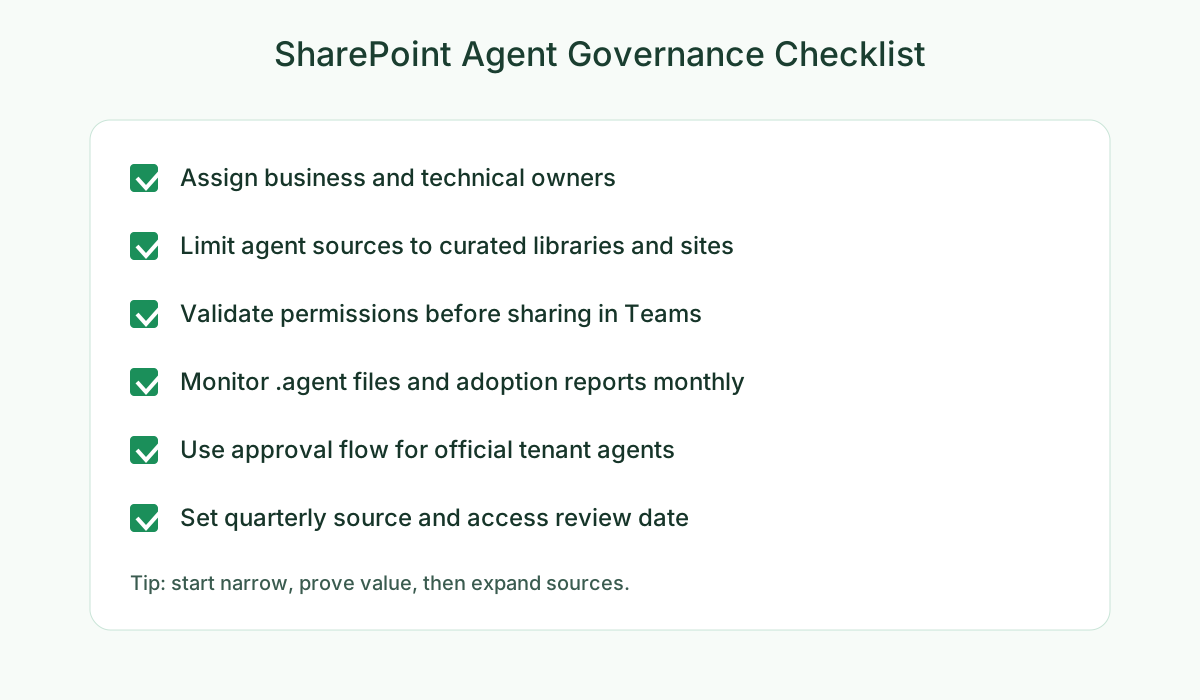
Governance checklist you can align with your rollout plan before broad agent adoption.
Name ownership clearly: Every approved agent should have a named business owner and technical owner.
Define source rules: Decide which sites are allowed as knowledge sources and which are blocked or restricted.
Review permissions first: Fix broad access, stale guests, and anonymous sharing links before adding sources.
Use approval for important agents: Site owners can approve agents so they appear in the dedicated Approved section of the agent picker and visitors can distinguish official agents from ad hoc ones.
Watch the .agent files: Custom agents are files. Include them in content lifecycle, retention, ownership, and permission reviews.
Use Agent Insights: Review the SharePoint admin center Agent Insights report or the PowerShell report regularly so unmanaged agent growth does not surprise you.
Monitor billing: For pay-as-you-go, create Azure budgets and cost alerts before broad rollout, especially if unlicensed users will use SharePoint agents.
Set a review date: Recheck agent sources and permissions every quarter, or whenever a project closes.
Teach users to verify: Users should open citations for decisions that matter.
SharePoint Agent Troubleshooting: Basic Errors and Fixes
When an agent rollout gets stuck, start with these simple checks before rebuilding the agent.
Problem
Likely cause
Fix
User cannot chat with an agent
No Microsoft 365 Copilot license, or the user is not in the pay-as-you-go billing policy security group.
Assign Microsoft 365 Copilot, or add the user to the correct pay-as-you-go security group and confirm the billing policy is connected to SharePoint agents.
Create or edit option is missing
The user has no site edit permission, no valid license path, or is trying to edit the ready-made site agent.
Give site edit permission where appropriate, check the license/pay-as-you-go path, and edit only custom-built agents.
Agent opens but misses a document
The document is not included as a source, the file was uploaded recently and is not indexed yet, the user only has limited access, or a filter/search restriction is hiding it.
Add the source, wait for indexing, confirm the user's direct file access, and test with the same account that reported the issue.
Agent says preparing or misses a new file
The file may not be indexed yet, the source sync is still in progress, the user only has Limited Access, or the agent source list was not saved after a change.
Wait for indexing, confirm direct source permissions, edit the agent, reselect the source, and save. If it remains stale after a reasonable sync window, create a fresh custom agent or raise a Microsoft support case.
Agent is not visible in the site picker
The custom agent exists as a file but has not been approved or shared with the right people.
Check the .agent file permissions, then approve it or set it as the site default if it is the official agent.
Teams answer cannot be posted
Some chat members cannot access the sources, or the chat/channel includes guest or external users.
Use the review flow, fix source permissions if appropriate, or move the discussion to a chat where every member has the right access.
Copilot Studio agent won't deploy to SharePoint
The agent is not published, the maker lacks WRITE access to the SharePoint site, or Copilot Studio capacity is not in place.
Publish the agent, confirm site WRITE access, then check Copilot Studio licensing and capacity before redeploying.
Agent Insights report is empty or unavailable
Required licensing is missing, audit data collection has not started, or the report is still processing.
Confirm SharePoint Advanced Management or Microsoft 365 Copilot eligibility, enable data collection if prompted, then allow 24 to 48 hours for data.
Sensitive site still appears in search or Copilot
Restricted Content Discovery has not propagated yet, especially on large sites.
Confirm RestrictContentOrgWideSearch is enabled, wait for indexing to catch up, and use the control selectively.
OceanCloud can help you design the agent strategy, clean the SharePoint sources, configure governance, build Copilot Studio actions, and launch the first production agents safely.
A SharePoint agent is an AI assistant scoped to content in a specific SharePoint site or set of files.
It uses Microsoft 365 Copilot to answer questions, summarise documents, and help users find information — all grounded in your tenant's SharePoint content and governed by your existing Microsoft 365 permissions.
In everyday admin conversations, yes: a Copilot agent for SharePoint usually means a SharePoint agent grounded in SharePoint content.
The important distinction is build path. A no-code SharePoint agent is created directly from SharePoint content, while a Copilot Studio agent can add custom topics, actions, connectors, and publishing options.
Yes.
SharePoint agents require a Microsoft 365 Copilot licence (currently $30/user/month as an add-on to eligible M365 plans). Without a Copilot licence, the agent creation interface is visible but the agents cannot run for unlicensed users.
A SharePoint agent is a no-code declarative agent you create directly in SharePoint — it is scoped to specific sites, files, or lists and uses natural language to query that content.
A Copilot Studio agent is a fully built chatbot with custom conversation flows, connectors, and multi-channel publishing. Start with a SharePoint agent for content Q&A; use Copilot Studio when you need business logic or external integrations.
Yes. When creating a SharePoint agent, you can add multiple SharePoint sites as knowledge sources.
The agent queries across all configured sites when answering questions. Access is always governed by the signed-in user's permissions — the agent cannot surface content a user does not already have access to.
From the SharePoint site where the agent was created, open the agent and use the Share option to share it to a Teams channel or copy a direct link.
Team members with a Copilot licence can interact with the agent in Teams, in SharePoint, or in Microsoft 365 Copilot Chat. The agent inherits SharePoint site permissions for data access.
Implementation path: Validate permissions, knowledge scope, answer quality, lifecycle, and monitoring before publishing an agent broadly. Microsoft 365 Copilot readiness →