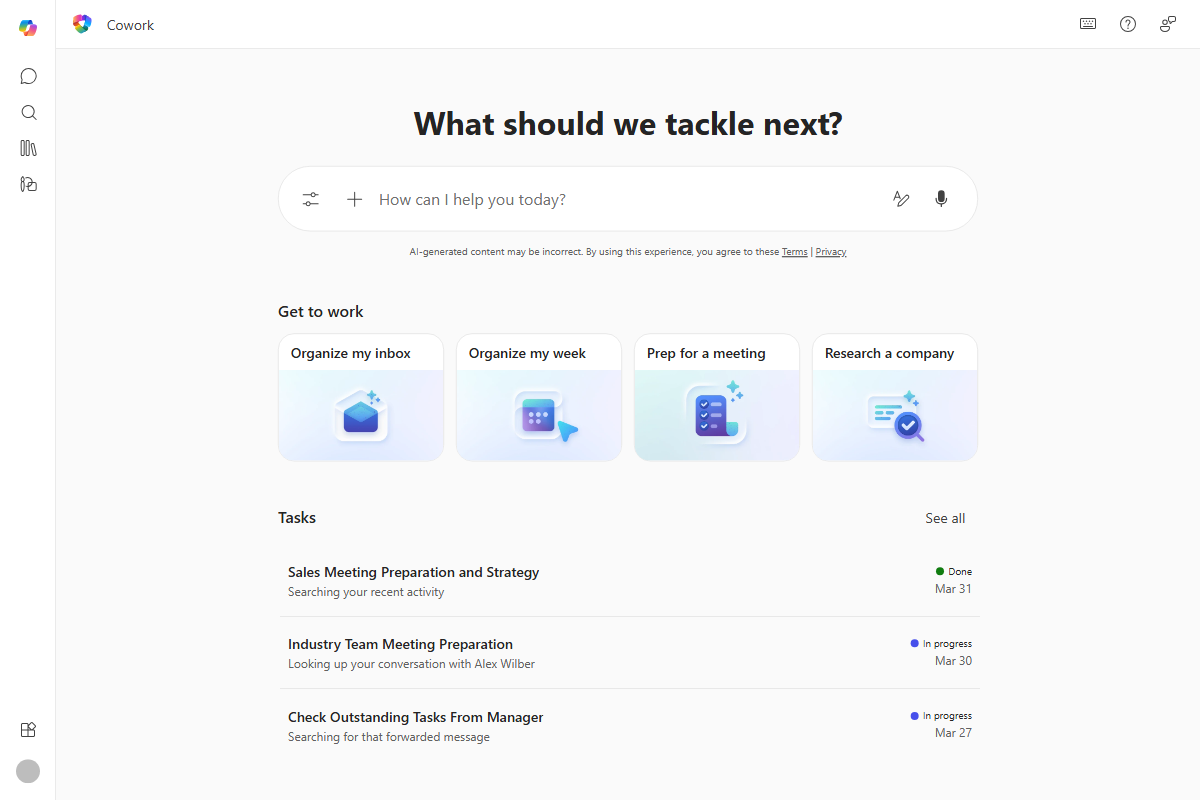
Copilot Cowork is part of Microsoft 365 Copilot and can carry out work across Microsoft 365 for the signed-in user. Microsoft lists examples such as sending emails, scheduling meetings, creating documents, posting in Teams, searching company information, and running scheduled prompts.
In a real rollout, the important point is simple: Cowork can help move work along, but people still own the decisions. Use it alongside Teams, SharePoint, Outlook, and Power Automate controls, not as a shortcut around approvals.
Microsoft Learn shows Cowork as a task-execution experience where users describe work in natural language and Cowork carries out actions across Microsoft 365.
Benefits for Multi-Team Environments
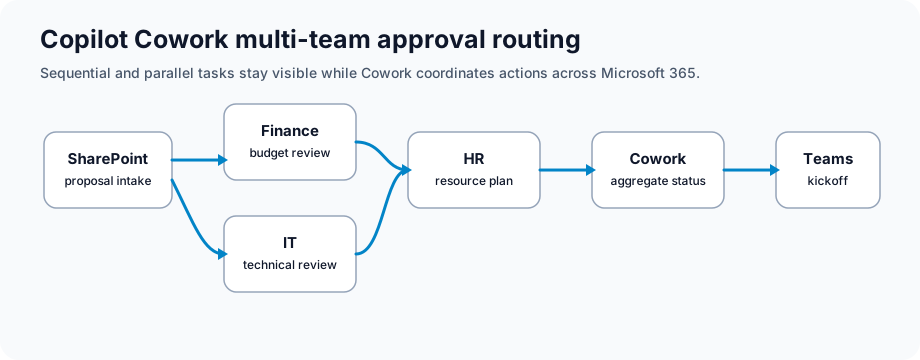
Clearer handoffs: Break complex tasks into steps that teams can actually track
Less chasing: Reduce the endless "who has this now?" emails around reviews and approvals
Better visibility: Use Cowork task views, Teams channels, and workflow reporting to see what is moving and what is stuck
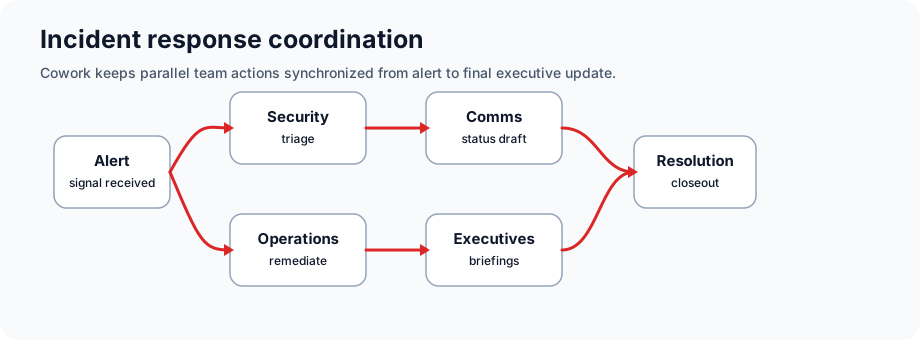
Fewer bottlenecks: Run independent steps in parallel when the business process allows it
Reviewable history: Keep the Cowork conversation, Microsoft 365 audit logs, and connected workflow records together
Prerequisites and Setup
Licensing Requirements
Microsoft 365 Copilot access for users who will run Cowork
Tenant and region availability confirmed by your Microsoft 365 administrator
Usage-based billing and Copilot Credits reviewed where Cowork consumption applies
Teams, Outlook, OneDrive, and SharePoint enabled for the target users
Approved Microsoft 365 plugins or connectors for any external systems
Access Requirements
Tenant admin privileges for initial setup
Teams or SharePoint site owner status for workflow configuration
Power Automate permissions to create cloud flows
Infrastructure Checklist
Azure AD tenant configured with proper group policies
SharePoint Modern Sites set up for team repositories
Teams channels organized by workflow stage or department
Dynamics 365 or third-party app connectors registered
Implementation Steps
Step 1: Enable Copilot Cowork
Confirm Cowork availability in your Microsoft 365 Copilot environment
Use Copilot admin settings to scope access to the right users or security groups
Review usage-based billing, credit limits, and reporting in the Microsoft 365 admin center
Validate regional availability, data protection commitments, and model/subprocessor settings
Document which actions require human approval before rollout
Scenario: Blog content requires writing, review, design, and publication.
Writer completes draft in Teams
Cowork routes to editorial review
Design team gets notification upon approval
Assets prepared in parallel with copyediting
Final publication scheduled and distributed
Practical Tips for Multi-Team Work
Workflow Design
Keep workflows simple initially: Start with 3-4 stage workflows before advancing to complex pipelines
Identify dependencies: Map which tasks must complete before others can start
Set clear deadlines: Define SLAs for each workflow stage
Use conditional logic: Branch workflows based on outcomes or escalation triggers
Team Coordination
Assign owners: Each workflow stage should have a clear team owner
Regular sync meetings: Weekly reviews of workflow metrics and bottlenecks
Escalation protocols: Define who to contact if a task stalls
Cross-team documentation: Maintain shared knowledge base of workflow processes
Governance and Compliance
Audit trail review: Monthly review of who modified which tasks
Data retention policies: Archive completed workflows per retention schedule
Access control: Use Teams members list to manage who sees workflow data
Compliance monitoring: Track SLA adherence and escalations
Keep It Running Well
Monitor completion times: Identify consistently slow stages and investigate
Parallel processing: Run independent tasks simultaneously when possible
Low-risk automation: Automate routine approvals, such as small expenses, only after policy review
Feedback: Ask the teams using the workflow what is confusing, slow, or unnecessary
Troubleshooting Common Issues
Task Assignments Not Triggering
Cause: Power Automate flow error or Teams connector misconfigured
Solution: Check flow run history in Power Automate; verify Teams channel connections are active
Delegated Tasks Stuck in Status
Cause: Recipient unavailable or permission issues
Solution: Check user status in Teams; verify task assignee has permission to SharePoint documents
Missing Workflow History
Cause: Audit log retention settings or deleted Teams channel
Solution: Check Microsoft 365 audit logs; restore from Teams backup if needed
Slow Workflow Progression
Cause: Too many sequential approvals or external API delays
Solution: Restructure workflow to parallel approvals; optimize Power Automate flow logic
Frequently Asked Questions
Can Cowork handle workflows with external stakeholders?
Yes, but only within the collaboration and permission boundaries you already configure in Microsoft 365. External participants need the right Teams, SharePoint, email, and licensing access for their role.
What's the maximum workflow complexity Cowork supports?
Microsoft does not publish a universal stage limit for business workflows. Keep early workflows small, test each action and approval point, and split long processes into separate Cowork tasks when ownership changes.
Does Cowork work with on-premises systems?
Yes, when the system is reachable through an approved connector, plugin, browser flow, or Power Automate pattern. Cowork itself works within Microsoft 365 permissions and cannot bypass network, identity, or application controls.
Can I schedule Cowork to start workflows at specific times?
Yes. Microsoft documents scheduled prompts in Cowork, and Power Automate scheduled cloud flows can also be used for connected automation scenarios.
How much does Copilot Cowork cost?
Microsoft documents Cowork under usage-based billing with Copilot Credits. Confirm eligibility, credit allocation, limits, and pay-as-you-go configuration in the Microsoft 365 admin center before rollout.
Official Microsoft references
Use these Microsoft pages to check the current Cowork behavior, approval model, and billing details before rollout.
Copilot Cowork overview — Microsoft states that Cowork can send emails, schedule meetings, create documents, post in Teams, and manage calendar tasks across Microsoft 365.