EnableAzureB2BIntegration: SharePoint External Sharing
What the setting controls now, how Entra B2B changes guest access, and how to verify secure sharing.
What the setting controls now, how Entra B2B changes guest access, and how to verify secure sharing.
EnableAzureB2BIntegration connects SharePoint and OneDrive external sharing to Microsoft Entra B2B invitation management. Starting with Microsoft’s 2026 rollout, the integration is enabled across tenants and the legacy setting no longer controls behavior after migration. Secure external sharing still depends on aligning tenant limits, site limits, default link types, guest policies, and existing permissions.
Source and review note: This guide was rechecked on July 13, 2026 against Microsoft Learn guidance for SharePoint external sharing and Entra B2B integration. Confirm the current rollout state in your tenant before relying on legacy EnableAzureB2BIntegration behavior.
When those layers are planned together, SharePoint becomes a secure collaboration workspace. When they are not, a tenant can quietly accumulate anonymous links, orphaned guest accounts, over-permissioned project sites, and content that Microsoft 365 Copilot can surface to users who technically have access but should not. This guide explains how SharePoint external sharing works, how to choose the right settings, and how to validate the configuration with PowerShell.
Go to SharePoint admin center > Sharing settings. Review current policy: unrestricted, specific domains only, or existing external users. Document baseline for compliance/audit.
If business need exists, enable 'Anyone' links for low-risk content only. Set expiry (7-30 days typical). Always require password if business data is involved. Monitor usage via audit logs.
If restricting to specific partners, go to Sharing > Limit external sharing by domain > add trusted partner domains to allowlist. External users outside allowlist cannot access.
For highly regulated content: use Power Automate to notify admins when guests are added. Create a checklist for security review: confirm identity, verify business need, set access expiry dates.
Go to Sensitivity labels in SharePoint > assign 'Confidential' label to content shared externally. Labels restrict downstream sharing, enforce watermarks, and trigger notifications.
Set up audit logging for external user access. Review monthly: which guests accessed what content, duration, and whether access should be revoked. Remove guests who no longer need access.
External sharing controls whether people outside your organization can access SharePoint sites, files, folders, lists, and list items. It is not a single switch; it is a stack of controls that must agree with each other.
The most restrictive setting wins. If the tenant allows guest sharing but a site is internal-only, users cannot invite guests to that site. If the tenant blocks Anyone links, a site owner cannot make an anonymous link work from that site. OneDrive follows the same concepts, but it can only be as permissive as SharePoint or more restrictive.
Key principle: Allow external collaboration where the business needs it, but make it deliberate. Sensitive internal sites should be internal-only, while client and partner sites should be designed for external access from the start.
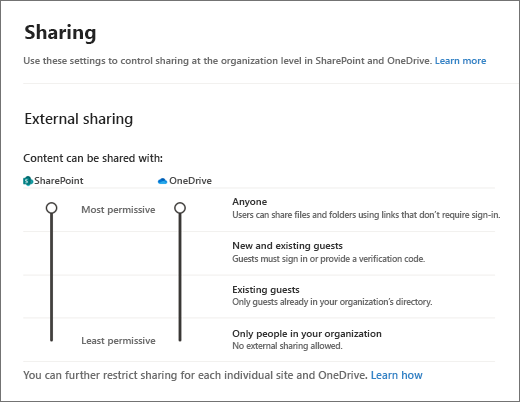
Microsoft gives administrators four main sharing levels. The correct setting depends on the sensitivity of the content and the maturity of your guest management process. Avoid choosing the most permissive setting just because it reduces support tickets. The better pattern is to enable business collaboration while making the secure option the easiest option for users.
| Sharing level | What it allows | Recommended use |
|---|---|---|
| Anyone | Links can work for anyone who has the link, without sign-in. | Use rarely. If allowed, require expiration and view-only permissions. |
| New and existing guests | Users can invite new guests, who must authenticate or verify identity. | Best baseline for controlled client and partner collaboration. |
| Existing guests only | Users can share only with guests already present in the directory. | Use when IT or a business owner must pre-approve every external user. |
| Only people in your organization | No external sharing is allowed. | Use for HR, finance, legal, executive, regulated, or internal-only sites. |
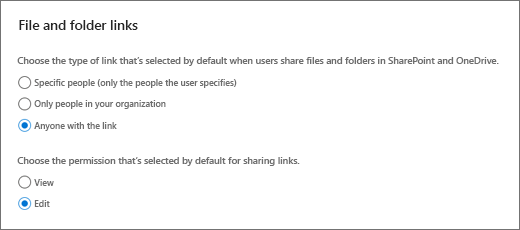
For most organizations, a practical tenant baseline is New and existing guests, combined with a default link type of Specific people. This allows external collaboration but encourages named invitations instead of broad links. Anonymous Anyone links should be treated as an exception, not a normal way of working. If the business requires them for public documents, configure expiration and limit them to view-only access wherever possible.
The tenant setting defines the maximum level of sharing available anywhere in SharePoint. Site settings then decide how much of that capability each site can use. Use this layered model intentionally:
Site owners should not be left to guess. Document what each site type is allowed to do, who approves guest access, how long access lasts, and who reviews membership. When users understand that a client site is the right place to share with clients, they are less likely to create ad hoc sharing links from sensitive internal libraries.
The default sharing link is the option users see first when they click Share. This one setting has a large effect on behavior. If the default is Anyone with the link, many users will accept it without thinking through the risk. If the default is Specific people, users are nudged toward named recipients, which improves auditability and reduces accidental forwarding.
In tenants preparing for Microsoft 365 Copilot, broad links deserve extra attention because Copilot respects existing permissions. If a user can access a document through permissions or links, Copilot can potentially reason over that content for that user.
Modern SharePoint external sharing integrates with Microsoft Entra B2B. The benefit is that external users can be represented as guests in your directory and governed by Entra external collaboration settings. This brings SharePoint sharing closer to the identity model used by Teams, Microsoft 365 Groups, and other Microsoft 365 services.
With Entra B2B, guests can be subject to policies such as multifactor authentication, conditional access, domain restrictions, and guest lifecycle processes. Users without a work, school, or Microsoft account can still verify with a one-time passcode depending on your configuration. The important administrative point is that SharePoint settings and Entra settings interact. If Entra external collaboration restrictions are more restrictive than SharePoint, the Entra rule prevails.
Administrators should review domain allow and deny lists in both places. If your organization collaborates only with named partners, consider allowing only approved partner domains. If you need broader collaboration, document who is allowed to invite guests and how those guests are reviewed. External sharing is not complete until guest identity governance is part of the process.
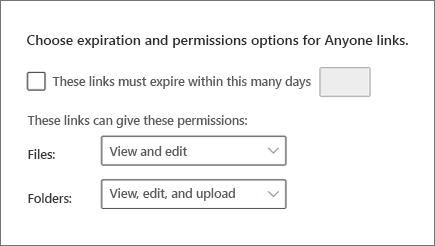
A good baseline balances security, usability, and support workload. Start by setting SharePoint tenant sharing to New and existing guests, unless your organization has a stricter compliance requirement. Set the default sharing link to Specific people. Require Anyone links to expire quickly, and do not allow edit permissions on anonymous links unless a business owner has approved that risk.
Next, disable external sharing on sensitive sites. HR, finance, legal, executive, security, and acquisition-related sites should generally be internal-only. Create separate external collaboration sites for client or partner work instead of mixing external users into internal departmental sites. This keeps access reviews understandable and makes it easier to archive or close collaboration when the project ends.
Every externally shared site should have at least two accountable owners. Owners should understand who the guests are, why they need access, when the access expires, and which libraries contain sensitive information. Add a quarterly review rhythm for active guest sites and an offboarding step for completed engagements. If a vendor relationship ends, removing the guest from one document link is not enough; review all sites, groups, and guest accounts associated with that relationship.
The SharePoint admin center is the best place to understand the settings visually, but PowerShell is better for repeatable checks, documentation, and tenant-wide validation. Use the SharePoint Online Management Shell for tenant and site-level configuration. Always test changes in a non-production site before applying them broadly.
Install-Module Microsoft.Online.SharePoint.PowerShell -Scope CurrentUser

Connect-SPOService -Url "https://contoso-admin.sharepoint.com"

# Review tenant-level sharing posture
Get-SPOTenant | Select-Object `
  SharingCapability, `
  DefaultSharingLinkType, `
  RequireAnonymousLinksExpireInDays, `
  EnableAzureADB2BIntegration

# Set a controlled tenant baseline
Set-SPOTenant -SharingCapability ExternalUserSharingOnly
Set-SPOTenant -DefaultSharingLinkType Direct
Set-SPOTenant -RequireAnonymousLinksExpireInDays 30

# Disable external sharing for a sensitive site
Set-SPOSite -Identity "https://contoso.sharepoint.com/sites/finance" `
  -SharingCapability Disabled

# Enable guest sharing for a client collaboration site
Set-SPOSite -Identity "https://contoso.sharepoint.com/sites/client-project" `
  -SharingCapability ExternalUserSharingOnly
The `SharingCapability` values are the practical controls most administrators use: `Disabled` for internal-only sites, `ExternalUserSharingOnly` for authenticated guest sharing, `ExistingExternalUserSharingOnly` when guests must already exist, and `ExternalUserAndGuestSharing` when anonymous links are permitted. Use the least permissive value that still supports the business process.
Configuration is only half the job. The other half is detecting drift. Site owners may request temporary exceptions, new sites may be created with different defaults, and old collaboration spaces may remain open long after the project ends. A simple report helps administrators identify sites where sharing is enabled and compare them with the approved site register.
Connect-SPOService -Url "https://contoso-admin.sharepoint.com"

Get-SPOSite -Limit All | Select-Object `
  Url, `
  Title, `
  Template, `
  SharingCapability, `
  Owner, `
  StorageUsageCurrent | Export-Csv ".\sharepoint-sharing-settings.csv" -NoTypeInformation
Review the export for sensitive templates or business units where sharing is not expected. A finance or HR site with external sharing enabled should trigger a review. A client project site with no named owner should also trigger a review. The goal is not to eliminate external sharing, but to ensure every externally shared site has a business reason, an owner, and an end date.
External sharing should be supported by additional controls. Use sensitivity labels to classify sites and files, and use data loss prevention policies where regulated information is involved. If users need to share view-only files, consider blocking download so recipients can read content without taking a local copy. Use guest expiration for project-based collaboration, and require owners to confirm whether guest access is still needed.
Domain restrictions are useful when collaboration is limited to known partners. For example, a legal matter site may allow guests only from a specific law firm domain. A construction project site may allow several approved vendor domains. Domain restrictions should be documented carefully, because they affect support requests and may interact with Microsoft Entra external collaboration settings.
Audit logs are essential when investigating sharing events. Review who created a sharing link, what was shared, whether a guest accepted an invitation, and whether access was later removed. For larger tenants, combine audit review with scheduled exports of site sharing capability, guest users, and sensitivity label coverage. This gives security and compliance teams a defensible view of external collaboration risk.
Begin with discovery. Export current site sharing settings, identify externally shared sites, and compare them with known business processes. Next, define the target policy: tenant sharing level, default link type, Anyone link rules, guest expiration, approved domains, and site classification rules. Then remediate high-risk sites first, especially sites that contain regulated or executive content.
After remediation, communicate the new model to site owners. Explain when to use a client collaboration site, when to request a new external site, and how to stop sharing when work ends. Finally, automate review. A monthly report of externally shared sites and a quarterly guest access review will prevent drift from returning.
A policy only works if site owners can understand it. Avoid a twenty-page external sharing policy that no one reads. Instead, create a small number of site classifications and connect each one to a clear sharing rule. An Internal site allows employees only. A Controlled External site allows authenticated guests, but only with named owners and quarterly review. A Partner Workspace allows approved partner domains and has a project end date. A Public Asset site contains content approved for public distribution and may allow broader links under strict expiry rules.
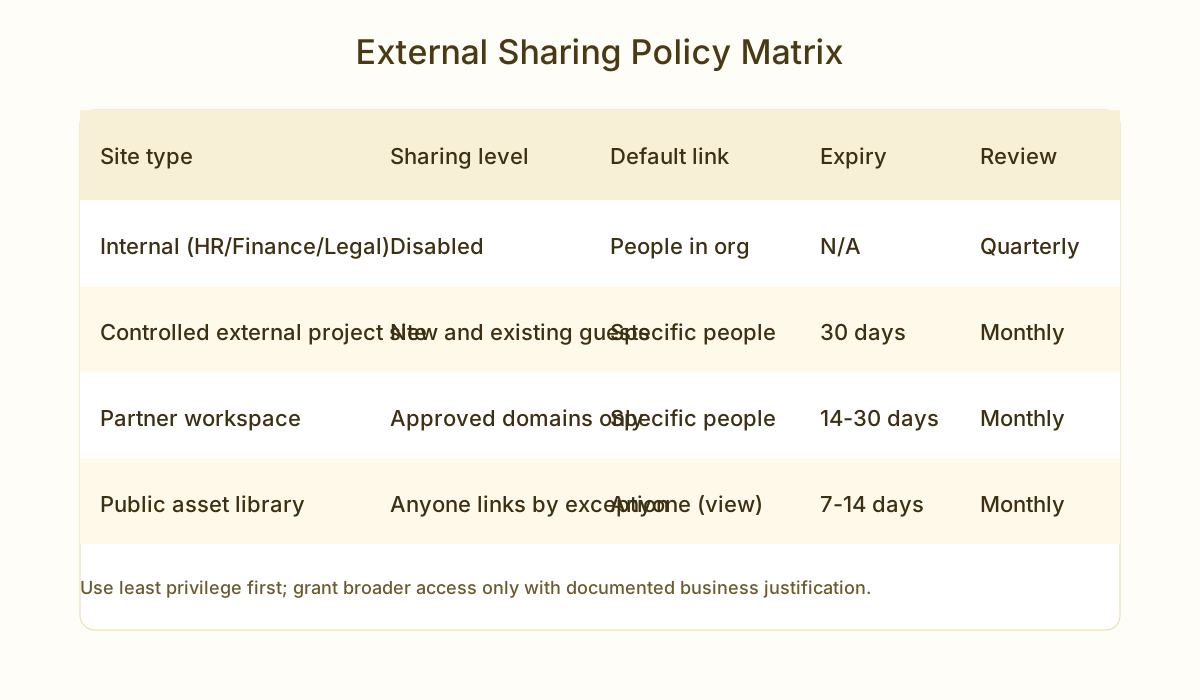
This model should be part of site provisioning. When a new SharePoint site is requested, the requester should identify the data sensitivity, external audience, business owner, expected end date, and whether Teams membership is required. If the site is connected to Teams, remember that adding a guest to the team normally gives that guest access to the connected SharePoint files as well. Sometimes that is correct; sometimes the guest should receive access only to a specific document library or file set.
For departments such as finance, HR, legal, and executive leadership, the default answer should be internal-only. If those teams need to collaborate externally, create a dedicated external workspace with limited content rather than opening the core department site. This keeps accidental oversharing away from payroll files, legal matter records, board materials, contracts, and commercially sensitive planning documents.
Before changing sharing settings, report who already has access. The script below lists external-looking users from a SharePoint site. It is not a complete identity governance report, but it is a useful starting point for site owners because it exposes guests and external claims that may not be visible in day-to-day use.
Install-Module PnP.PowerShell -Scope CurrentUser

# Target SharePoint site to audit.
$siteUrl = "https://contoso.sharepoint.com/sites/client-project"

# Entra app Client ID used by PnP.PowerShell interactive authentication.
$clientId = "00000000-0000-0000-0000-000000000000"

Connect-PnPOnline -Url $siteUrl -Interactive -ClientId $clientId

Get-PnPUser | Where-Object {
    $_.LoginName -match "#ext#" -or
    $_.Email -notmatch "@contoso\.com$"
} | Select-Object Title, Email, LoginName, IsSiteAdmin |
    Export-Csv ".\external-users-client-project.csv" -NoTypeInformation
Review the CSV with the site owner. Remove users who no longer have a business reason to access the site, and document any guests that must remain. Do not rely only on the display name; verify the email address, domain, and the project or contract that justifies access.
External sharing risk is not limited to tenant settings. Unique permissions inside a site can make access difficult to understand. A document library may inherit permissions from the site, but a folder or item inside that library may have broken inheritance. Those exceptions are where accidental exposure often hides. Before resetting anything, export a report.
# Target SharePoint site to report on.
$siteUrl = "https://contoso.sharepoint.com/sites/client-project"

# Entra app Client ID used by PnP.PowerShell interactive authentication.
$clientId = "00000000-0000-0000-0000-000000000000"

Connect-PnPOnline -Url $siteUrl -Interactive -ClientId $clientId

$results = @()
$lists = Get-PnPList -Includes Hidden, HasUniqueRoleAssignments, Title, RootFolder

foreach ($list in $lists | Where-Object { -not $_.Hidden }) {
    if ($list.HasUniqueRoleAssignments) {
        $results += [pscustomobject]@{
            Scope = "List"
            List  = $list.Title
            Url   = $list.RootFolder.ServerRelativeUrl
        }
    }
    $items = Get-PnPListItem -List $list -PageSize 1000 `
        -Includes HasUniqueRoleAssignments, FieldValuesAsText

    foreach ($item in $items | Where-Object { $_.HasUniqueRoleAssignments }) {
        $results += [pscustomobject]@{
            Scope = "Item"
            List  = $list.Title
            Url   = $item.FieldValuesAsText.FileRef
        }
    }
}

$results | Export-Csv ".\unique-permissions-report.csv" -NoTypeInformation
This report should be reviewed before cleanup. Some unique permissions are intentional: a legal folder restricted to counsel, a vendor folder limited to one partner, or an executive document set. Others are leftovers from one-off sharing. The report gives you the evidence needed to separate valid exceptions from historical clutter.
Resetting unique permissions across an entire site is powerful and risky. It forces lists, libraries, folders, and items back to inherited permissions. Use it only after exporting a report, confirming the desired site-level permissions, and getting approval from the business owner. Run it first in report-only mode or on a copy of the site if the content is sensitive.
Warning: This script removes custom permissions. If a folder was intentionally restricted, resetting inheritance will broaden or change access based on the parent. Review the CSV report and take a backup of critical permission assignments before running it.
# Target SharePoint site to clean up.
$siteUrl = "https://contoso.sharepoint.com/sites/client-project"

# Entra app Client ID used by PnP.PowerShell interactive authentication.
$clientId = "00000000-0000-0000-0000-000000000000"

# Keep false for report-only mode; set true only after review and approval.
$applyChanges = $false

Connect-PnPOnline -Url $siteUrl -Interactive -ClientId $clientId

$ctx = Get-PnPContext
$lists = Get-PnPList -Includes Hidden, HasUniqueRoleAssignments, Title, RootFolder

foreach ($list in $lists | Where-Object { -not $_.Hidden }) {
    Write-Host "Checking list:" $list.Title

    if ($list.HasUniqueRoleAssignments) {
        Write-Host "  Reset list inheritance:" $list.Title -ForegroundColor Yellow
        if ($applyChanges) {
            $list.ResetRoleInheritance()
            $list.Update()
            $ctx.ExecuteQuery()
        }
    }
    $items = Get-PnPListItem -List $list -PageSize 1000 `
        -Includes HasUniqueRoleAssignments, FieldValuesAsText

    foreach ($item in $items | Where-Object { $_.HasUniqueRoleAssignments }) {
        $path = $item.FieldValuesAsText.FileRef
        Write-Host "  Reset item inheritance:" $path -ForegroundColor Yellow
        if ($applyChanges) {
            $item.ResetRoleInheritance()
            $item.Update()
            $ctx.ExecuteQuery()
        }
    }
}

if (-not $applyChanges) {
  Write-Host "Report-only mode. Set the applyChanges variable to true to reset inheritance." -ForegroundColor Cyan
}

Write-Host "Unique permission review complete for $siteUrl" -ForegroundColor Green
The reset script starts in report-only mode. Change $applyChanges to $true only after reviewing the report and getting approval. After running the reset, validate access with a site owner, member, visitor, and guest if the site is externally shared. Confirm that libraries inherit correctly and recreate any required exceptions deliberately.
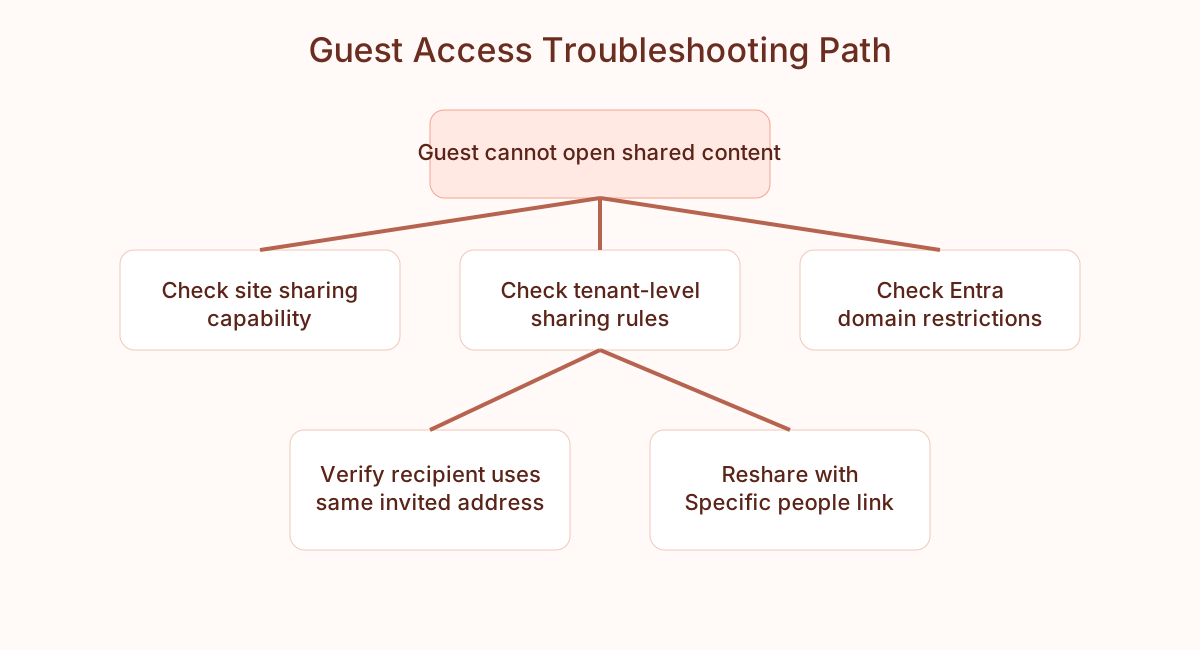
Guest access problems usually come from mismatched settings. If a user cannot invite an external person, check the site sharing setting first, then the tenant setting, then Microsoft Entra external collaboration restrictions. If the site is internal-only, changing the link type will not help. If Entra blocks the recipient domain, SharePoint cannot override that rule. If only existing guests are allowed, the recipient must already exist as a guest before the SharePoint invitation works.
If a guest receives a verification code but still cannot open the content, confirm that the link was sent to the same email address the guest is using. Specific people links are identity-bound. Forwarding the email to another mailbox, signing in with a different account, or using a shared mailbox can fail by design. Reshare with the correct address rather than weakening the link type.
External sharing needs a regular operating rhythm. A monthly report should show all sites where external sharing is enabled, the site owner, the sharing capability, and whether the site has a valid business purpose. A second report should list guests, their domains, and the sites or groups where they have access. Even a simple CSV reviewed consistently is better than waiting for a security incident.
For each externally shared site, ask three questions: does the business still need external collaboration, are the current guests still correct, and is the content still appropriate for external access? If the answer to any question is no, remove access or move the content. Align this review with audits, vendor offboarding, major migrations, and Copilot readiness work.
📄 Microsoft: External sharing overviewOceanCloud can review your SharePoint sharing settings, guest access model, and site-level controls before sensitive content is exposed.
Book a Free CallSharePoint Online offers four tenant-wide external sharing levels: Anyone (anonymous links), New and existing guests (authenticated guests), Existing guests only, and Only people in your organization.
The tenant setting is the maximum allowed; each site can be configured to be equal to or more restrictive than the tenant.
The tenant-level setting in the SharePoint admin center sets the upper limit for the whole organisation. The site-level setting applies to an individual site and can only be the same or more restrictive than the tenant.
This lets you keep most of the tenant locked down while allowing broader sharing on specific collaboration sites.
Entra B2B integration routes SharePoint and OneDrive guest sharing through Microsoft Entra External ID instead of the legacy one-time passcode flow.
Guests sign in with their own organisational or Microsoft account, so you get consistent identity, Conditional Access, and lifecycle management for external users across Microsoft 365.
Set the tenant or site external sharing level to "New and existing guests" or lower so Anyone links can no longer be created, and change the default sharing link type to "Specific people".
For existing exposure, audit and remove current anonymous links — this can be automated with PnP PowerShell across all sites and OneDrive accounts.
Yes. You can require that Anyone links expire after a set number of days and restrict their permissions to view-only. You can also set guest access to expire automatically after a period of inactivity, prompting a re-review.
These controls limit how long external access stays open without ongoing oversight.
Implementation path: Connect the tenant settings in this guide to named owners, exception handling, and a recurring access-review process. SharePoint governance support →